Page History
...
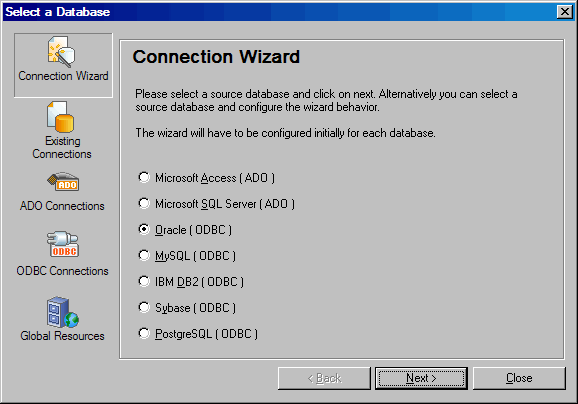
1. On the first panel of the Connection Wizard , choose Oracle as the database type and click Next .
(If the Connection Wizard is not shown, click the Connection Wizard button to display it)
| Note |
|---|
Note: These examples will use the ORACLE ODBC driver installed with the Oracle Instant Client as described in in Installing and Configuring Oracle Client Software. |
2. When prompted to Configure: Oracle, you can do either of the following:
- If you have already created a Data Source Name (DSN) for your Oracle database, then you can click Use an existing Data Source Name and and select the DSN from those shown.
- If you have not yet created a Data Source Name (DSN) for your Oracle database, then you should click Create a new Data Source Name… and then select the Oracle ODBC driver from the drop-down list.
The drop-down list may show the Microsoft ODBC for Oracle driverdriver, but we recommend using the driver installed with the Oracle client software - its name will vary according to the installation path. (The Microsoft ODBC for Oracle driver still requires part or all of the Oracle client software to be present on the client computer, so there seems little to be gained by using this driver.)
If the Oracle ODBC driver is not shown in the drop-down list, then click the Edit Drivers button button to add it to the list of drivers that the mapping tool will associate with the Oracle database choice. (When you have done this, you must click the Back To Configuration Page button to return to the Configure: Oracle window.)
(If the Oracle ODBC driver does not appear in the list of all available drivers, then you may not have run the ODBC install script (odbc_install.exe) as part of the installation of the "ODBC" package of the Oracle Instant Client)
This example assumes that you are creating a new Data Source Name (DSN).
...
- The first two entry fields ( Data Source Name and and Description ) provide a name and description for the Data Source Name (DSN). Type a name and description that are appropriate to identify the DSN.
- In the TNS Service Name entry field, you can enter either a TNS Service Name (defined in the TNSNAMES.ORA file) or the SQL Connect URL required to identify the server and database to which you wish to connect. The example shows the SQL Connect URL form where TEST0101 is the name of the server hosting the database, and ORA0101 is the database/service name. For more information and references, refer to TNS Service Names.
- Type the User ID that you will use to connect to your server and database.
- Review and change (if necessary) the options in the tabs at the bottom according to your environment, your database, and the requirements of the application.
...