Page History
...
For example, here is a Framework application displaying the shrink/expand option in the navigation pane, the filter pane and the instance list pane:

The user may click the button to shrink the pane when they do not need to use it.
For example, here the user has shrunk the filter pane by clicking the button so that the instance list is easier to work with. The filter pane is reduced to a slim vertical bar displaying >>. To expand the pane again the user clicks the >> button:

If the filter pane was positioned above the instance list pane like this:
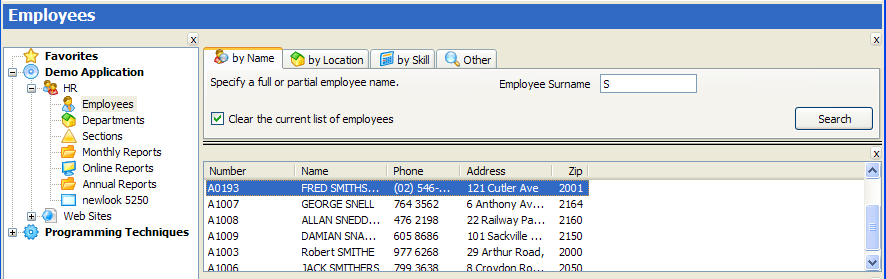
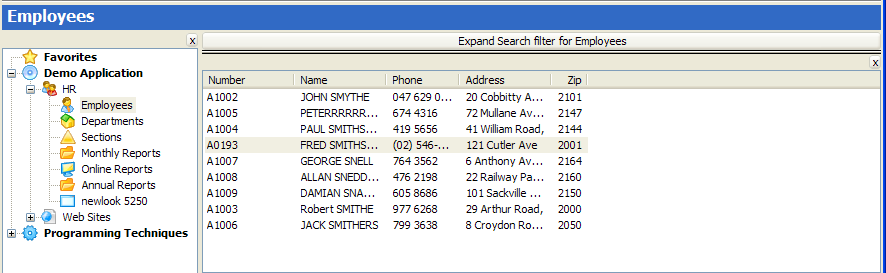
Then clicking the 'shrink' button causes it to shrink to a slim horizontal bar containing the words 'Expand Search filter for Employees”. Clicking on the bar expands the filter back into its normal position again when it needs to be used.
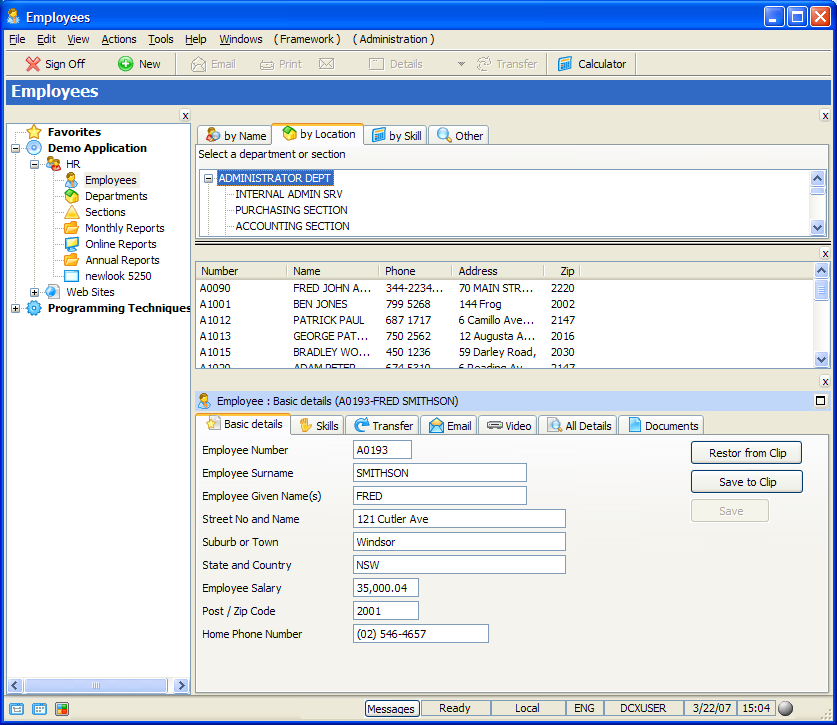
Commonly the shrink button is used to hide the navigation pane while working:
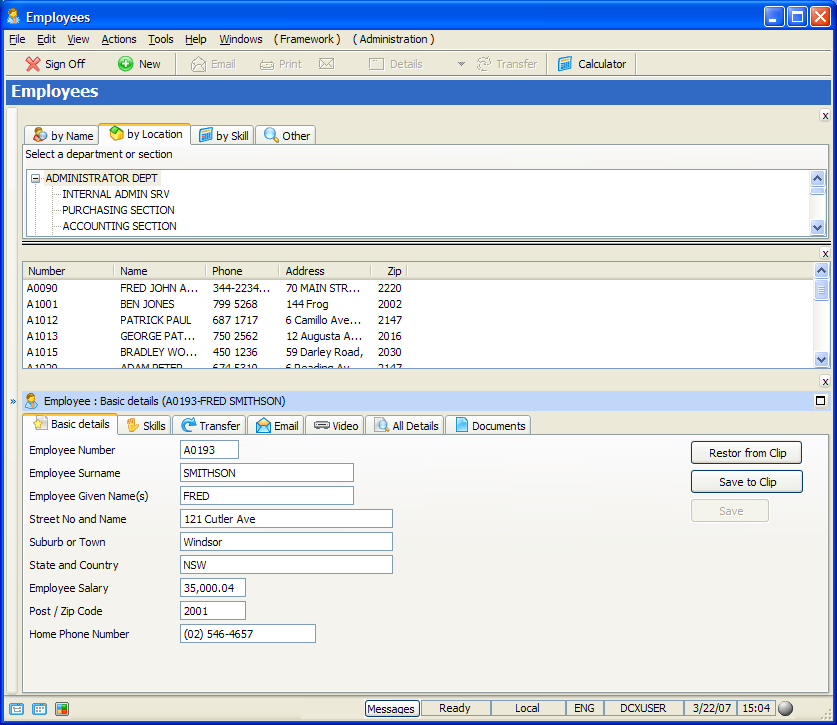
By clicking the navigation pane's shrink button it is reduced to a slim bar down the left hand edge of the form, yielding more application working space on the form:
This property is in the Framework Details tab.