Page History
...
- Select the top table containing employee details. Select a corner of the table. Alternatively, select anywhere in the table and use the Outline tab, to select the table itself.
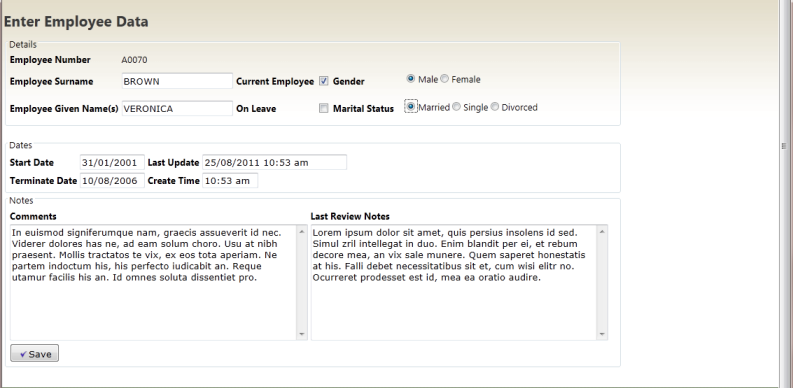
The Design view should now look like the following:
Note the "handles" around the table that is currently selected. - Use the right mouse button over one of these "handles" and select Insert HTML / Fieldset to insert a fieldset around this table. Your design should look like the following:
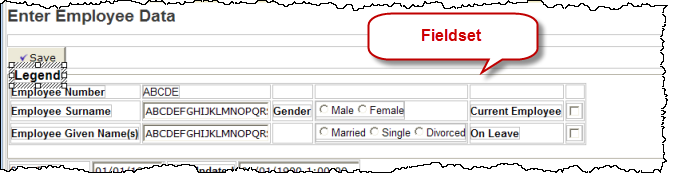
- Click in the Legend text area and replace it with Personal Details.'
- Select the table containing Start Date and insert a fieldset around this table, with and replace Legend text with Dates.
- Select the table containing Comments and insert a fieldset around this table with the legend Comments.
- Save your changes.

- Run your application to see the results in the browser. Enter some data. Your page should look like the following:
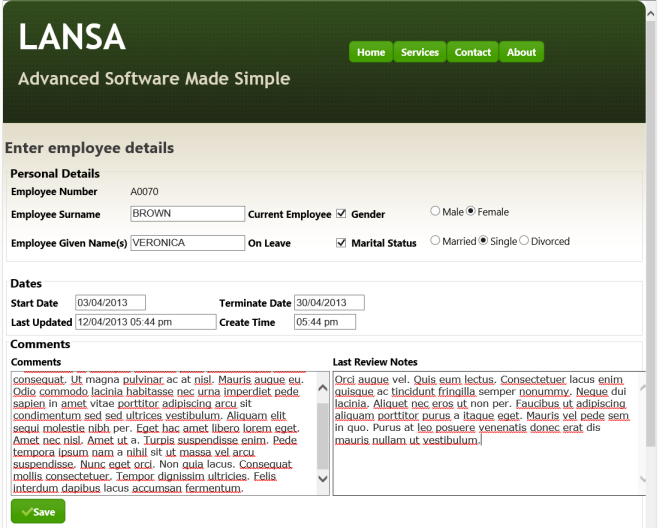
Notice that the group boxes span the full width of the web page. The screen shot has minimized the page width. With the browser maximised on a large screen the blank areas on the right look a little unfinished.
The web site http://lorem-ipsum.perbang.dk/ may be used to generate 'mock latin' text to fill up your memo boxes. - With the showpage WebRoutine open in the Design view, select each fieldset border and use the context menu to Insert a Div. Check you have selected the fieldset by looking at the Properties sheet on the Details tab. It should display <fieldset> at the top. Use the context menu to Insert HTML / DIV around the fieldset.
- With the Div selected use the Details tab, to expand the Style properties and change the width to 80%.
- Repeat the last two steps for the other two fieldsets.
- Save your changes.
- Run the application. Your web page should now look like the following: