Page History
...
Review the following steps to successfully configure your Availability Group Listener for auditing:
- Install the clustered Agent service on all Availability Group nodes using the SQL Compliance Manager Cluster Configuration Console.
- Create a clustered resource for the newly installed Agent service in Failover Cluster Manager.
- Register the Availability Group Listener in SQL Compliance Manager.
1.
| Anchor | ||||
|---|---|---|---|---|
|
...
| Note |
|---|
Before stepping through the following instructions, ensure that the SQL CM Collection Server, the Management Console, and the Repository Databases are already installed.
|
- From the installation folder of the SQL Compliance Manager Collection Service on the Collection and Repository database server, copy the SQLComplianceClusterSetup.exe file onto the nodes of the Availability Group. To install the Cluster Configuration Console on the nodes of the Availability Group, you are going to be auditing. This is located by default at the following path:
C:\Program Files\Idera\SQLcompliance
...
Use the following steps only on the Primary node of the AlwaysOn Availability Group before finally registering the Availability Group Listener for auditing into the SQL Compliance Manager console.
- Launch the Failover Cluster Manager
2. Select the clusters' ServiceGroup (Windows Server 2008) or Role (Windows Server 2012 and later) created for the cluster agent service.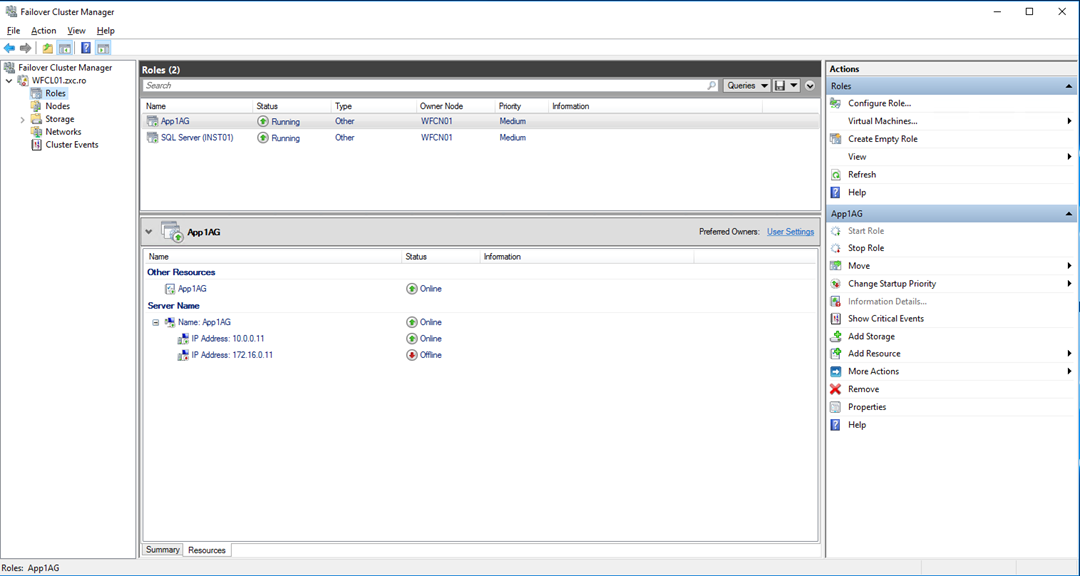
...
14. To obtain the correct path, go to the IDERA Cluster Configuration Console and copy the Replicated Registry Key from the SQLcompliance Agent detailsthe Replicated Registry Key using the copy button from the bottom-right of the SQLcompliance Agent Properties.
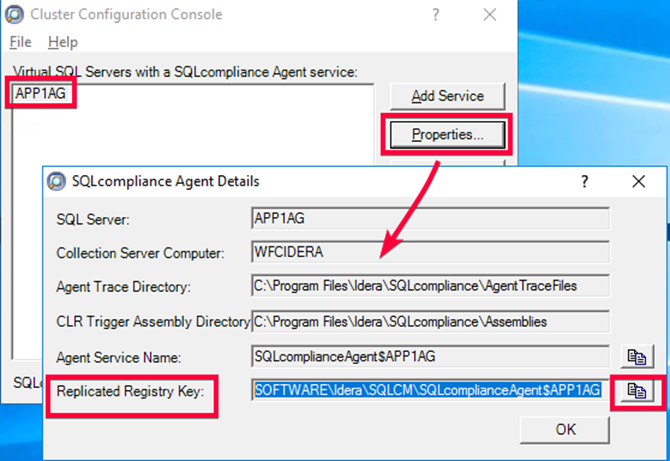
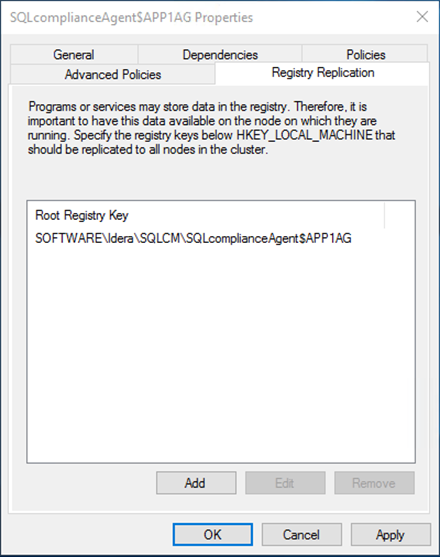
15. Click OK and copy the registry key path back into the service properties window. Paste the copied registry key and click OK. Select Apply. The new root registry key appears should appear in the the Registry Replication tab of the Properties window. Replication tab as shown below.
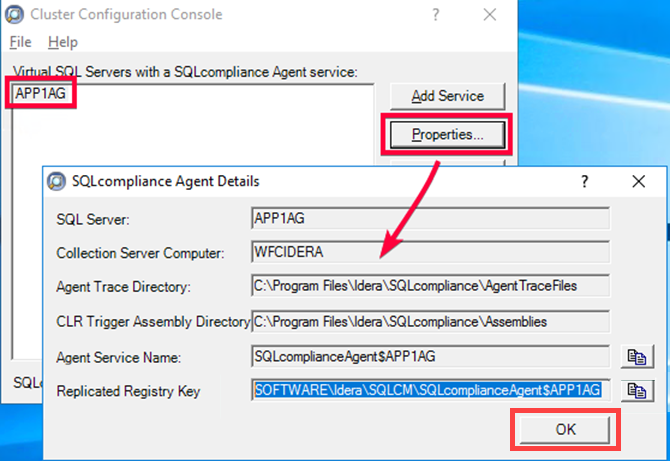
16. Now, return to the Cluster Configuration and click OK to save your changes.
17. Navigate to the the Dependencies tab. Add the listener name as a resource. Click Apply to save the changes.
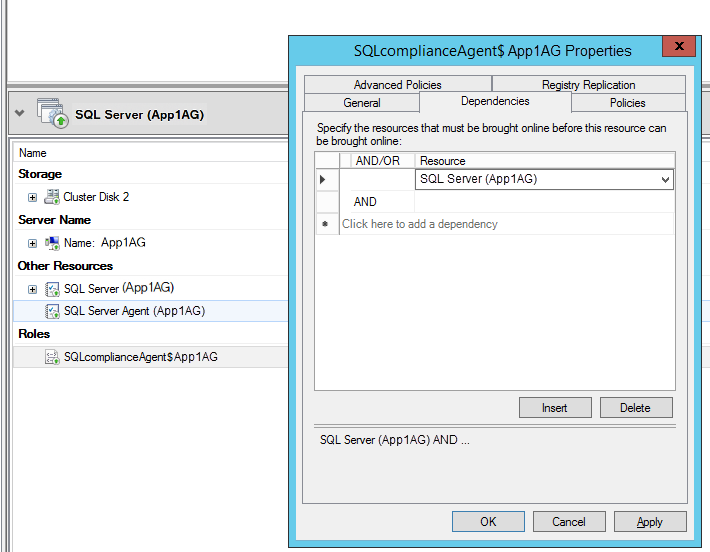
1718. Navigate to the General tab and make sure to check the Use Network Name for computer name option.
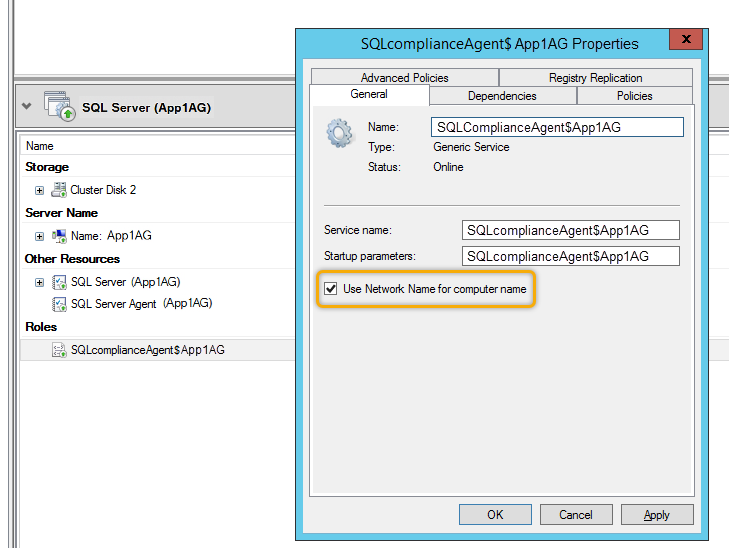
1819. Navigate to the Policies tab and make sure to select the the If resource fails, do not restart option.
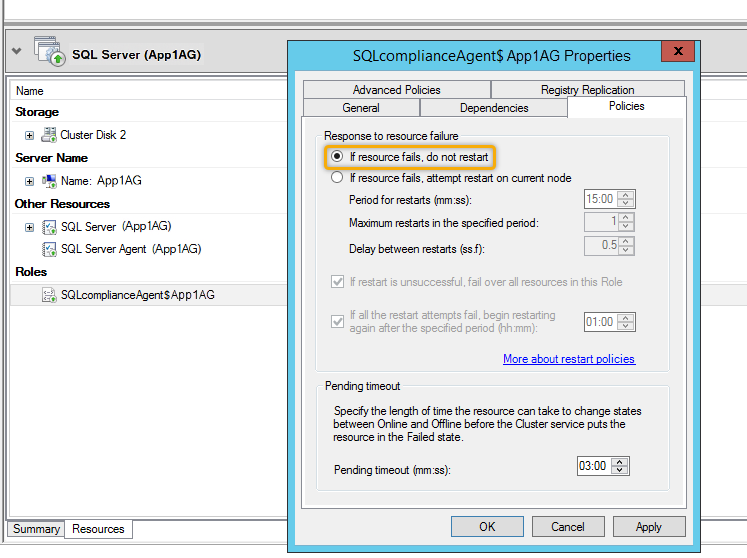
1920. On the Other Resources area of the Failover Cluster Manager window, right-click the SQLcomplianceAgent$[listener name] and select Bring Online the resource.
...
Use the following steps to add the listener to SQL Compliance Manager for auditing.
- Start the IDERA SQL Compliance Manager Management Console and click New > Registered SQL Server. SQL Compliance Manager displays the SQLcm Configuration Wizard - Add Server.
- On the SQL Server window, specify or browse the Availability Group Listener you want to register with SQL Compliance Manager, and click Next.
- On the SQL Server Cluster page, check This SQL Server instance is hosted by a Microsoft SQL Server Cluster virtual server box, and click Next. This step registers the AG Listener as a virtual cluster SQL Server name.
- On the SQLcompliance Agent Deployment page, verify that the Manually Deploy is selected, and click Next. This option is required for all virtual SQL Servers.
- On the Select Databases page, check the AlwaysOn database that you want to audit, and click Next.
SQL Compliance Manager displays the AlwaysOn Availability Group Details page, including a list of all nodes where the AlwaysOn database is replicated.
Info This step is valid only if the database selected for auditing is AlwaysOn. The wizard skips this page for regular databases.
- If the AlwaysOn Availability Group Details window is displayed, click Next to continue.
- On the Audit Collection Level page, select the desired audit collection level for the database and click Next.
- SQL Compliance Manager verifies that all the required permissions are in place on the SQL Server instance you want to audit on the Permissions Check page.
- After all the operations are complete and all permissions checks pass, click Next. The Summary page displays the audit settings for the SQL Server instance.
- Click Finish to close the wizard. Finally, SQL Compliance Manager displays the newly-added AlwaysOn Availability Group Listener in the Explore Activity tree.
- Make all necessary audit settings for the listener and AlwaysOn databases, and then update the configuration and begin collecting data. It is recommended to update the configuration before collecting data because users are unaware of which node is PRIMARY. After updating the configuration, click Refresh in the node context menu to apply the settings to the displayed information.
After configuration, review some Additional information on SQL Compliance Manager and AlwaysOn Availability Groups.
...