Page History
To get the Cloud Account Id ID License File, follow the steps:
- Get the
x_cpu.exeexecutable from the specified LANSA version. - Copy it to a Virtual Machine (VM) in the Cloud Account.
- Generate the for the Hardware Definition File for each Cloud account Id ID and region (location) that you require to be licensed.
- The LANSA Sales Contact generates the Cloud Account Id ID License File(s) and sends them to you.
- Then, you can install the Cloud Account Id ID License File(s) in a Cloud image or Cloud VM.
| Anchor | ||||
|---|---|---|---|---|
|
Follow the steps to generate the Hardware Definition File:
Copy the file
x_cpu.exefrom the Tools directory of a LANSA system at the supported level specified above to a VM in your Cloud.Set the type of Cloud to AWS or Azure in this registry entry.
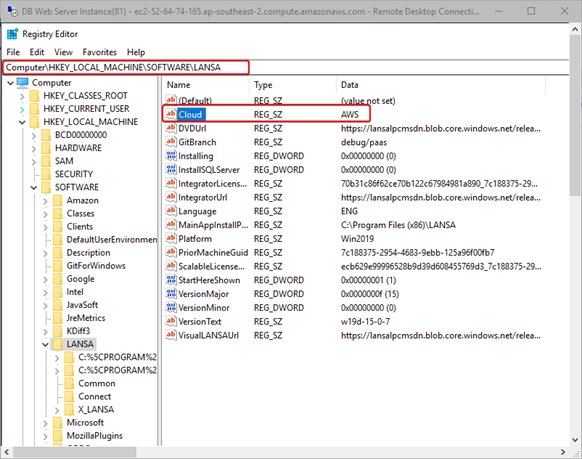
- For AWS run:
X_cpu -cAWS
- For Azure run:
X_cpu -cAZR
- For AWS run:
Example
For example, for the AWS Account ID 775488040364, do the following:
- Open a command window.
- Change to the directory where you have copied
x_cpu.exeto. - Run:
X_cpu -cAWS. - A file will be created named something like
x_cpu_aws_775488040364-us-east-1.txt. - Click on “Yes” and copy the file.
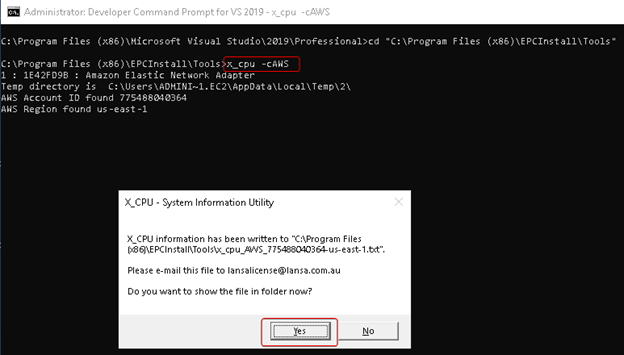
- Repeat these steps for each VM in each region that you require your LANSA application to be running in.
- Send this/these file(s) to LANSA Licensing requesting the required license types, e.g., LXX, NET, WEB.
...