Page History
...
The SQL Compliance Manager administrator adds each node or instance of SQL Server involved in the availability group individually, which is the same process as with any regular SQL Server instance. You can then add any database that you want to audit. While you can automatically deploy the agent through the console, it is recommended that you manually deploy in case the automatic deployment fails. Note that the permissions requirements are the same as for the Listener scenario. For more information about permissions, see Permissions requirements.
AlwaysOn databases running as the secondary replica do not appear in the Add Database wizard unless the replica is marked as read-only. Note that the default status is non-readable.
Review the following steps to
| Anchor | ||||
|---|---|---|---|---|
|
- Start the SQL Compliance Manager Management Console.
Select the SQL Server instance to which you want to manually deploy the agent, and click Add Server. SQL Compliance Manager displays the SQL Compliance Manager Configuration Wizard - Add Server.
On the Specify SQL Server page, specify or browse the node, and click Next.
On the Existing Audit Data page, select the option to retain all of the previously-collected audit data and use the existing database, and click Next.
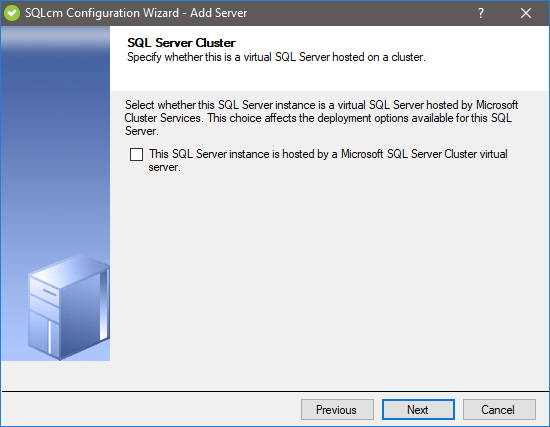
On the SQL Server Cluster page,
check this option if the leave the SQL Server instance is hosted by a
virtual Microsoft SQL Server Cluster visual server option unchecked, and click Next.
On the SQLcompliance Agent Deployment page, verify that the Manually Deploy option is selected, and click Next.
On the Select Databases page, select the AlwaysOn database, and click Next.
SQL Compliance Manager displays the AlwaysOn Availability Group Details page. This page displays information about all nodes where the AlwaysOn database will be replicated. Note that this page does not appear if the database is not AlwaysOn.
- Review the available information, and click Next.
- On the Audit Collection Level page, select the Default audit level, and click Next.
- On the Permissions Check page, verify that all permissions pass, and click Next.
- SQL Compliance Manager displays the Summary page. Click Finish.