Page History
Wiki Markup
As you are completing this exercise you may want to refer to [<span style="color: #0000ee"><span style="text-decoration: underline; ">Javascript Essentials</span></span>|lansa050_1520.htm#_Ref136326875]. 1. Select the FindEmployee junction screen in the screens and scripts list. 2. Expand it to display the script associated with it. 3. Select the script in the list to display its contents: !worddavaf485e25f57cd86bb5b0fc63f3f1b1cc.png|height=32,width=32! 4. Locate this statement in the NAVIGATETO function: to Javascript Essentials.
1.Select the FindEmployee junction screen in the screens and scripts list.
2. Expand it to display the script associated with it.
3. Select the script in the list to display its contents:
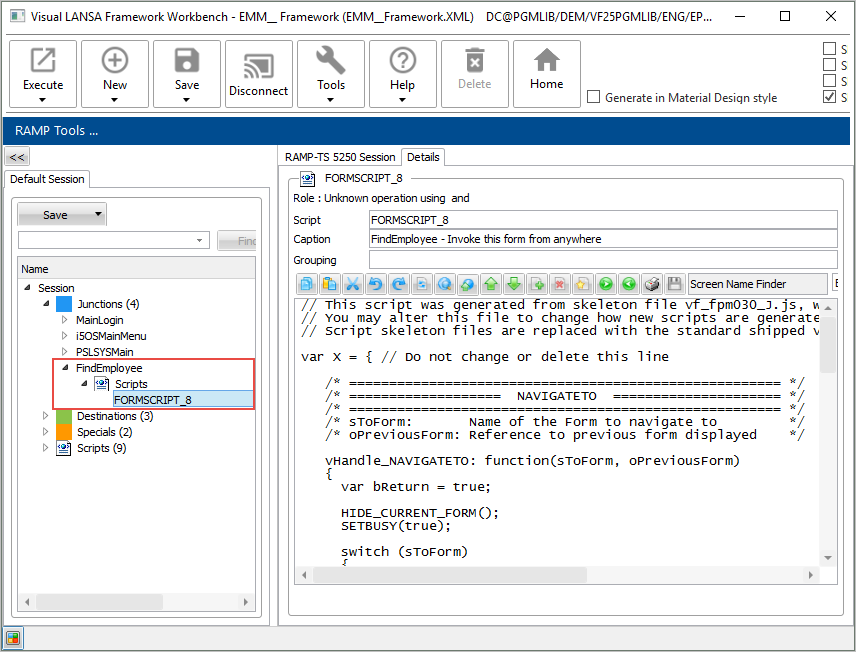
4. Locate this statement in the NAVIGATETO function:
SETVALUE("txtEmpno","A1234");
5. Select Select the Employee Number, and the quotes surrounding it, and right-click to bring up the context menu.
6. Select Select the _Current Instance List Entry_ option in the menu.
7. Select _Select Alpha Key 1_ in the submenu: !worddavaf485e25f57cd86bb5b0fc63f3f1b1cc.png|height=32,width=32! The statement is changed to:
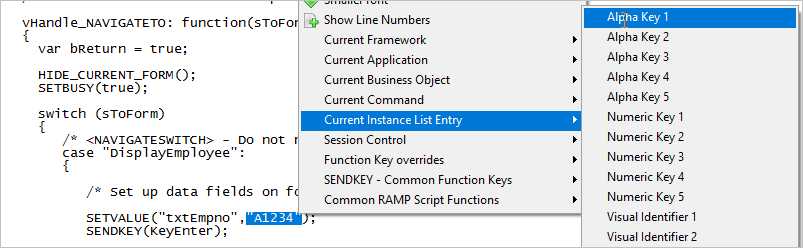
The statement is changed to:
SETVALUE("txtEmpno",objListManager.AKey1
...
[0
...
]);
This special value will contain the identifier of the employee that the end-user has selected in the instance list.
8. Commit Commit the changes to the script by clicking the _Commit Changes_ button: !worddavaf485e25f57cd86bb5b0fc63f3f1b1cc.png|height=29,width=32! button:

9. Do a partial save of the RAMP information
10. Execute the Framework as a VLF-WIN application, as a Designer and select an employee in the instance list.
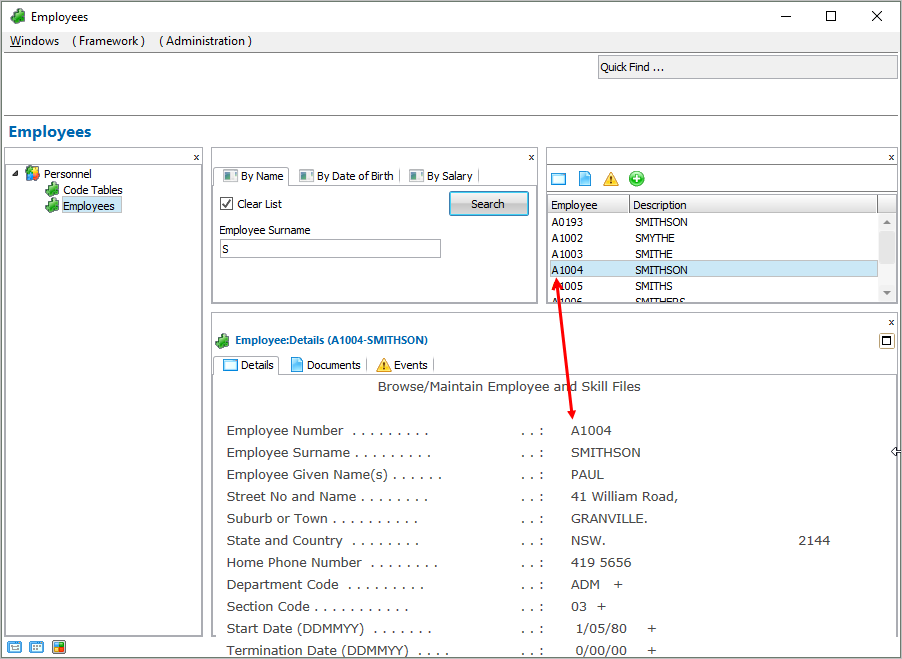
Notice that the correct details for the selected employee are now shown. If for some reason, you cannot display the employee details correctly, restart the Framework. 9. Do a partial save of the RAMP information 10. Execute the Framework as a VLF-WIN application, as a Designer and select an employee in the instance list. !worddavaf485e25f57cd86bb5b0fc63f3f1b1cc.png|height=32,width=32! Notice that the correct details for the selected employee are now shown. If for some reason, you cannot display the employee details correctly, restart the Framework. [<span style="color: #0000ee"><span style="text-decoration: underline; ">Show Contents List</span></span>|../../index.htm#lansa/lansa050_0300.htm]