Page History
...
1. Start the Visual LANSA Development Environment. You can start Visual LANSA from the Start menu or from the LANSA system's desktop folder. Both are created as part of the LANSA software installation.
Start menu: | Desktop folder: |
|---|---|
|
|
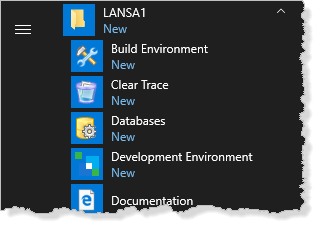
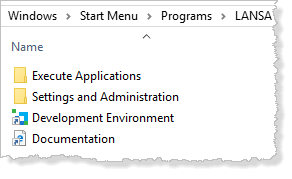
2. Click Development Environment icon  to start Visual LANSA. The Visual LANSA Logon dialog will appear.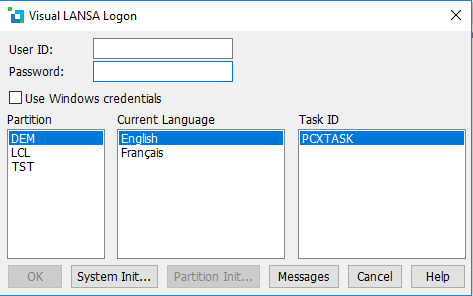
3. Log on to Visual LANSA. The LANSA Editor will be displayed.
4. From the LANSA Editor's File tab, choose New and then Partition.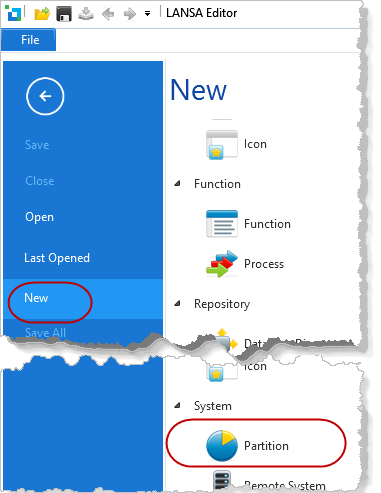
The
The New partition dialog box will be displayed.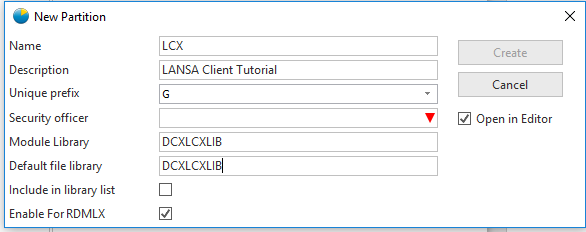
5. Enter the following in the New partition dialog box:
Option | Enter |
|---|---|
Name | LCX |
Description | LANSA Client Tutorial |
Unique Prefix | Accept the default |
Security officer | Enter the security officer at your location. This is mandatory |
Module library | DCXLCXLIB |
Default library | DCXLCXLIB |
Include in library list Enable For RDMLX Open in editor | Accept the defaults. |
...
6. Press Create when the details have been entered. Your new partition will be created.
If the Create button is greyed out, it could be that the partition already exists, so there is no need for you to create it.