Page History
...
1. From the new partition details, select the Language Settings tab, then click the icon  to add a new language.
or
if If you later wish to review/amend a language listed, select the language and double click.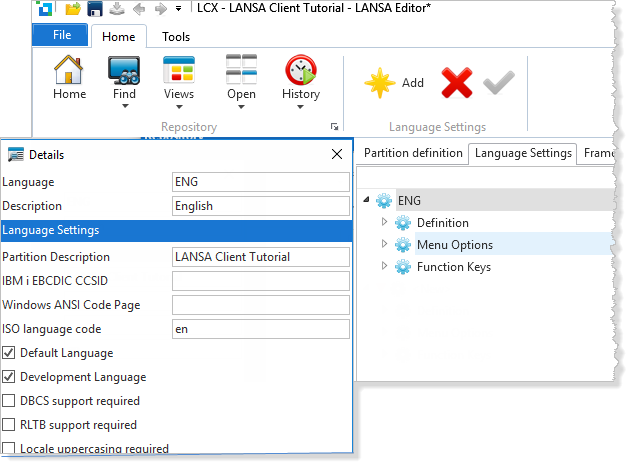
If
If adding a new language, enter a three or four character identifier representing the new language as well as a description.
...
6. Start Visual LANSA again. Your new LCX partition will be displayed in the list of Partitions on the Visual LANSA logon dialog box.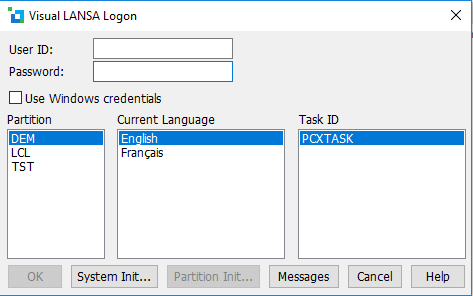
2
7. When you have entered the user ID and password, before you press OK, select the new partition, in this example LCX, and press the Partition Init... button to open the Partition Initialization dialog box.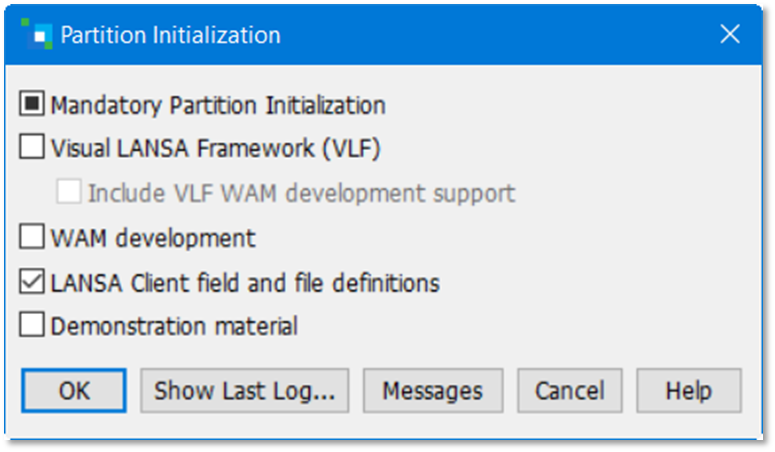
3
8. Select the LANSA Client field and file definitions option. Press OK to load the Tutorial files into your new partition. There will be a short delay while the partition definitions are loaded.
...
Once these steps have been completed, your tutorial files will be ready to use.