Page History
You To print documentation, you need to export the documentation content to a PDF and then you can print it.
Go to the Visual LANSA main page if you want to export the whole content. On the top right corner of the page, you see  , click on it and select Export to PDF.
As with all web output, you can only print one topic (or page) at a time.
For best results, always use the print icon  in the toolbar. That will print the whole documentation page.
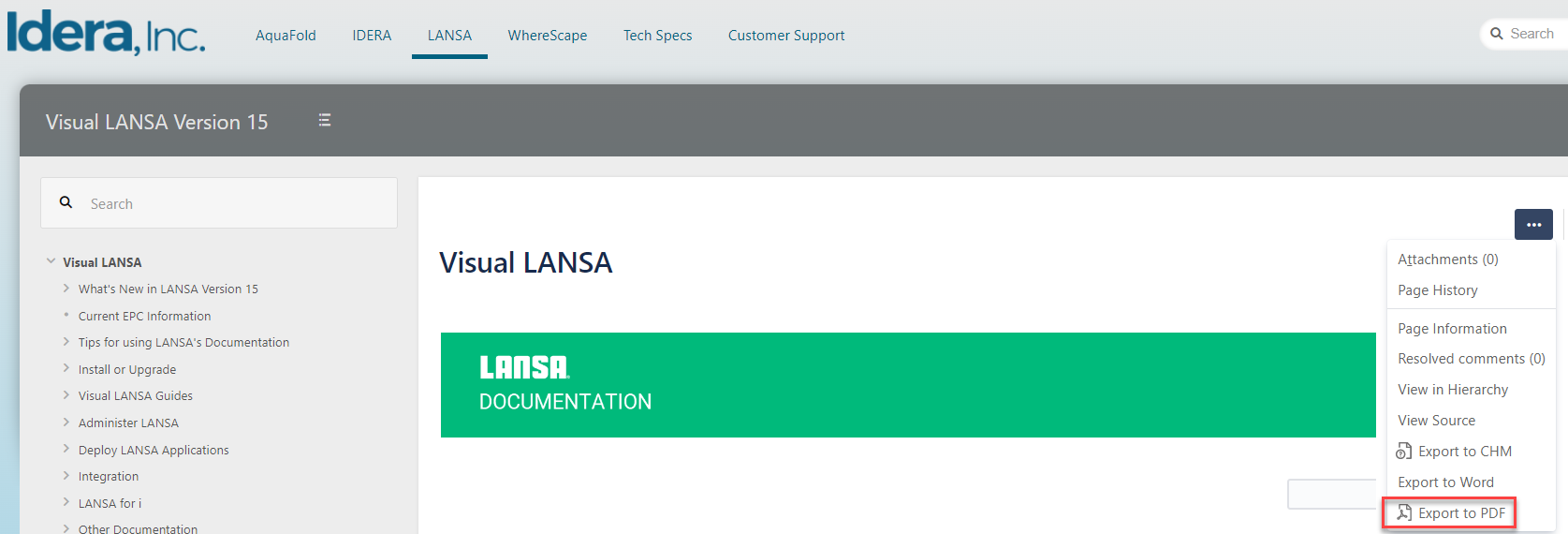
Select the template, scope, and then export as detailed in the image below: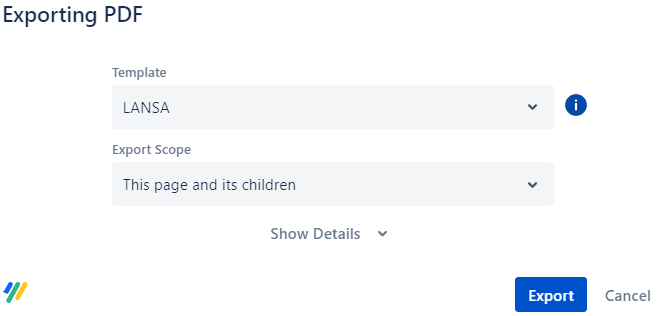
If you want to export a specific section, go to the section, click on , and select Export to PDF.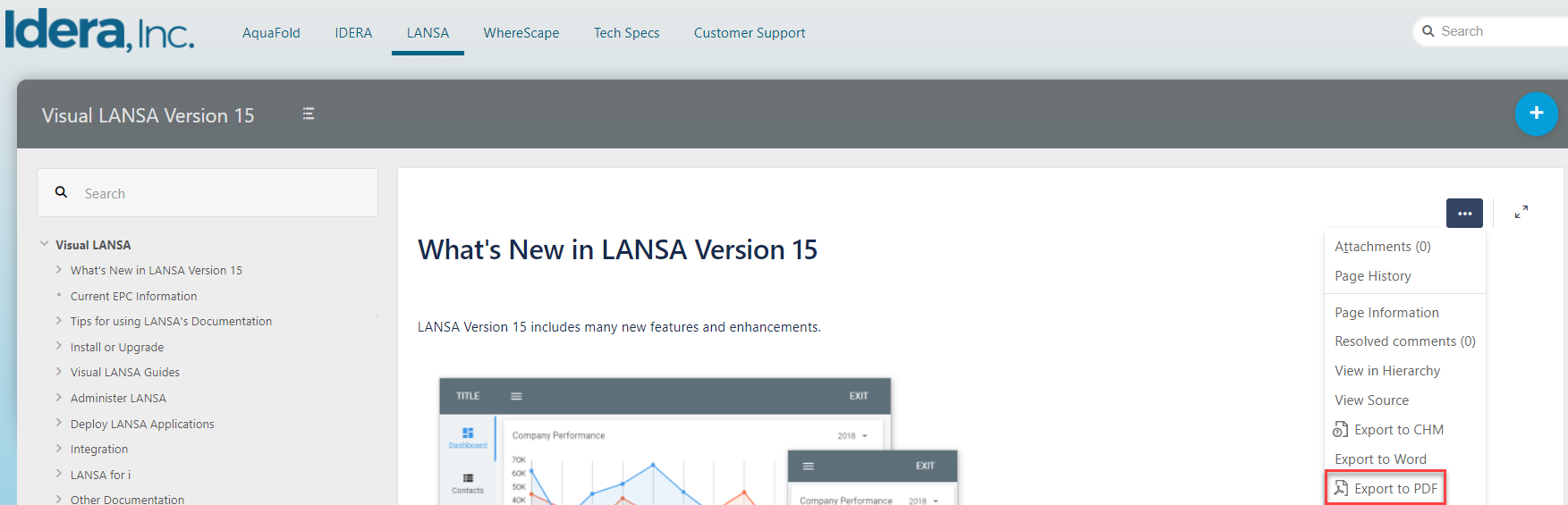
Select the template, scope, and then export as detailed in the image below:
You will get your documentation in a PDF document.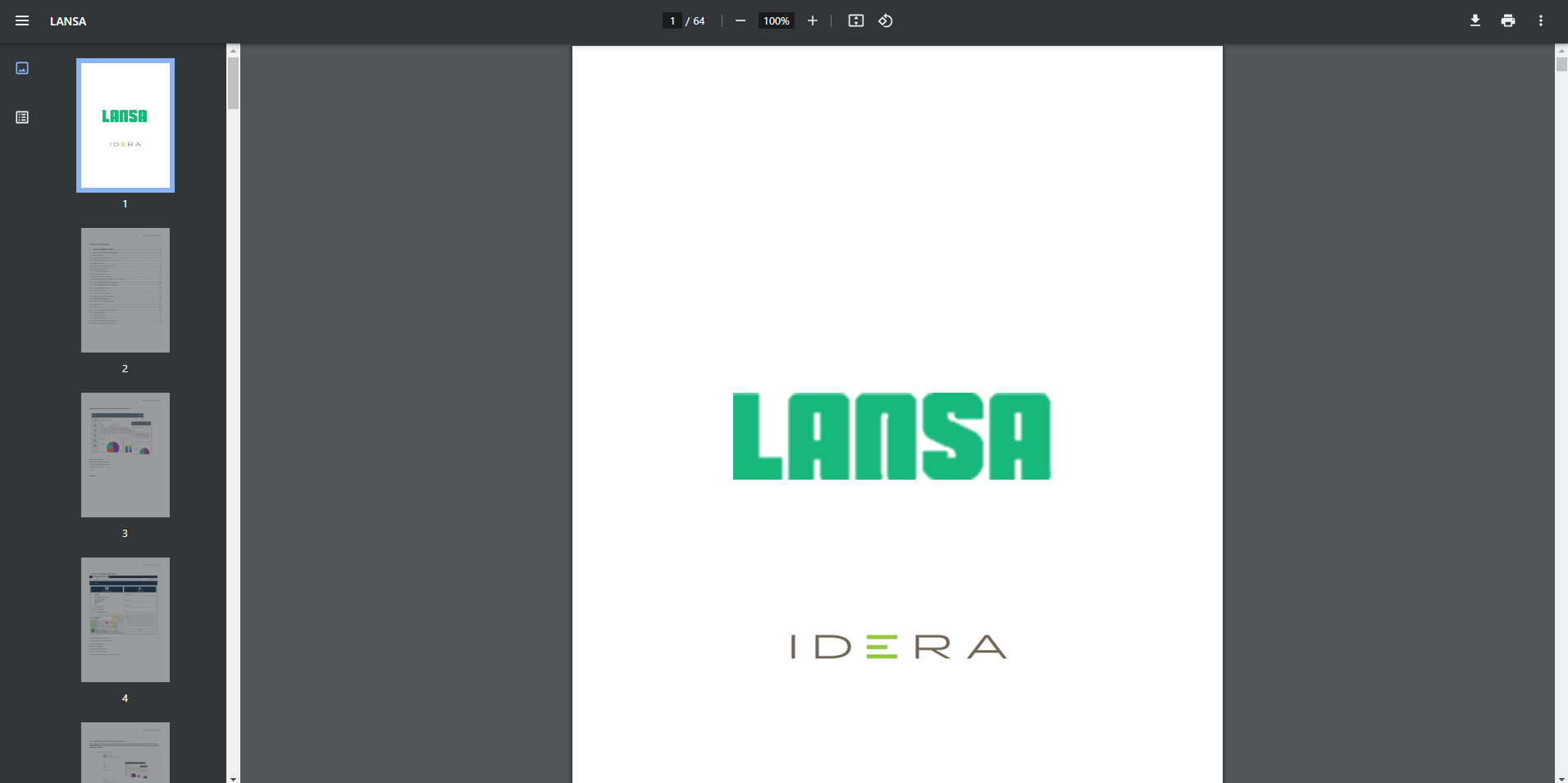 If you use your Print button (or Ctrl + P), you will get the contents list as well as your chosen page.