Page History
...
The backup of the azkaban.local.properties file will be useful to open while you run the installer so you can apply the correct settings to the installer fields.
| Anchor | ||||
|---|---|---|---|---|
|
On the RED installation folder, run
RedSchedulerInstaller.exeexeto start the upgrade process, follow the interactive installer wizard. Please note theRedSchedulerInstaller.exemust be run using the same user that the Azkaban services are run under.Tip title Tip Hold down Shift and right click on RedSchedulerInstaller.exe and select “run as different user” then enter the Azkaban service user credentials if you are currently logged in as another user.
Note title Note For scripted upgrades, the Linux upgrade method described later can also be used on Windows.
- To upgrade the Azkaban metadata and Web Server on this machine, select Scheduler Upgrade and check the components you want to upgrade.
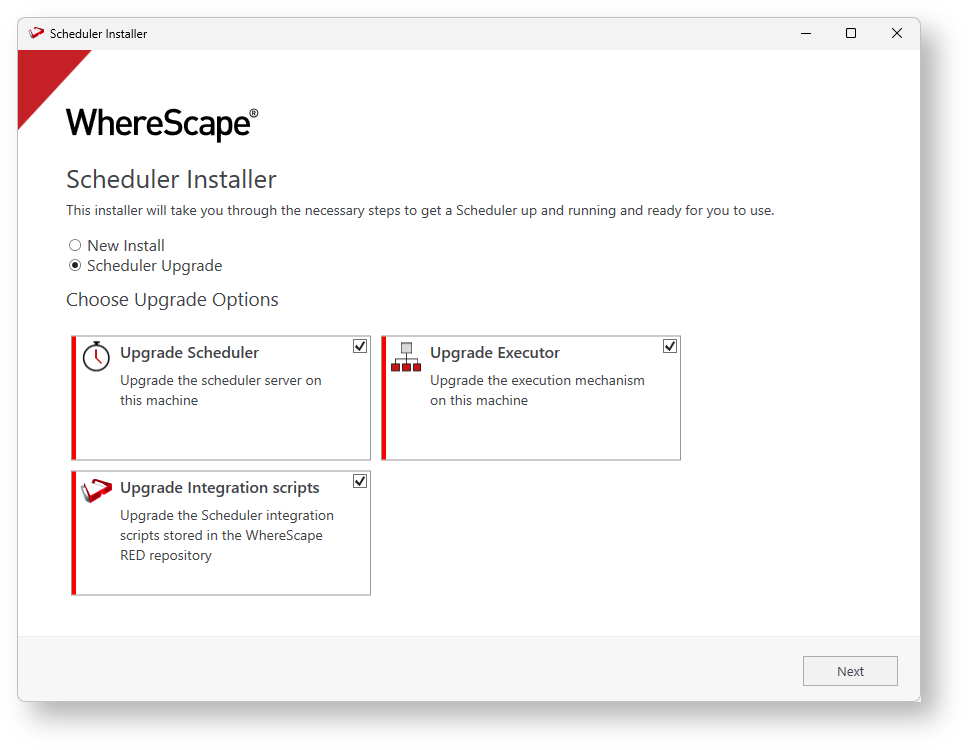
- Select the location of the scheduler you want to upgrade.

- If you are upgrading from a version lower than RED 10.2, you will be required to specify the profile encryption secret and Windows service credentials.
- In The Upgrade wizard will collect all the required connection information from
azkaban.local.propertiesand will show it on the summary window, check your settings are correct.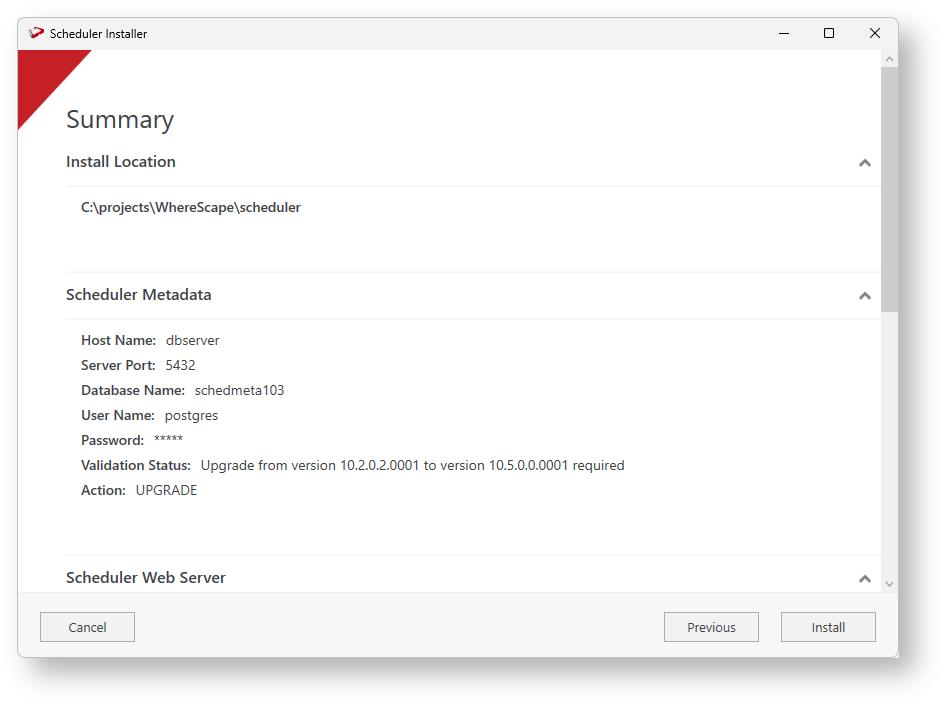
- To proceed Proceed through the rest of the installation wizard and click Install at the end to complete the upgrade of the Azkaban metadata and the Web and Exec Servers.
- Post install you need to manually merge any customizations to the
azkaban.local.propertiesand users file as required before starting up your services again.
...