Page History
...
| Field | Description | Example |
|---|---|---|
| sp_con_name | Lowercased connection name, used as salt | repository |
| sp_con_string | ODBC Connection String | dsn=$DSN$;uid=$USER$;pwd=$PASSWORD$; |
| sp_user_name | User Name | redscheduler_user |
| sp_encrypted_pwd | Encrypted Password | VTj0Q2xapJEWpQed8DJYvBEEnRedR94NstiHJUlLt0gC |
authConfig | Auth Configuration JSON | {"authExpiresAfterMins":0,"authScriptCommand":""} |
| token_1 | Encrypted Token | SAEfvc2xapJEWpQed8DJYvBEEnRedR94NstiHJUlLt0gC |
| token_2 | Encrypted Token | VKSJDH2xapJEWpQed8DJYvBEEnRedsdflLt0gC |
| token_3 | Encrypted Token | vTj0Q2xasdASfdnihvde98EnRedR94NstiHJUlLt0gC |
Encryption
WhereScape provides an encryption utility as a stand-alone tool as well as being imbedded in the applicable Azkaban components. Azkaban decryption of WhereScape encrypted passwords expects the salt used for encryption to be the lowercased connection name. Azkaban has access to the Profile Password, required for decryption, via a new property (com.wherescape.red.profilePassword) in the azkaban.local.properties file of each Azkaban server instance. The password values in both the Azkaban properties files and the Azkaban Users.xml file can also be stored using encryption so that they do not appear in plain text in those files. See Azkaban properties for more details.
...
| Anchor | ||||
|---|---|---|---|---|
|
| Note |
|---|
The Extensible Authentication fields added in in 10.6.0.0 can only be updated via the maintenance script, described in the next section, these fields will be added to this wizard in the next minor version of RED. |
Using the Scheduler Profile Maintenance Wizard
...
Connect to another: Use a different metadata repository and authentication profile.

| UI Expand | |||||
|---|---|---|---|---|---|
| |||||
Click on Current metadata to use the current connection settings. You will be presented with the ‘authentication profile’ screen. On the Encryption field, enter the Profile Encryption Secret (used to encrypt any passwords entered) and each connection's credentials as well as an appropriate connection string for use by your scheduler service.
Once you entered the credentials for each connection, click Apply. The wizard will then take the passwords you have entered and encrypt them using the encryption-util.jar, with lowercased connection names as the encryption salt and the Profile Password as the encryption secret. |


| UI Expand | |||||
|---|---|---|---|---|---|
| |||||
When you choose Connect to another, the Connect to repository screen will open. Provide the required details for connecting to another repository.
Once you connect to a repository you will be presented with the ‘authentication profile’ screen. On the Encryption field, enter the Profile Encryption Secret (used to encrypt any passwords entered) and each connection's credentials as well as an appropriate connection string for use by your scheduler service.
Once you entered the credentials for each connection, click Apply. The wizard will then take the passwords you have entered and encrypt them using the encryption-util.jar, with lowercased connection names as the encryption salt and the Profile Password as the encryption secret. |


...
| Tip | ||
|---|---|---|
| ||
It is important that you enter and use the same Profile Encryption Secret as you provided in your Azkaban installations otherwise Azkaban will not be able to decrypt these profile records. |
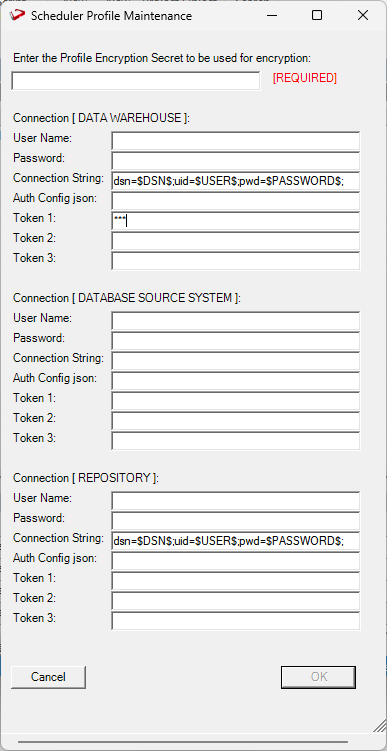

Once you have done entering your Scheduler Profile for each connection, click OK.
...
Next the script attempts to update the "redadmin"."ws_scheduler_profile" with the Profile details provided and outputs the result and the insert statement to the results pane of RED.


| Info |
|---|
| This script will need to be run every time you add a new connection to RED, so that the Scheduler Profile is kept in-sync. The subsequent times you run this script the UI will be prepopulated with any existing records in the "redadmin"."ws_scheduler_profile" so that you do not have to re-enter them but allows updating any records as required. |
...