Page History
...
The following sections refer to the management of these fields in each connection properties screen in RED
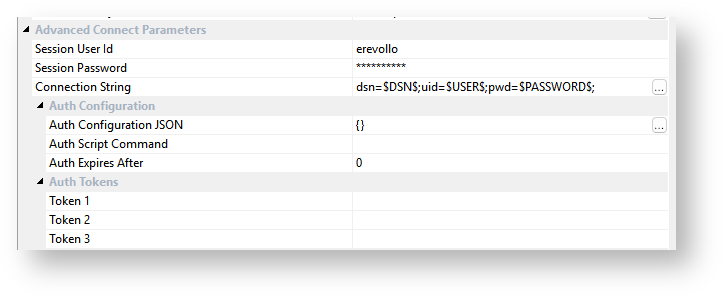
The fields labelled "Session .." are never stored in the metadata and only persist, All but one of the fields under Advanced Connect Parameters are stored in-memory, for the duration of the user's session of RED. Only the Connection String field is persisted to the RED Metadata.
Additionally, the users and passwords entered in the Scheduler Configuration screen in RED are never stored in the metadata and only persist, in-memory, for the duration of the user's session of RED.
...
Additionally the Scheduler Configuration credentials are also stored in-memory for the session and included in the Profile when saving it to disk.
The in-memory profile is session based and therefore the credentials are specific to the user logged on during that session. The connection string itself is however stored in the metadata so that each RED user still uses the same authentication method as other users while in the RED UI.
...
| Info | ||
|---|---|---|
| ||
| Session passwords and Auth Tokens are encrypted at rest (on the file in disk) during the save using Windows DPAPI (user-based) encryption. These profile files will therefore only ever be able to be used and decrypted by the Windows user who saved them. |
...
| Tip | ||
|---|---|---|
| ||
The users' AppData location can be found by typing %APPDATA% into the address bar of a Windows browser and pressing enter. |
Tips for Using OAuth or similar authentication methods
For some authentication methods you may need to use a script (or web browser) to login to a data source and generate an access token to use in your connection string. The access token could then be added in the Profile record as the password for a connection. If you use expiring tokens with a scheduler then you will need to create a script to refresh your tokens and update your scheduler profile records, see the Scheduler Configuration section for more details.
This would involve the following general steps to be implemented in a script:
- Log in to a server and get a new token (this should be a non-interactive process for the Scheduler).
- Use a script similar to wsl_scheduler_profile_maintence script in RED, that takes the Scheduler Profile Encryption Password and your new token then updates the affected profile record in the redadmin.ws_scheduler_profile metadata table using the WhereScape Encryption Utility.
- After the above profile record is updated, any further scheduler tasks will pick up the new token.
...
Updating the Scheduler Profile
Similar to saving a RED Profile to disk to persist between sessions for a User, the RED Scheduler also requires persistent storage of the Profile which can be shared securely across Jobs. The RED Scheduler Profile values are stored in a table using secure encryption methods. See the Scheduler Profile Maintenance section for more details.
Using OAuth or similar authentication methods
For some authentication methods you may need to include additional authentication tokens in your connection strings. If the token is static or long lived it can be added directly into one of the Auth Token fields in your connection and referenced in your connection string.
For short lived or expiring tokens a Scripted Authentication approach may be required. This is achieved by setting an Auth Script Command on your connection which could execute an authentication workflow script to retrieve access tokens or other authentication values and update the RED Profile file making them available to the RED UI and Scripts. If you use expiring tokens with the scheduler, you would need to create and schedule a script to refresh your tokens and update your scheduler profile records, see the Scheduler Configuration section for more details.
This would involve the following general steps to be implemented in a script:
- Log in to a server and get a new token (this should be a non-interactive process for the Scheduler).
- On RED startup, run a script that gets the tokens and sets environment variables you can use as connection parameters.
- The script saves tokens and parameters in the profile file in an encrypted form and then reloads the profile file.
- After the above profile record is updated, any further scheduler tasks will pick up the new token.
Tips for Using OAuth or similar authentication methods
For some authentication methods you may need to use a script (or web browser) to login to a data source and generate an access token to use in your connection string. The access token could then be added in the RED Profile file or Scheduler Profile table as the password or one of the Auth Token fields for a connection. If you use expiring tokens with a scheduler then you will need to create a script to refresh your tokens and update your scheduler profile records, see the Scheduler Configuration section for more details.
This would involve the following general steps to be implemented in a script:
- Log in to a server and get a new token (this should be a non-interactive process for the Scheduler).
- Use a script similar to wsl_scheduler_profile_maintence script in RED, that takes the Scheduler Profile Encryption Password and your new token then updates the affected profile record in the redadmin.ws_scheduler_profile metadata table using the WhereScape Encryption Utility.
- After the above profile record is updated, any further scheduler tasks will pick up the new token.
| Anchor | ||||
|---|---|---|---|---|
|
| Tip |
|---|
The encryption and decryption process below can also be achieved using the Encryption Utility |
Example PowerShell script to create an encrypted base-64 Unicode string using Windows DPAPI:
| Code Block | ||||||||
|---|---|---|---|---|---|---|---|---|
| ||||||||
Add-Type -AssemblyName System.Security

$myPass = "myp@ssw0rd!"

# Convert the pwd string to a byte array.
$bytes = [System.Text.Encoding]::Unicode.GetBytes($myPass)

# Encrypt the byte array.
$encryptedBytes = [System.Security.Cryptography.ProtectedData]::Protect(
        $bytes,
        $null,
        [System.Security.Cryptography.DataProtectionScope]::CurrentUser)

# If you would like the pwd to be able to be decrypted by any user of this machine you can set the scope above DataProtectionScope to 'LocalMachine'
# https://learn.microsoft.com/en-us/dotnet/api/system.security.cryptography.dataprotectionscope?view=windowsdesktop-9.0

# This is the equivalent form stored in the Profile files for RED
$encryptedProfilePassword=[System.Convert]::ToBase64String($encryptedBytes)

Write-Output $encryptedProfilePassword |
If for some reason you need to decrypt the profile file passwords in a script the below method shows how to do this. Note that only the same Windows User that encrypted the password in the first place will be able to decrypt it.
Example PowerShell script to decrypt Windows DPAPI encrypted base64 Unicode string:
| Code Block | ||||||||
|---|---|---|---|---|---|---|---|---|
| ||||||||
Add-Type -AssemblyName System.Security

# set this to an encrypted string taken from the Profile file
$encryptedProfilePassword=”<YOUR ENCRYPTED STRING>”

# first convert the extracted RED Profile string FromBase64String to Byte array
$encryptedBytes = [System.Convert]::FromBase64String($encryptedProfilePassword)

Write-Host "Encrypted Bytes" -ForegroundColor Cyan
Write-Host ([string] $encryptedBytes) -ForegroundColor DarkGreen

# Unencrypt the data.
$bytes = [System.Security.Cryptography.ProtectedData]::Unprotect(
        $encryptedBytes,
        $null,
        [System.Security.Cryptography.DataProtectionScope]::CurrentUser)

$plainTextPwd = [System.Text.Encoding]::Unicode.GetString($bytes)

Write-Host "Decrypted Data" -ForegroundColor Cyan
Write-Host $plainTextPwd -ForegroundColor Red |
Example Profile file
The profile file is a .JSON file which makes it easy to programmatically update any connection attributes it contains.
| Info |
|---|
The following example has had passwords truncated for display purposes. |
| Code Block | ||||||
|---|---|---|---|---|---|---|
| ||||||
{
    "redServerPort": "5432",
    "redUserId": "postgres",
    "authTokens": {
        "token_2": {
            "value": "",
            "displayName": ""
        },
        "token_3": {
            "value": "AQAAANCMnd8BFdERjHoAwE",
            "displayName": "dsn"
        },
        "token_1": {
            "value": "AQAAANCMnd8BFdERjHoAwE",
            "displayName": "user"
        }
    },
    "redDsnArchitecture": "64",
    "authConfig": {
        "authExpiresAfterMins": 20,
        "authScriptCommand": "powershell -executionpolicy bypass -f \"C:\\temp\\RED\\ws_auth\\ws_auth.ps1\""
    },
    "redUserPwd": "AQAAANCMnd8BFdERjHoAwE",
    "redDsn": "repo",
    "redConnectionString": "dsn=$AUTHTKN_3$;uid=$AUTHTKN_1$;pwd=$PASSWORD$;",
    "schedulerDashboardUser": "wsdashboarduser",
    "redServer": "localhost",
    "schedulerApiUser": "wsapiuser",
    "schedulerDashboardPwd": "AQAAANCMnd8BFdERjHoAwE",
    "connections": [{
            "connectionName": "Database Source System",
            "connectionString": "dsn=$DSN$;",
            "password": "AQAAANCMnd8BFdERjHoAwE",
            "userId": "",
            "dsn": "",
            "authConfig": {
                "authExpiresAfterMins": 0,
                "authScriptCommand": ""
            },
            "authTokens": {}
        }, {
            "connectionName": "Snowfalke MFA",
            "connectionString": "dsn=$DSN$;uid=$USER$;pwd=$PASSWORD$$AUTHTKN_1$;passcodeInPassword=on;",
            "password": "AQAAANCMnd8BFdERjHoAwE",
            "userId": "snowfalke_user",
            "dsn": "",
            "authConfig": {
                "authExpiresAfterMins": 240,
                "authScriptCommand": "powershell -executionpolicy bypass -f \"C:\\temp\\RED\\ws_auth\\ws_auth.ps1\""
            },
            "authTokens": {
                "token_2": {
                    "value": "",
                    "displayName": ""
                },
                "token_3": {
                    "value": "",
                    "displayName": ""
                },
                "token_1": {
                    "value": "AQAAANCMnd8BFdERjHoAwE",
                    "displayName": "MFA TOTP"
                }
            }
        }, {
            "connectionName": "WslTutorial_DataSeq",
            "connectionString": "dsn=$AUTHTKN_3$;uid=$AUTHTKN_1$;pwd=$AUTHTKN_2$;",
            "password": "AQAAANCMnd8BFdERjHoAwE",
            "userId": "",
            "dsn": "",
            "authConfig": {
                "authExpiresAfterMins": 0,
                "authScriptCommand": ""
            },
            "authTokens": {}
        }, {
|
| Tip |
|---|
The encryption and decryption process below can also be achieved using the Encryption Utility |
Example PowerShell script to create an encrypted base-64 Unicode string using Windows DPAPI:
| Code Block | ||||||||
|---|---|---|---|---|---|---|---|---|
| ||||||||
Add-Type -AssemblyName System.Security

$myPass = "myp@ssw0rd!"

# Convert the pwd string to a byte array.
$bytes = [System.Text.Encoding]::Unicode.GetBytes($myPass)

# Encrypt the byte array.
$encryptedBytes = [System.Security.Cryptography.ProtectedData]::Protect(
        $bytes,
        $null,
        [System.Security.Cryptography.DataProtectionScope]::CurrentUser)

# If you would like the pwd to be able to be decrypted by any user of this machine you can set the scope above DataProtectionScope to 'LocalMachine'
# https://learn.microsoft.com/en-us/dotnet/api/system.security.cryptography.dataprotectionscope?view=windowsdesktop-9.0

# This is the equivalent form stored in the Profile files for RED
$encryptedProfilePassword=[System.Convert]::ToBase64String($encryptedBytes)

Write-Output $encryptedProfilePassword |
If for some reason you need to decrypt the profile file passwords in a script the below method shows how to do this. Note that only the same Windows User that encrypted the password in the first place will be able to decrypt it.
Example PowerShell script to decrypt Windows DPAPI encrypted base64 Unicode string:
| Code Block | ||||||||
|---|---|---|---|---|---|---|---|---|
| ||||||||
Add-Type -AssemblyName System.Security

# set this to an encrypted string taken from the Profile file
$encryptedProfilePassword=”<YOUR ENCRYPTED STRING>”

# first convert the extracted RED Profile string FromBase64String to Byte array
$encryptedBytes = [System.Convert]::FromBase64String($encryptedProfilePassword)

Write-Host "Encrypted Bytes" -ForegroundColor Cyan
Write-Host ([string] $encryptedBytes) -ForegroundColor DarkGreen

# Unencrypt the data.
$bytes = [System.Security.Cryptography.ProtectedData]::Unprotect(
        $encryptedBytes,
        $null,
        [System.Security.Cryptography.DataProtectionScope]::CurrentUser)

$plainTextPwd = [System.Text.Encoding]::Unicode.GetString($bytes)

Write-Host "Decrypted Data" -ForegroundColor Cyan
Write-Host $plainTextPwd -ForegroundColor Red |
Example Profile file
The profile file is a .JSON file which makes it easy to programmatically update any connection attributes it contains.
| Info |
|---|
The following example has had passwords truncated for display purposes. |
| Code Block | ||||||
|---|---|---|---|---|---|---|
| ||||||
{ "connections": [ { "connectionName": "Tutorial (OLTP)Data Warehouse SQL", "connectionString": "dsn=$DSN$;uid=$USER$;pwd=$PASSWORD$;database=WslTutorial_DataSeq;", "password": "AQAAANCMnd8BFdERjHoAwE/Cl+sBAAAAK9Z1yRvrzEOIvwCfKZ96UAAAAAACAAAAAAAQZgAA", ", "userId": "red1", }, { "connectionNamedsn": "SQL_Target", "connectionStringauthConfig": "dsn=$DSN$;uid=$USER$;pwd=$PASSWORD$;database=sql15_9010_pg;", { "password": "AQAAANCMnd8BFdERjHoAwE/Cl+sBAAAAK9Z1yRvrzEOIvwCfKZ96UAAAAAACAAAAAAAQZgAA", "userIdauthExpiresAfterMins": "red1" 0, }, { "connectionNameauthScriptCommand": "PostgreSQL_Target", "connectionString": "dsn=$DSN$;uid=$USER$;pwd=$PASSWORD$;database=pg15_9010;", }, "password": "AQAAANCMnd8BFdERjHoAwE/Cl+sBAAAAK9Z1yRvrzEOIvwCfKZ96UAAAAAACAAAAAAAQZgAA", "userIdauthTokens": "reduser_user" { }, { "connectionNametoken_2": "WslTutorial_DataSeq",{ "connectionString": "dsn=$DSN$;uid=$USER$;pwd=$PASSWORD$;", "password": "AQAAANCMnd8BFdERjHoAwE/Cl+sBAAAAK9Z1yRvrzEOIvwCfKZ96UAAAAAACAAAAAAAQZgAA", "userIdvalue": "red1", } ], "redConnectionMethod": "Advanced Connect", "redConnectionString": "dsn=$DSN$;uid=$USER$;pwd=$PASSWORD$;database=sql15_9010_pg;", "redDatabase": "sql15_9010_pg", "redDsndisplayName": "sql15", "redServer": "", "redServerPort": "", "redUserId": "red1", "authConfig": { " }, "token_3": { "value": "", "authScriptCommanddisplayName": ""powershell -executionpolicy bypass -f authscript.ps1", "authExpiresAfterMins": 60, "authUrl": "https://test.com" }, "customProperty": "", "accessTokenExpiryTime": "2025-07-03T10:51:00", "refreshTokenExpiryTimetoken_1": "2025-07-03T10:51:00" }, "redDsnArchitecture": "64", "authTokens": { { "token_1": { "value": "AQAAANCMnd8BFdERjHoAwE/Cl+sBAAAAaXbH2rKfq0qz2x8mcZDgoAAAAAACAAAAAAAQZg", "displayName": "Access Token" }, "token_2": { "value": "AQAAANCMnd8BFdERjHoAwE/Cl+sBAAAAaXbH2rKfq0qz2x8mcZDgoAAAAAACAAAAAAAQZg", } "displayName": "Refresh Token" }, "token_3": { } ], "valueredConnectionMethod": "AQAAANCMnd8BFdERjHoAwE/Cl+sBAAAAaXbH2rKfq0qz2x8mcZDgoAAAAAACAAAAAAAQZgAdvanced Connect", "displayNameschedulerApiPwd": "JWT" } }, AQAAANCMnd8BFdERjHoAwE", "redUserPwdredDatabase": "AQAAANCMnd8BFdERjHoAwE/Cl+sBAAAAK9Z1yRvrzEOIvwCfKZ96UAAAAAACAAAAAAAQZgAArepo" } |
Using Profiles
The following Environment Variables are created at run-time for Scripts associated to ODBC, Database and Extensible Source Connections:
Where User, Password and Connection Strings are set from the current RED session credentials in the in-memory Profile.
WSL_<META|TGT|SRC>_CONSTRING contains the complete connection string with tokens $DSN$, $USER$, $PASSWORD$ , $PASSWORD$ and $AUTHTKN_<1|2|3>$ replaced.
Metadata | Target | Source |
|---|---|---|
WSL_META_DSN | WSL_TGT_DSN | WSL_SRC_DSN |
WSL_META_DSN_ARCH | WSL_TGT_DSN_ARCH | WSL_SRC_DSN_ARCH |
WSL_META_SERVER | WSL_TGT_SERVER | WSL_SRC_SERVER |
WSL_META_DBID | WSL_TGT_DBID | WSL_SRC_DBID |
WSL_META_USER | WSL_TGT_USER | WSL_SRC_USER |
WSL_META_PWD | WSL_TGT_PWD | WSL_SRC_PWD |
WSL_META_CONSTRING | WSL_TGT_CONSTRING | WSL_SRC_CONSTRING |
WSL_META_AUTHCFG | WSL_SRC_AUTHCFG | WSL_SRC_AUTHCFG |
WSL_META_AUTHTKN_[1|2|3] | WSL_TGT_AUTHTKN_[1|2|3] | WSL_SRC_AUTHTKN_[1|2|3] |
| Anchor | ||||
|---|---|---|---|---|
|
...