Page History
...
You can add a prompter to a standard visualization. The first step to this is to create the prompter. The prompter form MUST conform to the following in order to work as expected.
1. Prompter Form must have a default property.
2. Prompter Form must contain some mechanism for returning a Modalresult(ok) when closed successfully (usually done through an OK button).
How to create the sample
...
1. Create a form called EMPNOPRMT. Paste the prompter code from below.
2. Open EMPNO field in the component editor and paste Field source from below.
...
3. Create a form and copy the form code from below.
4. Compile and run.
How it works:
When creating a prompter form, be sure to follow the prompter form guidelines. Add a property to the form as follows and ensure it is made the default property for the form (e.g. Defaultpty(p_Employee_number) )
...
     Function Options(*DIRECT)
     Begin_Com Role(*EXTENDS #PRIM_FORM) Clientheight(147) Clientwidth(492) Height(174) Left(369) Top(152)
     Define_Com Class(#PRIM_GRID) Name(#GRID) Captionnoblanklines(True) Componentversion(1) Displayposition(1) Height(128) Left(41) Parent(#COM_OWNER) Showbuttonselection(True) Showselection(True) Showselectionhilight(False) Showsortarrow(True) Tabposition(1) Top(9) Width(344)
     Define_Com Class(#PRIM_GDCL) Name(#GDCL) Displayposition(1) Parent(#GRID) Readonly(False) Source(#EMPNO) Width(30)
     Evtroutine Handling(#COM_OWNER.CreateInstance) Options(*NOCLEARMESSAGES *NOCLEARERRORS)
     Select Fields(#SECTION) From_File(PSLMST)
     Add_Entry To_List(#GRID)
     Endselect
     Endroutine
     End_Com
Appearance
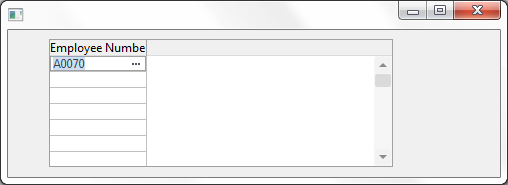
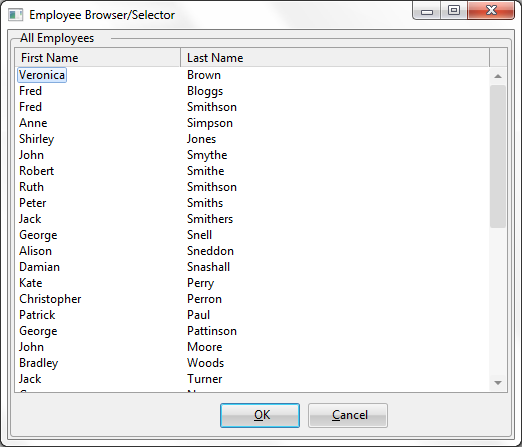
| Note |
|---|
Note: In the OK button click handler the following line is used to inform the calling field that the prompter is being closed successfully and that a new value has been chosen. Set Com(#com_owner) Modalresult(ok) If the above line was not present then the calling field would presume the prompter form was cancelled and was not successful so would not try to retrieve a new value for the field. |