Page History
...
To see the built-in properties of the control, use either the the Properties Interface of the control itself or the Component Features (F2).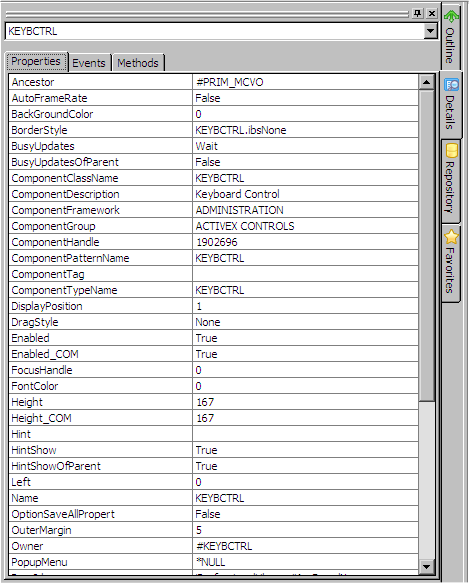
Properties Interface
Many ActiveX controls come with a user interface for manipulating their built-in properties. To see whether a control has such an interface, select the component and right-click to open its popup menu. Check if it contains a Properties option. (In some controls this option is called Edit or a similar name).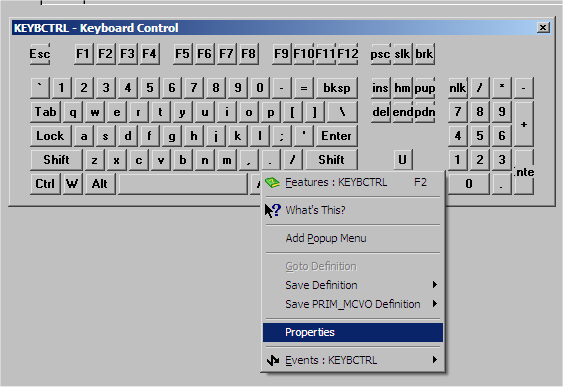
The Keyboard Control has a Properties interface: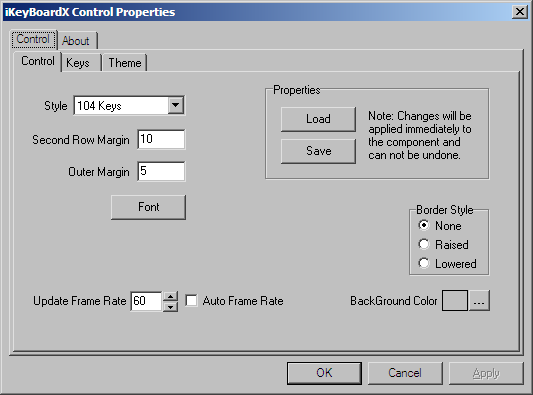
You can use this interface to set the properties of the Keyboard control. The property values you set for an ActiveX control when you enroll it will be the default values when the control is included in a form or a reusable part.
Component Features
As with native Visual LANSA controls, you can view a description of an ActiveX control's properties, methods and events by selecting it and displaying the Features tab.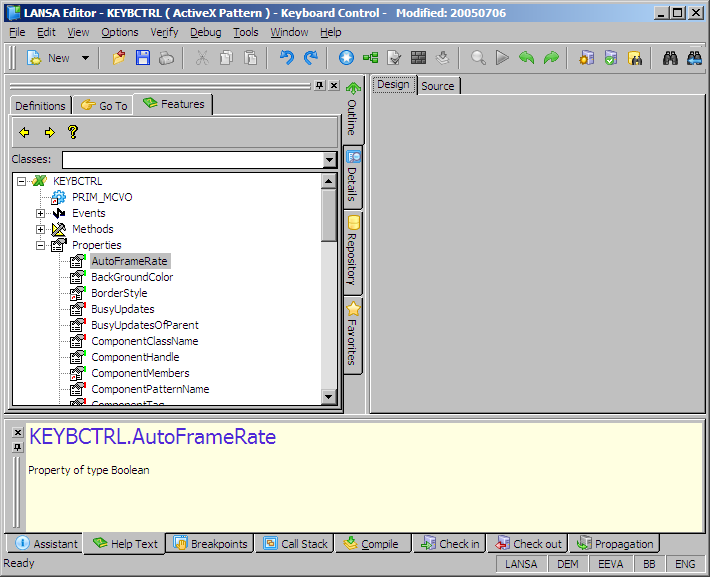
The help provided for ActiveX controls through the Features help is brief (it is provided as part of the ActiveX control itself). It gives you an indication of the purpose and type of the properties, methods and events of the control.
...
When viewing ActiveX controls, you will come across properties which end with _COM. This is because the _COM suffix is added to the control's native property if there are Visual LANSA and built-in properties which are synonymous. For example the keyboard control has both a LANSA and a built-in property Width (Width_COM). Often properties that have the same name do similar things. Read the help for both properties to decide which one to use.
Component Help
Many (but not all) ActiveX controls also come with their own extended help. To see the help, select the control in the Feature Tab and press F1.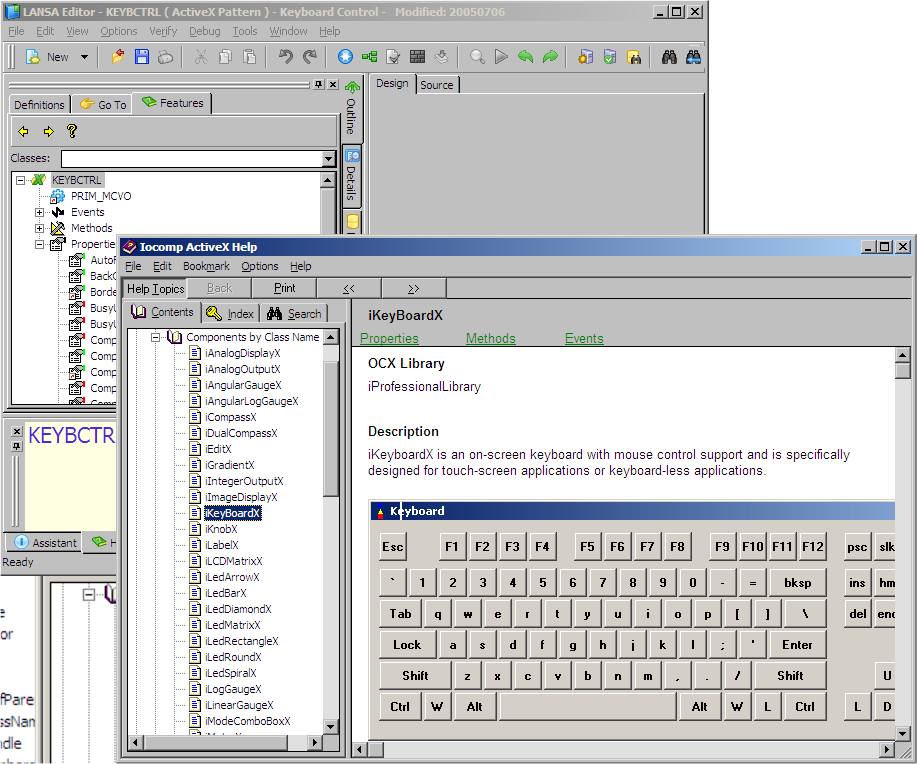
If a control has context-sensitive help, you can select one of its properties, events or methods in the Features tab and press F1 or click on the help button on the toolbar of the Features window to display help for it. If the help is not context-sensitive, you must first select the control itself in the Features window and then display the help.