Page History
...
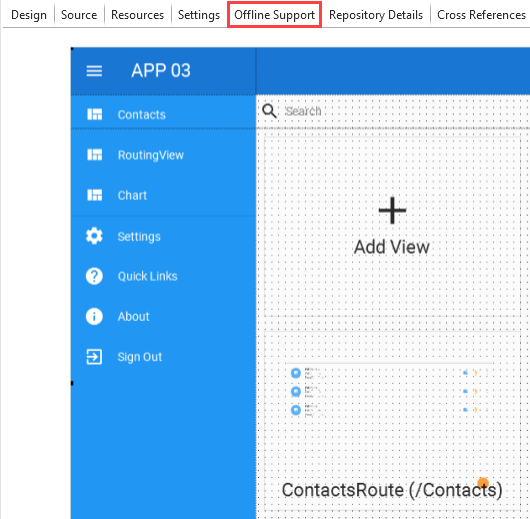
1. Click on "Offline Support".
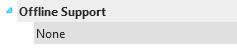
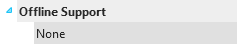
2. Double click on "None".
3. The details tab displays a dropdown with available options. Select one of them.
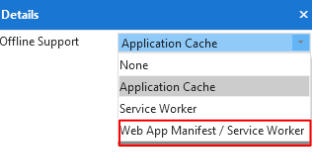
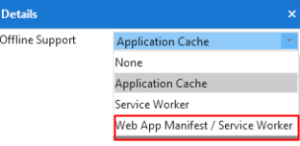
The Application Cache provides you with the following options:
...
4. Once you select an option, the following view is displayed:
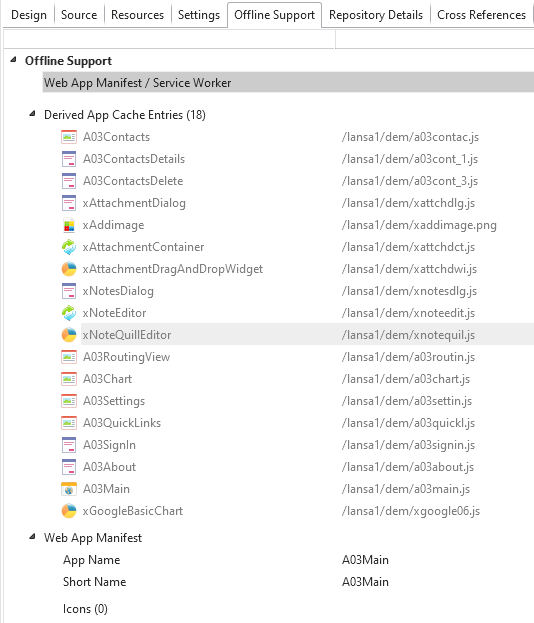
5. Right-click "Web App Manifest/Service Worker" to see a context menu with additional options.
6. Select "Add Service Worker Cache" to start nominating objects and resources that will be placed in the cache storage.
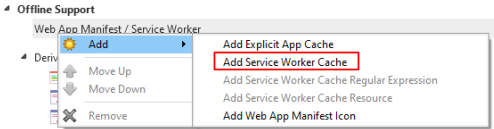
7. After you select the "Add Service Worker Cache", the Details tab displays the following:
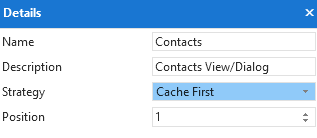
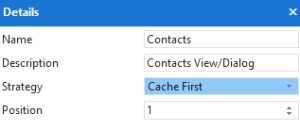
Fill in the details as follows:
- Name - Choose a name for the cache storage. This name will be accessible in the browser under developer tools.
- Description - Include details for the cache storage you are creating.
- Strategy - You can select from the following:
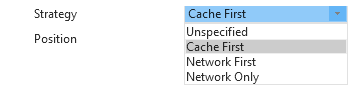
Cache First
...
Refer to the image below as an example where the 'Contacts' is the storage bucket:
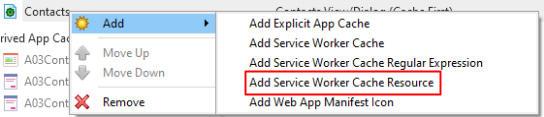
9. The "Add Service Worker Cache Resource" option allows you to specify the identifier of a specific resource.
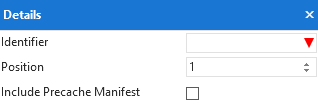
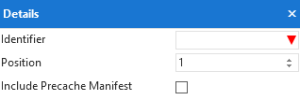
The Precache Manifest ensures that the resource is placed within the cache storage on the first load of the application.
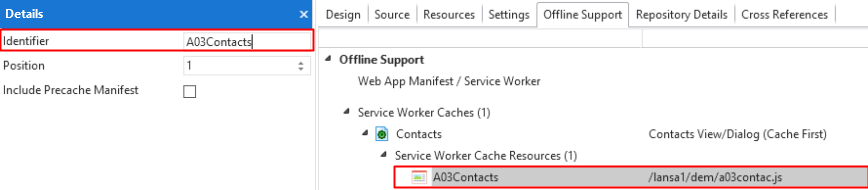
Refer to the image below as an example where 'A03Contacts' is the identifier for the 'Contacts' storage bucket view.
| Note |
|---|
| Note: As you type the resource name in the identifier, LANSA searches simultaneously for the resource you need. |
If you do not know the specific identifier, you can drag a resource from the repository view to the specified Cache bucket name.