Page History
...
| Note |
|---|
| Note: The following steps describe the describethe Windows XP procedures. These may not be exactly the same in all versions of Windows. |
...
- From the Start menu, select Settings, then open the Control Panel folder.
...
- From the Control Panel, select the Administrative Tools, then select Computer Management.
...
- Select Local Users and Groups.
...
Right click on the Users folder and select New User... from the pop-up menu.
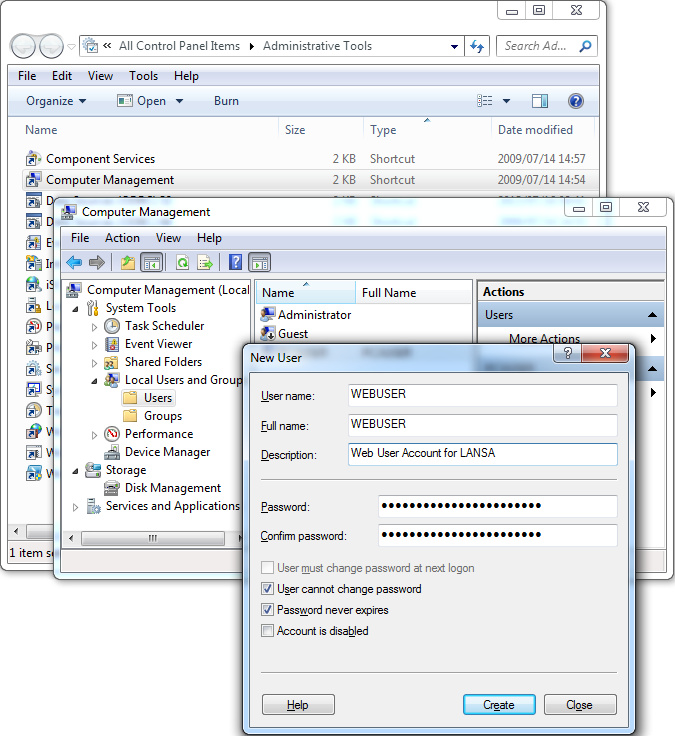
Enter these details in the New User dialog box:User Name:
Full Name:e.g. WEBUSER
(This must be a valid LANSA User. To be valid, it must be assigned to a LANSA task.)
Description:
Web User Account for LANSA
Password:
e.g. password
(Remember: passwords are case sensitive!)Check (select) these options:
Password never expires
and
User cannot change password.
...
Press Create to create the new User and then Close to return to Computer Management.
| Anchor | ||||
|---|---|---|---|---|
|
...
To add a User to the LANSA Users group:1. While
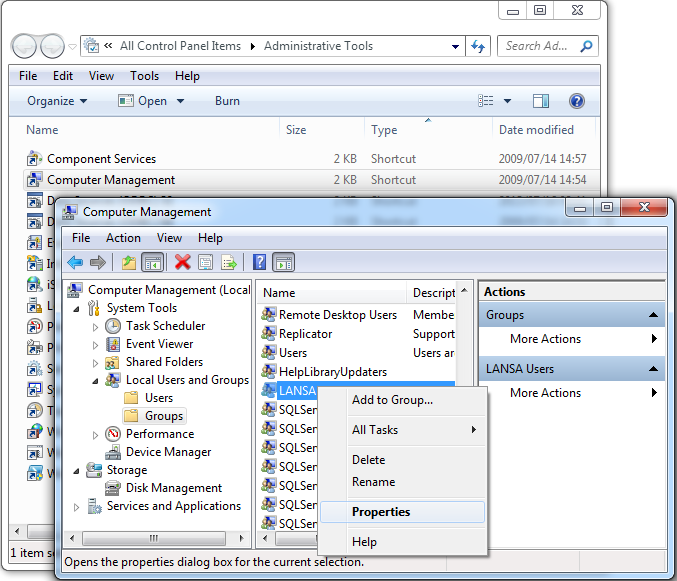
- While still in Computer Management, select Local Users and Groups and then Groups.
...
- Right click on LANSA Users and select Properties from the pop-up menu to open the LANSA Users Properties dialog.
...
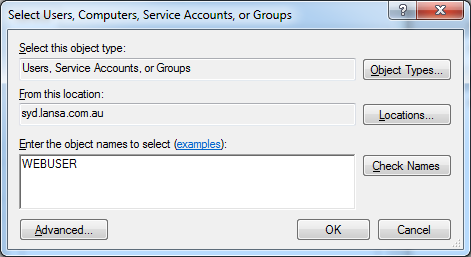
- In the LANSA Users Properties dialog, press the Add button to open the Select Users, Computers, or Groups dialog.
...
- Choose the location of the new WEBUSER, then enters the name WEBUSER in the Enter the object names to select entry box.
...
- Press OK and your new user will be added to the LANSA Users Group dialog box.
...
- Press OK and then exit Windows User Management.
| Anchor | ||||
|---|---|---|---|---|
|
From your Windows PC running the Administrator, connect to your Windows host and register your user.1. Choose
- Choose the Security menu and select the User Registration command.
The User Registration window is displayed.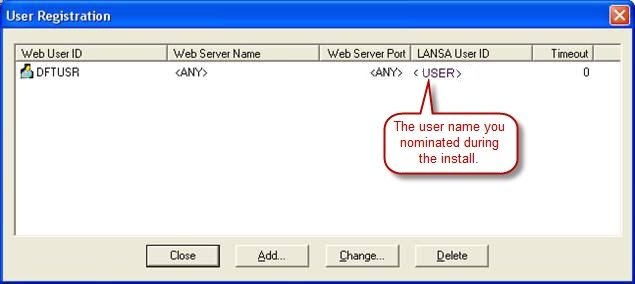
To register a new user, you can press the Add button or you can right click on the Web User ID column and select Add from the pop-up menu displayed.