Page History
1. Start the Visual LANSA Independent System which is to be connected to your VCS Master. If it's a completely new install the logon will display something like this:
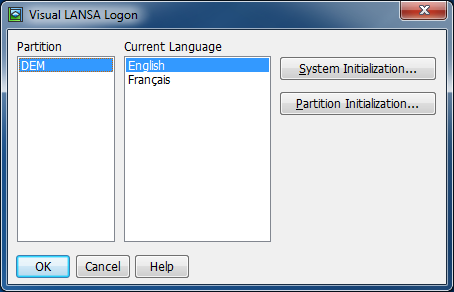
2. Click OK.
3. Create a new Partition with the same name as the source system. Let's say it's called DEX (New/Partition). This partition is going to be replaced so the actual settings do not matter. You just need to be able to select it on the logon dialog.
4. Close the Development Environment and select DEX and click OK.
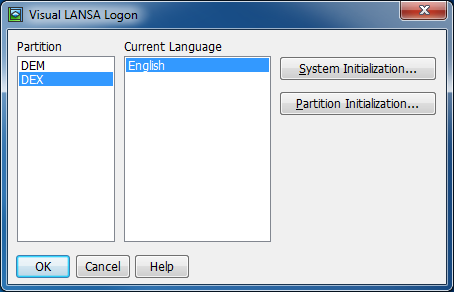
5. Leave that system running while you prepare the export from your source system.
...
7. Save the Package and Build it.
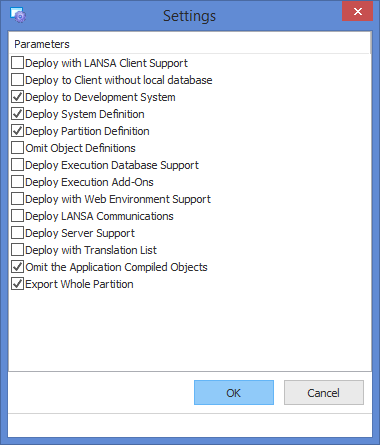
8. Once the Package is built, close the Package and go to the Package Folder. Now navigate to the internal directory of the package you have built. Something like this:
C:\Program
...
Files(x86)\SlaveSystem\X_WIN95\X_LANSA\x_apps\export\x_pkgwrk\6.0.0\Build\internal
This path is where LANSA is installed:
C:\program files(x86)\SlaveSystem\.X_WIN95\X_LANSA\x_apps\is the location of all packages.export\is is the name of the application.6.0.0\is
| Note |
|---|
Note: Choosing the Go To Folder option from the Deployment Tool will take you straight to
This export needs to be moved to the Cloud. An excellent way to do this is to use the aws command line tool: aws s3 sync. Refer to AWS documentation for more details to push the export to S3 and then to pull it down from S3 to your Cloud instance. |
9. Return to the Visual LANSA Independent System which is to be connected to your VCS Master.
...
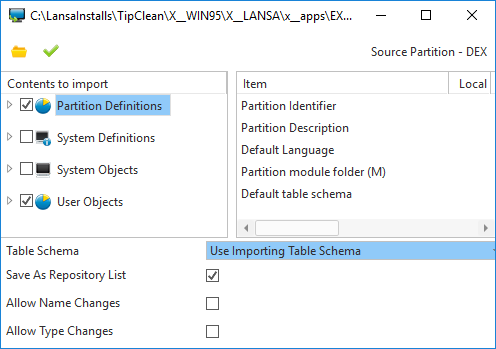
- Check Partition Definitions and User Objects.
- The System Objects are unnecessary.
- You MUST NOT import the System Definitions.
- Check Save As Repository List.
11. Click Import.
12. When the import completes, close down the Development Environment and restart it.
| Note |
|---|
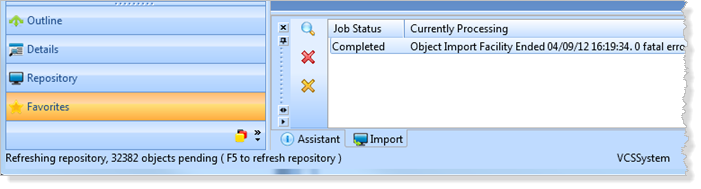
Note: Once the Job Status is completed, you do not need to wait for the Refreshing Repository to complete nor do you need to press F5. At this point you can close the Development Environment: |
...
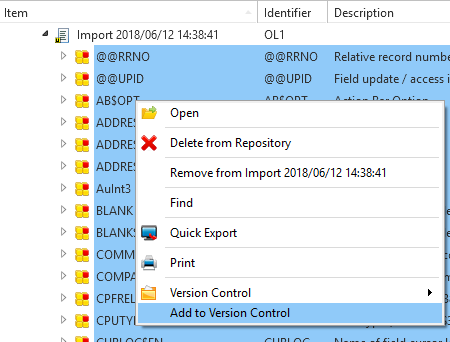
2. Right click on a selected object and click Add to Version Control.
All
All selected objects will be saved into the VCS Working Folder. This can take quite a while for a large partition.
...
To perform this step from within the Development Environment, see Version Control – Git Integration in the User Guide.
To perform this step using Git Extensions, do the following:
...
2. Initialize a Git repository in this directory. There are various ways to do this. One way is to use Git Extensions. Open it up and on the first screen click on Create New Repository. Paste the directory into this dialog and click Create.
...
Note that if this is the first time you have run Git it will show you a list of global settings which must all be set up correctly before proceeding.
3. You should see the Commit button on the toolbar with a tick in a red circle indicating there are changes to commit to Git.
...