Page History
...
- Open the command prompt:
No Format az login
- Login using an Azure account having a Microsoft Fabric subscription.
- Create a Database and ODBC DSN:
- Microsoft Fabric
- At least one schema available to use as a RED Data Warehouse Target.
- Microsoft Fabric
- Python 3.8 or higher
- Select "Add Python 3.8 to PATH" from installation Window.
- Pip Manager Install with command :
No Format python -m pip install --upgrade pip
- We recommend using case-insensitive (CI) collations during the creation of your Fabric Warehouse.
Installation Through Setup Wizard
...
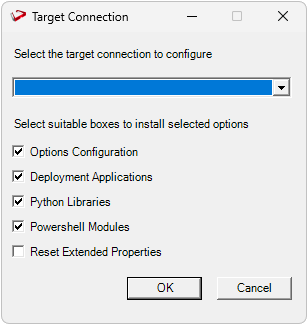
The user will be directed to the window below, where they have to select the target connection to be configured. Additionally, by deselecting the provided options, the user can choose not to install a particular option. "Reset Extended Properties" is deselected by default.
You will be directed to below PowerShell window. Provide the directory that contains unzipped Enablement Pack.
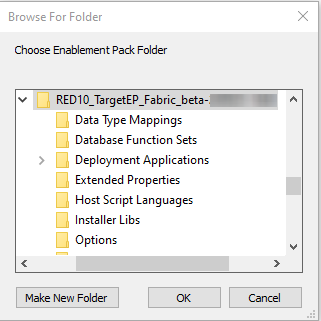
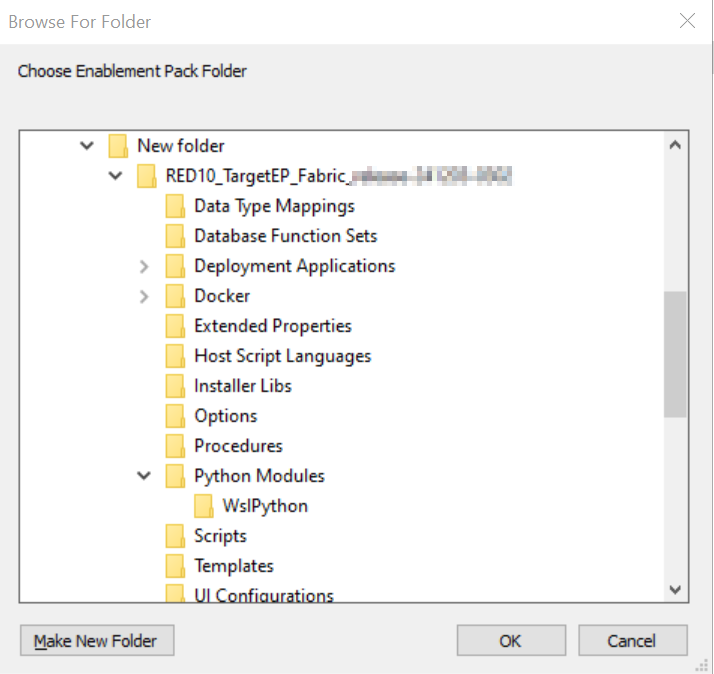
Press OK
The user will be directed to the window below, where they have to select the Create new profile or use existing one option.
...
Source Enablement Pack Support
| Source Pack Name | Supported By Microsoft Fabric | Supported Features | Prerequisites/Permissions Required for Microsoft Fabric |
|---|---|---|---|
| Google Cloud Storage | Yes | Download to local and load | None |
| Yes | Download to local and load | None | |
| Amazon S3 | Yes | Download to local and load | None |
| Windows Parser | Yes | Load Template, Source Properties will have option to select parser type to load the files. | Refer to Windows Parser Guide |
| Azure One Lake | Yes | Download to local and load | Refer to Windows Parser Guide |
Troubleshooting and Tips
Run As Administrator
...
Now you have an admin prompt navigate to to the folder where you have unpacked your WhereScape Red Enablement Pack to using the 'cd' command:
C:\Windows\system32> cd <full path to the unpacked folder> | No Format |
|---|
C:\Windows\system32> cd <full path to the unpacked folder> |
...
| No Format |
|---|
C:\temp\EnablementPack>uninstall_WslPython_Modules.bat |
For installation of Python libraries there are two methods
Method 1
Press the Windows Key on your keyboard and start typing cmd.exe, when the cmd.exe icon shows up in the search list right click it to bring up the context menu, select "Run As Administrator"
Now you have an admin prompt navigate to to the folder where you have unpacked your WhereScape Red Enablement Pack to using the 'cd' command:
| No Format |
|---|
C:\Windows\system32> cd <full path to the unpacked folder> |
Run batch (.bat) scripts from the administrator prompt by simply typing the name at the prompt and hit enter, for example:
| No Format |
|---|
C:\temp\EnablementPack>install_WslPython_Modules.bat |
Method 2
Press the Windows Key on your keyboard and start typing cmd.exe, when the cmd.exe icon shows up in the search list right click it to bring up the context menu, select "Run As Administrator"
Now you have an admin prompt navigate to to the folder where you have unpacked your WhereScape Red Enablement Pack to using the 'cd' command:
| No Format |
|---|
C:\Windows\system32> cd <full path to the unpacked folder> |
Run the below command
| No Format |
|---|
python -m pip install -r requirements.txt |
For upgrade of existing repository
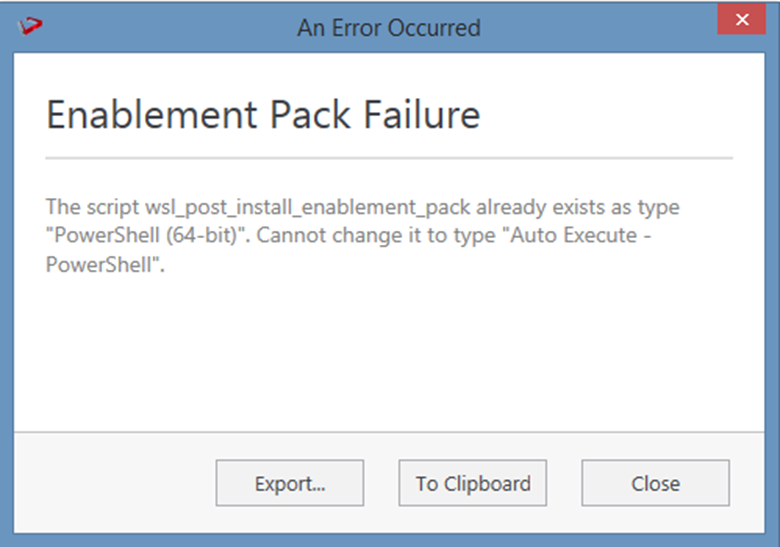
In upgrade of exiting repository if the user gets above error then it means the script type of wsl_post_install_enablement_pack is set to PowerShell(64-bit) change the script type to Auto Execute-PowerShell before upgrade or manually run the wsl_post_install_enablement_pack script from host script from RED after upgrade.
If a valid RED installation can not be found
If you have RED 10.x or higher installed but the script (Setup_Enablement_Pack.ps1) fails to find it on you system then you are most likely running PowerShell (x86) version which does not show installed 64 bit apps by default. Please open a 64 bit version of Powershell instead and re-run the script.
Table name should be given in lowercase only
While loading the table, the table name should be given in lowercase, for example, load_tablename; otherwise, loaded data will now get displayed.