Page History
...
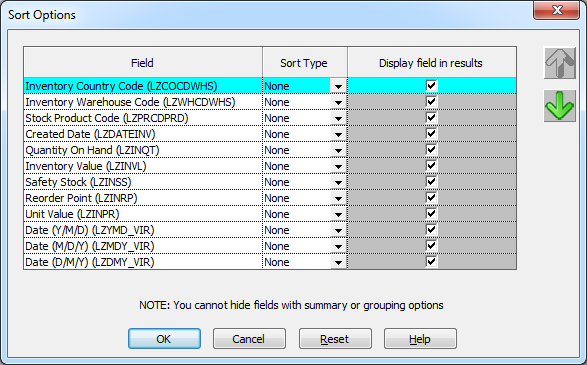
The Sort Options dialog box contains:
Field
A list of the fields you can sort on. You can include more than one field in a sort.
Sort Type
The sort type indicates that you wish to select the corresponding field for sorting. Choose the sequence you want by clicking on the arrow to the right of this box and select either:
- Ascending, so that the results are returned in the sequence lowest to highest.
- Descending, for results in highest to lowest sequence.
- None will remove a field from the sort.
Display field in results
A tick in this box indicates that the field will be displayed in the results.
...
| Note |
|---|
| Note: You cannot turn off the display of a field that has Group or Summary options added to it. |
Re-sequencing your Selected Fields
You can re-arrange the order of the fields in a sort by highlighting a field and selecting either the Up or Down buttons located at the right side of the dialog box.
For example, your query may consist of FieldA, FieldB and FieldC and you want to sort your data using FieldC then FieldB. In this case, you would attach the required Sort Type to Fields C & B, then re-arrange the fields by highlighting FieldC and using the Up button to move it above FieldB in the Field list.
Saving your Sort Options
Once you are satisfied with your sort options, select the OK button. If you want to ignore any changes you have made, select the Cancel button.
Select the Reset button to remove all the sorting criteria.
Note on Sorting Data
The application of the sort order specified in a logical file depends on whether a field condition is specified and if virtual fields are included in your query. To ensure the resulting sort order is correct, you should specify the sort order yourself instead of relying on the order defined in the logical file.
...
Sometimes you will want to control where your data is sorted. As a general rule, LANSA Client will sort the data at the host if:
- your Your query is a join query.
- you You have attached selection conditions to non-key fields and there are no virtual fields defined in your query.
- your Your query contains a LIKE selection condition.
The result of your query may vary when the Maximum Record number is used to limit the number of records retrieved. To avoid any variations, you should define your query so that the sorting is always done at the host.
Top-10 Style Query
By using a combination of Sort options and Maximum records, you can create a Top-10 style query. You could use this style of query to obtain, for example, the ten salesmen with the highest sales or your 6 best-selling products. To do this, you need to ensure that the data is sorted in descending sequence on the IBM i. To ensure that the data is sorted on the host, either create a join query or use the Like operator with an All Values prompt, and use the Output Options command to set the Maximum records to 10, or the number you require.