Page History
...
The RDML code below shows the field and list definitions that are used by the Tree View weblet.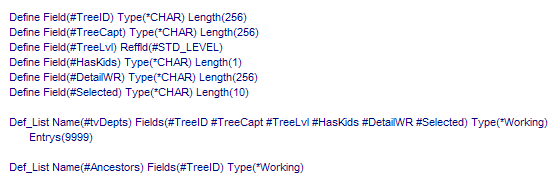
The tvDepts working list is the list used to populate the Tree View. The function of its fields is as follows:
- TreeID, used to hold the key information for the tree item.
- TreeCapt, used to hold the caption for the tree item.
- TreeLvl, used to return the selected tree item's level to the WAM.
- HasKids, used to denote whether the tree item has children.
- DetailsWR, used to hold the name of the Webroutine to be invoked when the tree item is selected.
- Selected, used to control whether a tree item should be selected.
The Ancestors list is used to receive parent tree item key information from the Tree View weblet for the selected tree item.
Right-click on the DepartmentTree Webroutine and select the LANSA Editor option. Once the LANSA Editor has opened, click on the tree itself and then select the Details tab. The properties of the tree view will be shown, as follows: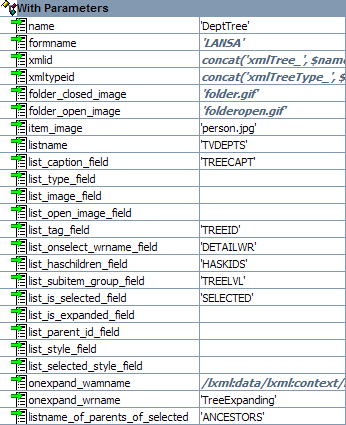
Note the listname property contains the name of the tree view working list, tvDepts. Note also how the list_*, onexpand_wrname and listname_of_parents_of_selected properties relate back to fields in tvDepts.
...
The entry point of the WAM (that which should used to execute the WAM via a browser URL or from another WAM) is the ViewDepartments Webroutine. It is designed to be the only entry point, to be executed only once. Any initialization logic for the WAM could be placed here. See below: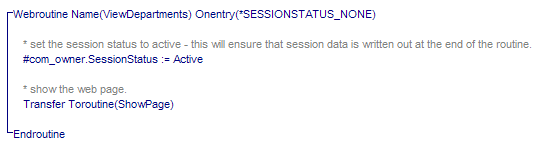
In this example, the only thing it has to do is set the Session Status to Active. This controls the writing out and reading in of any persistent session data when executing Webroutines in the WAM.
The ShowPage Webroutine is then executed. Again, this is designed to be the only place in the WAM used to display the web page. In this example, no Web_maps specify what is to be displayed – all such information is handled by other Webroutines, as you will see. Non-field and list data has been specified via the LANSA Editor, and so the ShowPage Webroutine shows as being 'empty'.
Building the Tree View
1. Right-click on the ShowPage Webroutine and select the LANSA Editor option.
2. Click on the left-hand side of the Vertical Splitter and select the Details tab to display the Navigation Panel's properties, as shown below: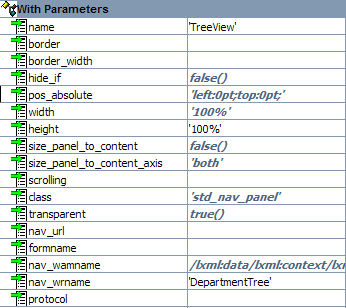
Take note of the nav_wrname property. This is the Webroutine that is invoked whenever the Navigation Panel is displayed. In this example, it points to the DepartmentTree Webroutine, which is used to build the tree view.
3. Close the XML editor and look at the DepartmentTree Webroutine in the WAM source, as shown below: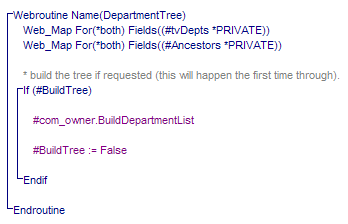
Note the Web_map definitions. Because this Webroutine is used to display the tree view, it has Web_maps for the working list that represents the tree, along with the working list that is used to hold ancestor items for a selected tree item. Wherever the tree view working list is specified as a Web_map, the ancestor list must also be specified as a Web_map. If it isn't, your WAM won't work correctly.
BuildTree is a Boolean field that is used to control the building of the tree view. Its default (in its field definition, at the top of the source) is True, which means that when this Webroutine is invoked for the first time, by the Navigation Panel, the tree view will be built. BuildTree is then set to False, ensuring that the tree is not rebuilt on subsequent invocations.
BuildDepartmentList method:
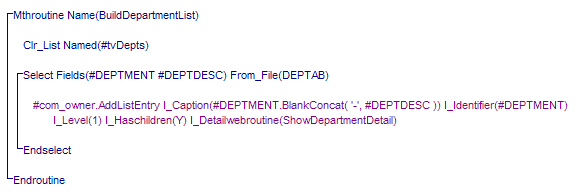
Note the setting for each entry to be added to the Tree View working list. Refer to List Definitions in A Closer look at WAMEX51 for a full explanation of these.
The Role of the Tree View Target Weblet
1. Right-click on the ShowPage Webroutine again and select the LANSA Editor option.
2. Click on the right-hand side of the Vertical Splitter and then click the Details tab. The properties for the Tree View Target will be displayed.
...
Note the treeview_name property points to the name of the Tree View weblet as defined in the DepartmentTree Webroutine. This indicates that the Tree View Target will receive selection events from the tree view. Effectively, it will become the active, target portion of the web page when something is selected in the tree.
...
This, in combination with the list_onselect_wrname_field property of the tree view, will display details of a selected Department, Section or Employee.
3. Close the LANSA Editor.
DepartmentDetail Webroutine in the WAM source:
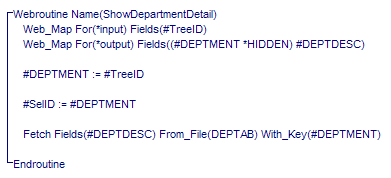
This is the Webroutine that is invoked when a Department is selected in the tree view. Note the *input Web_map. This is the field specified against the list_tag_field property of the list view weblet. It contains the identifier, or key, of the selected tree item.
The SelID field is defined as a persistent session field (Web_map with *NONE and *PERSIST) and is used to hold the selected key on multiple invocations of the WAM. This is used when rebuilding the tree.
When the Webroutine ends, because the active portion of the web page is the Tree View Target, the output from the Webroutine is directed to it, so you see the department details in the right-hand portion of the Vertical Splitter.
Rebuilding the Tree View
1. Right-click on the ShowDepartmentDetail Webroutine and select the LANSA Editor option. Note that, as well as the department description, an Update push button is displayed. Click on it and select the Details tab. Its properties will be displayed, as follows: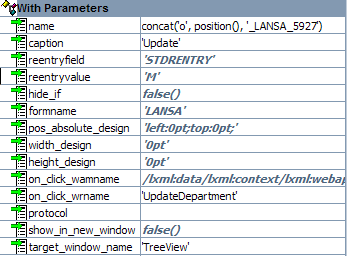
...
Note the on_click_wrname and target_window_name properties. The on_click_wrname property contains the name of the Webroutine to invoke when the push button is clicked.
...
The target_window_name property is used to direct the output of the WAM to a specified window. In effect, this becomes the active portion of the web page. In this example, the Navigation Panel will be the target window.
2. Close the LANSA Editor.
UpdateDepartment Webroutine in the WAM source:
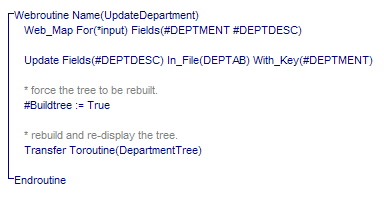
Note that the BuildTree boolean field is set to True, indicating that the tree should be rebuilt. Control is then transferred to the DepartmentTree Webroutine, from where the tree view is rebuilt. Have another look at the AddListEntry method: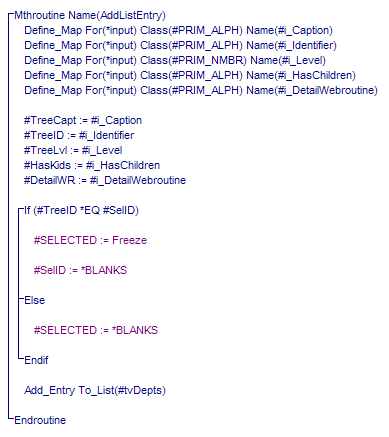
Note the If/Else/Endif code. Remember the SelID field? If the entry being added to the tree is the same one that has just been updated, the SELECTED field is set to 'freeze'. SELECTED is a field in the tree view working list which drives the list_is_selected_field property of the tree view. Setting it to freeze does two things: it pre-selects the tree view item and it stops the TreeViewTarget from being reloaded.
Processing Expanding Tree Items
Open the DepartmentTree Webroutine in the LANSA Editor and select the tree view weblet. Click the Details tab to display its properties. Note the onexpand_wrname property is set to TreeExpanding. This is the Webroutine to be invoked when an expander
...
(+
...
) of a tree item is clicked on. Close the LANSA Editor and have a look at the TreeExpanding Webroutine in the WAM source: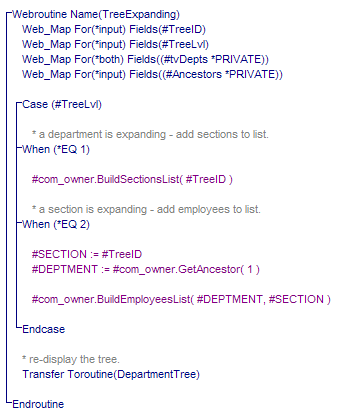
Note the *input field Web_maps: the TreeID field, which holds the key information of the expanding tree item, and the TreeLvl field, which indicates the level of the expanding tree item. The tree view working list is also passed in, along with the list of ancestors of the expanding tree item. Note that the tree view working list is specified as *both – it will be passed to the DepartmentTree Webroutine at the end of the TreeExpanding routine. Also, the ANCESTORS list is *input – it is only needed by this routine.
The Case statement determines what should be added to the tree view working list. If the level is 1, it means a Department tree item is being expanded, so Sections need to be added. If it's 2, a Section is being expanded and Employees need to be added. Once entries have been added to the tree working list, control is transferred back to the DepartmentTree Webroutine which displays the tree.
In Accessing Ancestor Information, the focus is on what happens if a Section tree item is being expanded in order to show what you need to do to retrieve parent key information.
Accessing Ancestor Information
Refer back to Processing Expanding Tree Items. When processing level 2, the SECTION field is set to the incoming identifier (this was set when the Sections were added to the tree view working list in the BuildSectionsList method). Of course, a Section has a parent of Department.
In order to determine the Department to which the Section being expanded belongs, the ANCESTORS working list is used. This list contains multiple entries of the TreeID field. A Section only has one parent, so the ancestor working list will contain one entry. In this example, the GetAncestor method is executed to retrieve the key value of the Section's parent.
If the tree contained more levels, the ANCESTOR working list would contain more than one entry for a level three or higher item, and so multiple Get_entrys could be used to build up the full list of parent keys.