Page History
...
Step 4. Compile and run the Program
Step 1. Create the Form
You start creating an application by creating a form or a dialog. The dialog will become your application's window when it is running.
...
You will need these fields showing employee details on the form:
You will need these fields showing employee details on the form: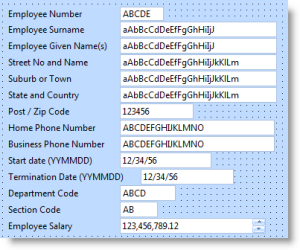
| To add the fields, again display the PSLMST file in the Repository tab. Drag and drop these fields to the form:
Notice that as you drag the fields to the form, they are displayed with a label specified in the field definition. Also, they are filled with sample data which indicates the required length for the field. |
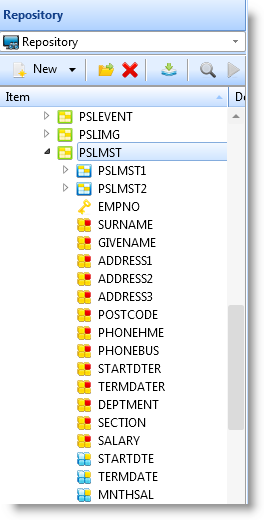
...
2. Double-click on the Click event. Notice that editor inserts the EVTROUTINE and ENDROUTINE statements for you in the Source view.
The icon in front of the Click event in the Details tab changes to indicate that a routine has been specified for the event: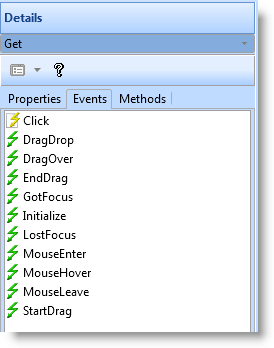
3. Add the following code in the Click event of the Get button:
EVTROUTINE HANDLING(#GET.Click)
   change #surname #partname
   clr_list #ltvW_1
   SELECT FIELDS(#ltvw_1) FROM_FILE(PSLMST2) WITH_KEY(#SURNAME) GENERIC(*YES)
      add_entry #ltvw_1
   endselect
ENDROUTINE
The event routine assigns the value entered in the #PARTNAME field to #SURNAME. It then clears the list view. The SELECT loop selects all employees whose surname matches the value of #SURNAME and adds the entries to the list view.
4. Write an Event Routine to Fetch the Details for an Employee:
a. Create a Click event routine for the ItemGotSelection event of the list view. This event is triggered when the user selects an employee in the list view.
...
EVTROUTINE HANDLING(#LTVW_1.ItemGotSelection)
   FETCH FIELDS(#ALLFLDS) FROM_FILE(PSLMST) WITH_KEY(#EMPNO) ISSUE_MSG(*YES)
ENDROUTINE
5. Write an Event Routine to Enter a New Employee
Create an event routine for the Click event of the New button. Use the event to blank out all the fields so that the details of a new employee can be entered.
EVTROUTINE HANDLING(#NEW.Click)
   change #allflds *Null
ENDROUTINE
6. Write the Event Routine to Delete an Employee
Create an event routine for the Click event of the Delete button to delete the currently selected employee:
EVTROUTINE HANDLING(#DELETE.CLICK)
   DELETE FROM_FILE(PSLMST) WITH_KEY(#EMPNO) ISSUE_MSG(*YES)
ENDROUTINE
7. Write the Event Routine to Save Changes
Create an event routine for the Click event of the Save button to either update the details of an existing employee or to insert the details of a new employee:
EVTROUTINE HANDLING(#SAVE.CLICK)
check_for in_file(pslmst) with_key(#empno) val_error(*next)
if_status is(*EQUALKEY)
      UPDATE FIELDS(#ALLFLDS) IN_FILE(PSLMST) WITH_KEY(#EMPNO) ISSUE_MSG(*YES)
      IF_STATUS IS(*OKAY)
         MESSAGE MSGTXT('Employee details have been updated.')
      endif
else
      INSERT FIELDS(#ALLFLDS) TO_FILE(PSLMST)  ISSUE_MSG(*YES)
      IF_STATUS IS(*OKAY)
         MESSAGE MSGTXT('Employee details have been added.')
      endif
   endif
ENDROUTINE
The event routine first checks to see if the employee exists. If it does, it updates the employee details. If no record with the matching employee number is found, it inserts the employee details. A message is displayed after the update and the insert.
Step 4. Compile and run the Program
The application is now complete.
1. To compile the program, select the Compile command on the ribbon.
You do not need to keep the generated source or debug enable your component. In the Component Compile Options dialog box specify the options like this: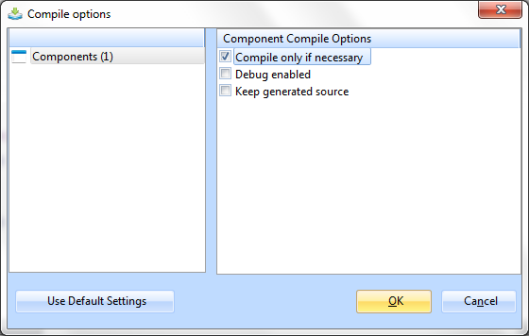
2. Click OK.
3. After the compilation has ended, execute your program using the Execute command: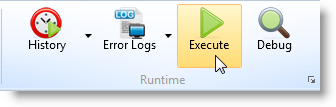
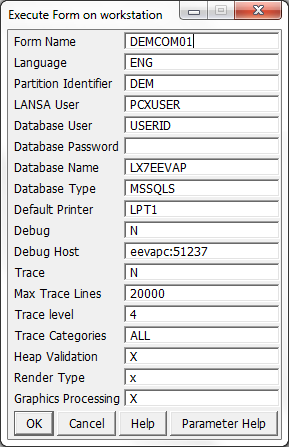
Note that you can also execute the form outside the LANSA development environment. From your LANSA System's desktop folder, select Execute Applications and then Exec Form: