Apache Hive registrations should be straightforward.
| If you need to connect to Mapr, Hortonworks, or Cloudera distributions of Hive, you must remove the Apache Hive JDBC Drivers that come preinstalled in <ADS_INSTALL>/lib/drivers. Replace them with drivers from your distribution before you choose a new distribution type in the Distribution drop-down within the General Tab. Follow the steps to connect to Hortonworks, Cloudera, or MapR Distributions of Hive on the Apache Hive JDBC Drivers page. |

General Tab
Before choosing any distribution in the Distribution drop-down, make sure you follow the instructions in the Apache Hive JDBC Drivers page about how to replace the current drivers with those from your Hive Distribution.
Tab Coloring
To Identify Server Environments, whether it is a Production, Development or Test, use the Tab Coloring feature:
- Locate the Server in the Server Browser
- Right-click the Server - A Popup Menu Appears
- Click the Item which displays Server Properties.
- Based on the Server Type, you can edit the Tab Coloring option to identify your environments.
| Using the Keyboard combination "CTRL + SHIFT + P", you may quickly access Server Properties and edit Tab Coloring options. |
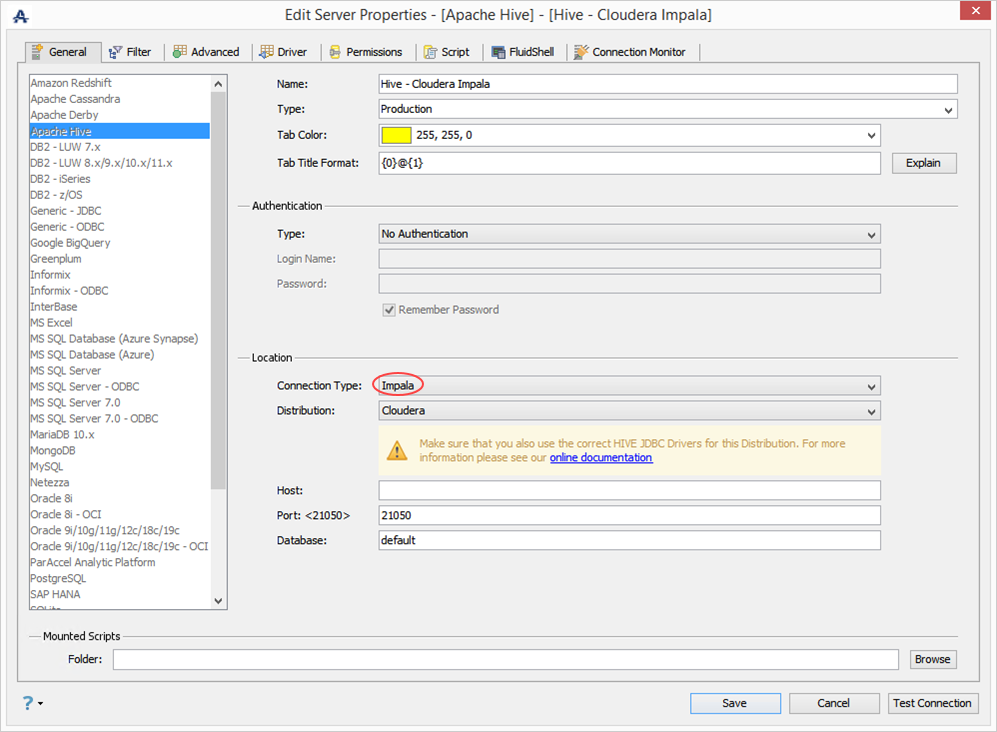
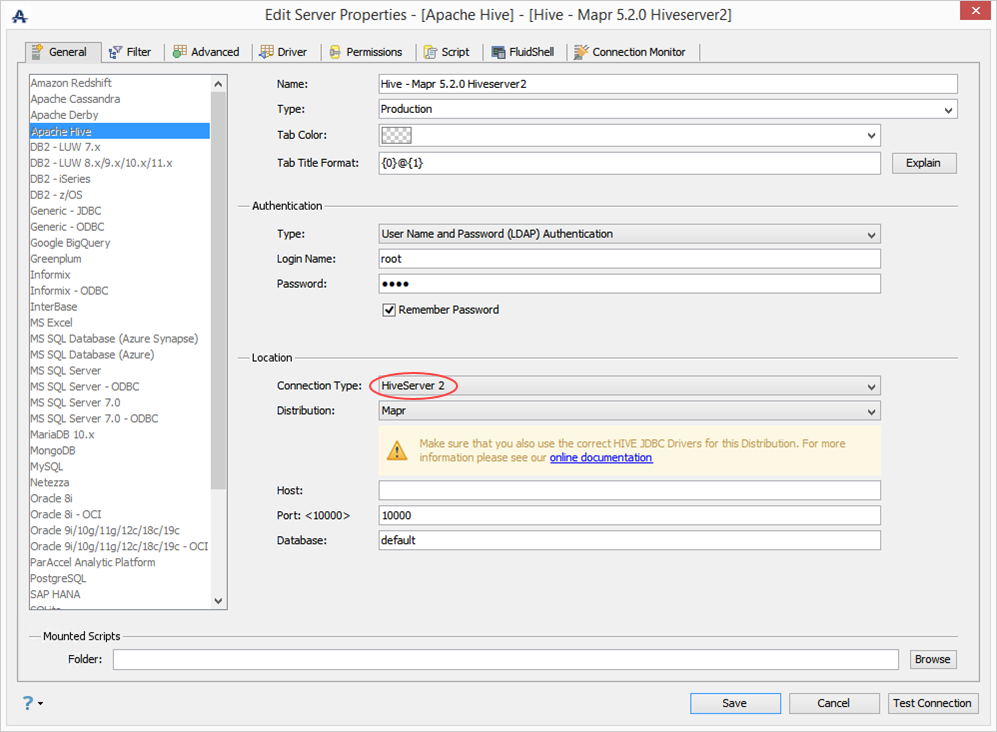
Examples of the General Tab using different distributions and connection types.
An example using a Mapr distribution connecting to Spark SQL using a Login Name and Password for authentication.

An example using a Cloudera distribution connecting to Impala with no authentication.
An example using a Hortonworks distribution connecting to Hive server 2 with Kerberos authentication
 Using Filters Options in Registration (Filter Tab)
Edit the Server Properties, to use FILTER options for a Server in Aqua Data Studio:
- Locate the Server in the Server Browser
- Right-click on the Server - A Popup Menu Appears
- Click on the Item which displays Server Properties.
- Go to the Filter Tab and make changes in the Options.
- Filter Databases/Schemas: Allows the user to specify the main schema browser filter for databases or schemas, on whether to include or exclude all.
- Include Databases/Schemas: A list of databases/schemas to include after the main filter is applied.
- Exclude Databases/Schemas: A list of databases/schemas to exclude after the main filter is applied.
- Filter Objects: Allows the user to specify the main schema browser filter for object types, on whether to include or exclude all.
- Include Objects: A list of objects to include after the main filter is applied.
- Exclude Objects: A list of objects to exclude after the main filter is applied.

Features
- You can Create, Edit or Delete Object Folders. Default Folders are Tables, System Tables, Views, Indexes, Triggers, Procedures, Functions.
- Sometimes you would like to view only specific Schemas. Use options to INCLUDE or EXCLUDE all Schemas and Folders.
- Enter the Schema or Folder name in the specified text area and click OK. The current Connection will be terminated. Reconnect to see the changes.
- Filters are case sensitive
- Filter Databases works on the list of databases inside the "Databases" folder.
- Filter Folders works on the list of folders inside a particular database. Example folders: Tables, View, Procedures, etc.
- Object Folder filter works on individual folders inside a particular database. The user can define filters for each of the Tables, Views, etc. folders.
| Using the drop-down at the top of the Filter Tab, quickly change your Schema or Folder View. |
Filter Examples:
If your intention is to show only the tables that start with XXPKD, then you need to change your main filter to "Exclude All", and the secondary filter to "+XXPKD*". Note the "+" in front of the XXPKD pattern. Also, note that the filter pattern is case-sensitive.

The filter shown below is set to exclude all databases except those that start with "aq". This is similar to the above example where all schemas, except the XXPKD schema, are excluded. Then, there is an "Object Folder" filter on the Tables folder, which excludes everything except those that start with "forum".

 Using Advanced Properties (Advanced Tab)
Edit the Server Properties to use Advanced Properties in Aqua Data Studio:
- Locate the Server in the Server Browser.
- Right-click the Server - A Popup Menu Appears.
- Click the Item which displays Server Properties.
- Go to the Advanced Tab and make changes in the Options.
With options in Advanced properties of a Server, you can:
- Manage Driver Parameters.
- Enable Database Filters in Query Analyzer.
- Change Read Only / Read- Write Mode.
- Change Object Folder Display.
- Always Display Column Name in Results: Allows to show/hide column names in query results.
- Enable DB Filters for Query Window: Enables/Disables db filters for query windows using this connection.
- Only Display Databases that User has Access to: Displays only the databases the current user (from the Login Name on the General tab) has access to within the schema browser.
- Fetch Size: determines the Fetch Size (number of rows physically retrieved from the database at one time by the JDBC driver).
- Connections Pooled: Enables connection pooling. Read more about connection pooling here.
- Force Auto-Commit: When this option is selected, it sets auto-commit to TRUE for any Query Window to this server and disables the icons on the toolbar.
- Group Table and View Objects:
- Show Table Extended (Single query to group table and view objects) -
- Show Table (Merge table and view objects) -
- Show Table and Describe (Separate query per object) - - Data Warehouse Mode: Read Only or Read/Write
- Object Folder Display: [Default], [Name], [Schema].[Name] or [Name]([Schema]) sets how the Schemas will be displayed.
| Using the drop-down at the bottom of the Advanced Tab, quickly change your Object Display in the Server Browser. |

 Using Driver Properties (Driver Tab)
Edit the Drivers Properties to use Driver Parameters in Aqua Data Studio:
- Locate the Server in the Server Browser.
- Right-click on the Server - A Popup Menu Appears.
- Click on the Item which displays Server Properties.
- Go to the Driver Tab and make changes in the Options.
With options in Driver properties of a Server, you can edit/view the:
- Driver: This displays the JDBC driver used for this connection.
- Driver Parameters: This option is to allow a user to specify extra JDBC parameters that a user might want use in establishing a connection.
- Connection URL: This displays the connection URL for this server connection.
- Driver Parameters Quick filter: This option is to allow a user to search JDBC parameters that a user might want to use in establishing a connection.
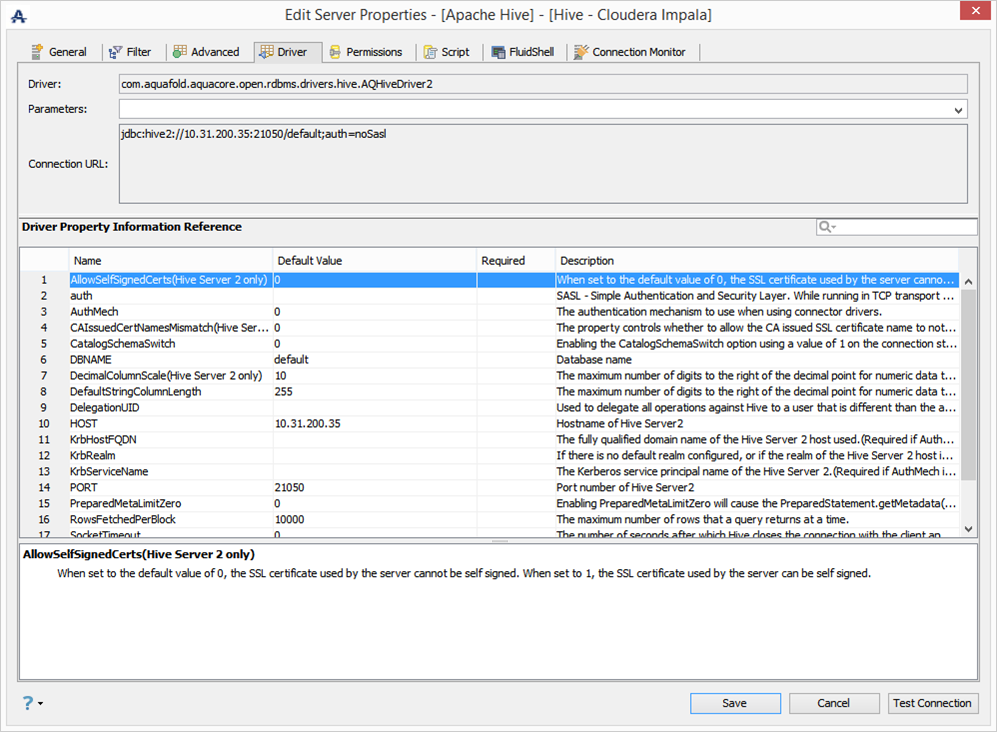
Hortonworks Driver Properties
To connect Hortonworks with Aqua Data Studio:
- For Hortonworks versions [HDP 2.2.0, Hive 0.14], edit your Server Properties
- Go to the Driver Tab and enter auth=noSasl
- Save the Server Properties
- The entry auth=noSasl is required to make a successful connection to Hortonworks with Aqua Data Studio
MapR Driver Properties
To connect MapR with Aqua Data Studio:
- For MapR versions [5.0, Hive1.0.0], edit your Server Properties
- Go to the Driver Tab and enter auth=noSasl
- Save the Server Properties
- The entry auth=noSasl is required to make a successful connection to MapR with Aqua Data Studio
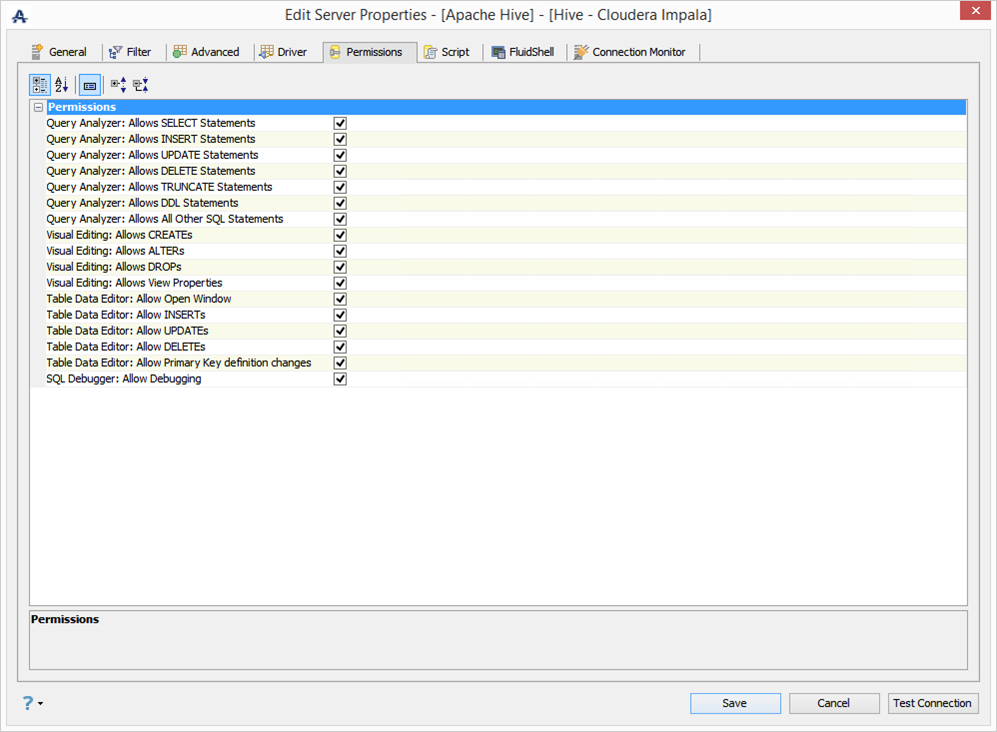
 Server Permissions (Permissions Tab)
Edit the Permissions in Server Properties in Aqua Data Studio:
- Locate the Server in the Server Browser
- Right-click on the Server - A Popup Menu Appears
- Click on the Item which displays Server Properties.
- Go to the Permissions Tab and make changes in the Options.
With options in Permissions Tab of a Server, you can:
- Control Statement execution and Properties of the Query Analyzer, Table Data Editor, and Visual Editing.
- Grant / Revoke Permissions easily for executing DDL and DML Statements in the Query Analyzer.
- Change the behavior of the Table Data Editor for manipulating rows in Tables.
- Grant / Revoke Alters, Creates, Drops and View Properties of Visual Editing Tools.
 Server Scripts (Script Tab)
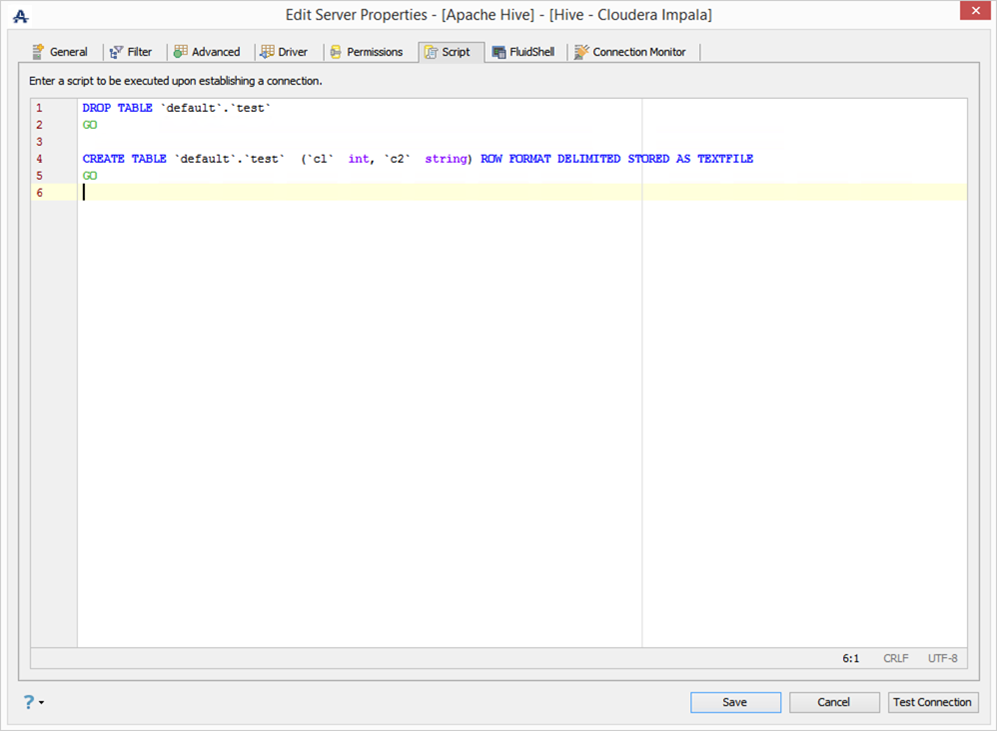
Edit Scripts in Server Properties in Aqua Data Studio:
- Locate the Server in the Server Browser
- Right-click the Server - A Popup Menu Appears
- Click the Item which displays Server Properties.
- Go to the Script Tab and make changes in the Options.
With scripts in the Script Tab of a Server, you can:
- Enter an SQL script that is executed each time a new connection is established.
- This allows the user to SET connection settings for a server connection. (eg: SET ROLE, ALTER SESSION SET XXX)
 Shell Scripts (FluidShell Tab)
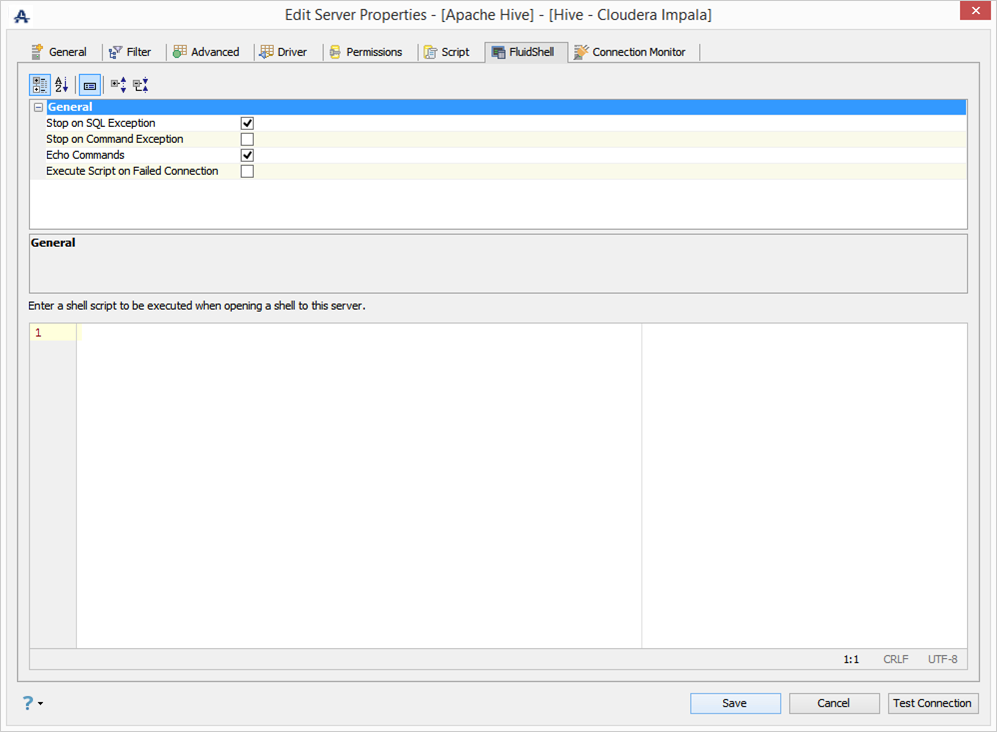
Edit Shell Scripts in Server Properties in Aqua Data Studio:
- Locate the Server in the Server Browser
- Right-click the Server - A Popup Menu Appears
- Click the Item which displays Server Properties.
- Go to the FluidShell Tab and make changes in the Options.
With scripts in the FluidShell Tab of a Server, you can:
- Enter a FluidShell script that is executed each time a new FluidShell connection is established.
- This allows the user to cd (change directory) for a server connection. (eg: cd /scripts)
 Server Connections (Connection Monitor Tab)
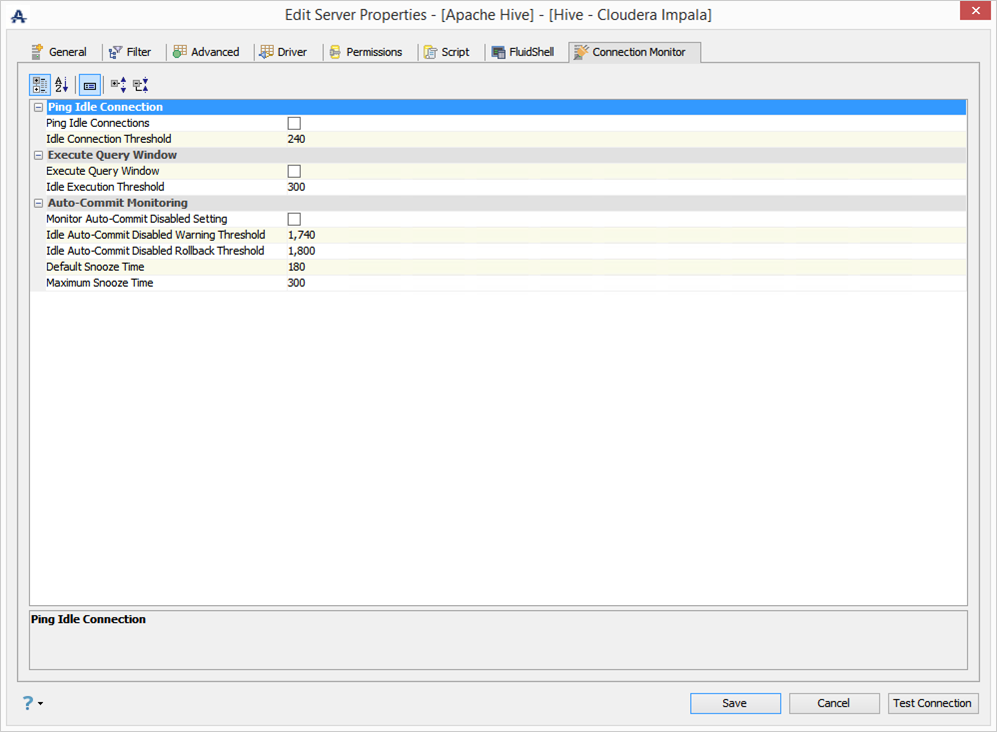
Enable the connection monitor to start an application thread that monitors the status of the connection associated with the Query Window.
With the connection monitor, you can:
- Set a ping operation that allows activity on the connection to prevent the connection from being terminated.
- Set an execute operation that executes the Query Window on a periodic basis.
- Set an auto-commit operation that checks how long the auto-commit has been disabled and whether the idle threshold has been exceeded. A warning threshold can also be configured so users can turn on auto-commit before it happens.
For more information, see Connection Monitor.