If you have any issues connecting to your Oracle instance, make sure that you can ping your server with ’tnsping’.
| Make sure you have the correct JDBC driver if you are connecting through OCI libraries. (Drivers) |

General Tab
Tab Coloring
To Identify Server Environments, whether it is a Production, Development or Test, use the Tab Coloring feature:
- Locate the Server in the Server Browser.
- Right-click the Server - A Popup Menu Appears.
- Click the Item which displays Server Properties.
- Based on the Server Type, you can edit the Tab Coloring option to identify your environments.
| Using the Keyboard combination "CTRL + SHIFT + P", you may quickly access Server Properties and edit Tab Coloring options. |
 Change Server Password
You can change the password of the server connection while you are connected as a Normal user. Changing password will only work under the following conditions:
- The OCI client library version should match the server version exactly. If the server is v11.0.2.3 then the OCI driver must be for v11.0.2.3. The user should copy the matched, version-specific jdbc drivers .jar file(s) from oracle client installation to ADS_HOME/drivers/lib (for more on how to do this, see our Drivers page).
- The environment variable TNS_ADMIN should be configured to the directory containing tnsnames.ora file.

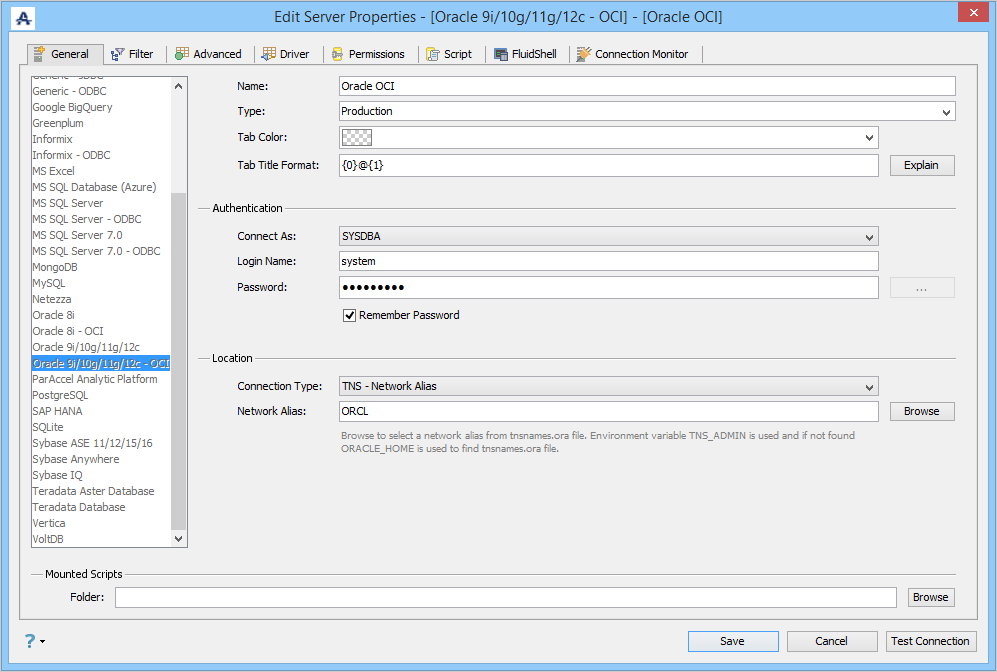
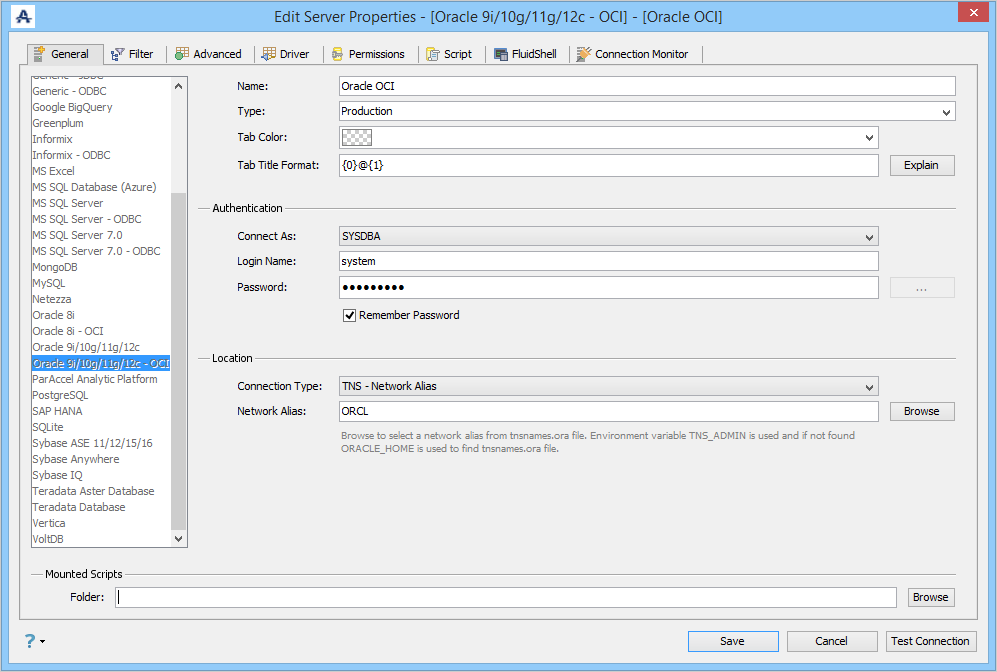
Connection Type - TNS Network Alias
Browse to select a network alias from the tnsnames.ora file. TNS - Network Alias uses the Environment Variable TNS_ADMIN is used and if it is not found, the Environment Variable ORACLE_HOME is used to find the tnsnames.ora file.
Connection Type - TNS Connect Descriptor

Aqua Data Studio also allows you to connect to Oracle RAC and Oracle Connection Manager by entering into the Descriptor field.
Oracle Connection Manager TNS Descriptor Examples:
(description=(address_list=(address=(protocol=tcp)(port=1610)(host=webHost)) (address=(protocol=tcp)(port=1521)(host=oraHost))) (connect_data=(INSTANCE_NAME=orcl))(source_route=yes))
Oracle RAC TNS Descriptor Examples:
(DESCRIPTION=(ADDRESS_LIST=(ADDRESS=(PROTOCOL=TCP)(HOST=PRIMARY_NODE_HOSTNAME)(PORT=1521)) (ADDRESS=(PROTOCOL=TCP)(HOST=SECONDARY_NODE_HOSTNAME)(PORT=1521))) (CONNECT_DATA=(SERVICE_NAME=DATABASE_SERVICENAME)))
(DESCRIPTION=(FAILOVER=ON)(ADDRESS_LIST=(LOAD_BALANCE=ON)(ADDRESS=(PROTOCOL=TCP)(HOST=xxxxx) (PORT=1526))(ADDRESS=(PROTOCOL=TCP)(HOST=xxxx)(PORT=1526))) (CONNECT_DATA=(SERVICE_NAME=somesid)))
Oracle with Kerberos
 Using Filters Options in Registration (Filter Tab)
Edit the Server Properties, to use FILTER options for a Server in Aqua Data Studio:
- Locate the Server in the Server Browser.
- Right-click the Server - A Popup Menu Appears.
- Click the Item which displays Server Properties.
- Go to the Filter Tab and make changes in the Options.
- Filter Databases/Schemas: Allows the user to specify the main schema browser filter for databases or schemas, on whether to include or exclude all.
- Include Databases/Schemas: A list of databases/schemas to include after the main filter is applied.
- Exclude Databases/Schemas: A list of databases/schemas to exclude after the main filter is applied.
- Filter Objects: Allows the user to specify the main schema browser filter for object types, on whether to include or exclude all.
- Include Objects: A list of objects to include after the main filter is applied.
- Exclude Objects: A list of objects to exclude after the main filter is applied.
Using the drop-down at the top of the Filter Tab, quickly change your Schema or Folder View.
Features
- You can Create, Edit or Delete Object Folders. Default Folders are Tables, System Tables, Views, Indexes, Triggers, Procedures, Functions.
- Sometimes you would like to view only specific Schemas. Use options to INCLUDE or EXCLUDE all Schemas and Folders. For more information see Improve the connection performance.
- Enter the Schema or Folder name in the specified text area and click OK. The current Connection will be terminated. Reconnect to see the changes.
- Filters are case-sensitive.
- Filter Databases works on the list of Schemas.
- Filter Folders works on the list of folders inside a particular Schema. Example folders: Tables, View, Procedures, etc.
- Object Folder filter works on individual folders inside a particular Schema. The user can define filters for each of the Tables, Views, etc. folders.
| Use the * character to specify wildcards. For example, "TEST*" will match "TEST", "TEST1", "TEST_SCHEMA", etc. |

Filter Examples:
If your intention is to show only the tables that start with XXPKD, then you'll need to change your main filter to "Exclude All", and secondary filter to "+XXPKD*". Note the "+" in front of the XXPKD pattern. Also, note that the filter pattern is case-sensitive.

The filter shown below is set to exclude all databases except those that start with "aq". This is similar to the above example where all schemas, except the XXPKD schema, are excluded. Then, there is an "Object Folder" filter on the Tables folder, which excludes everything except those that start with "forum".

Improve the Schema Tree and Query Analyzer connection performance
If you have a large number of schemas on an Oracle Database the connection process can take a long time. If you want to improve the connection performance or simply limit the number of schemas displayed in the Schema Tree or in the Query Analyzer schema drop-down you can follow the steps below:
In order to determine which Schemas should be displayed in the Schema Tree, select "Filter Schemas: Exclude All" and enter only the list of schemas you want to see under "Include Filter Schemas".

On the other hand, if you want to exclude schemas from the Schema Tree, select "Filter Schemas: Include All" and enter the list of schemas under "Exclude Filter Schemas". This will prevent them from loading during connection process.

To further improve the connection performance you need to enable the following options in the Advanced Tab by checking the boxes next to the option:
- Enable DB Filters for Query Window
- Enable DB Filters for the Schema Queries
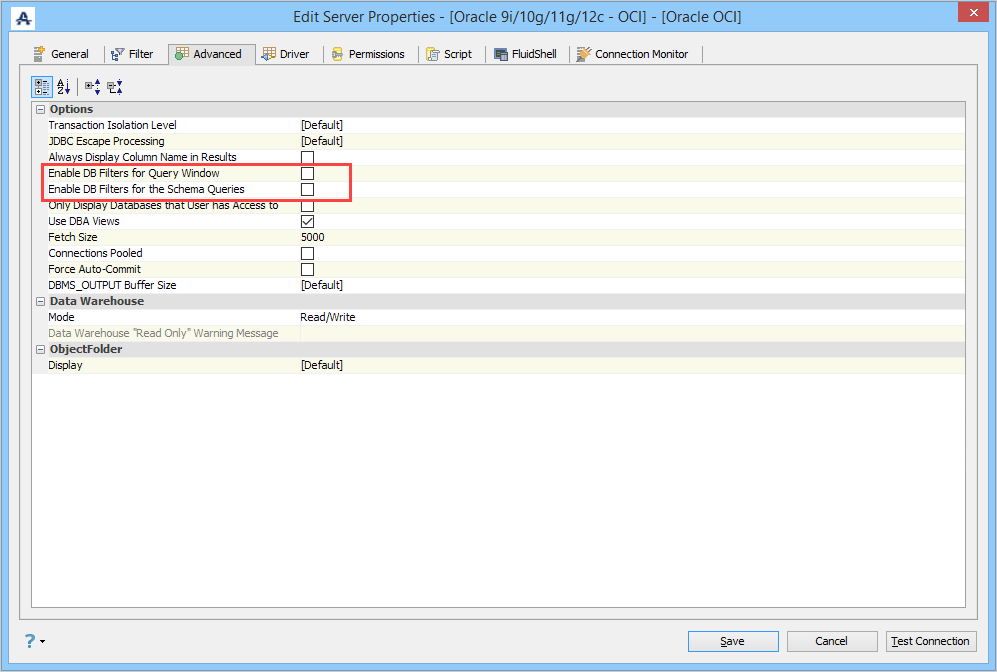
Checking the box next to "Enable DB Filters for Query Window" option enables the schema filter configuration and applies it to the Query Analyzer window schema drop-down.
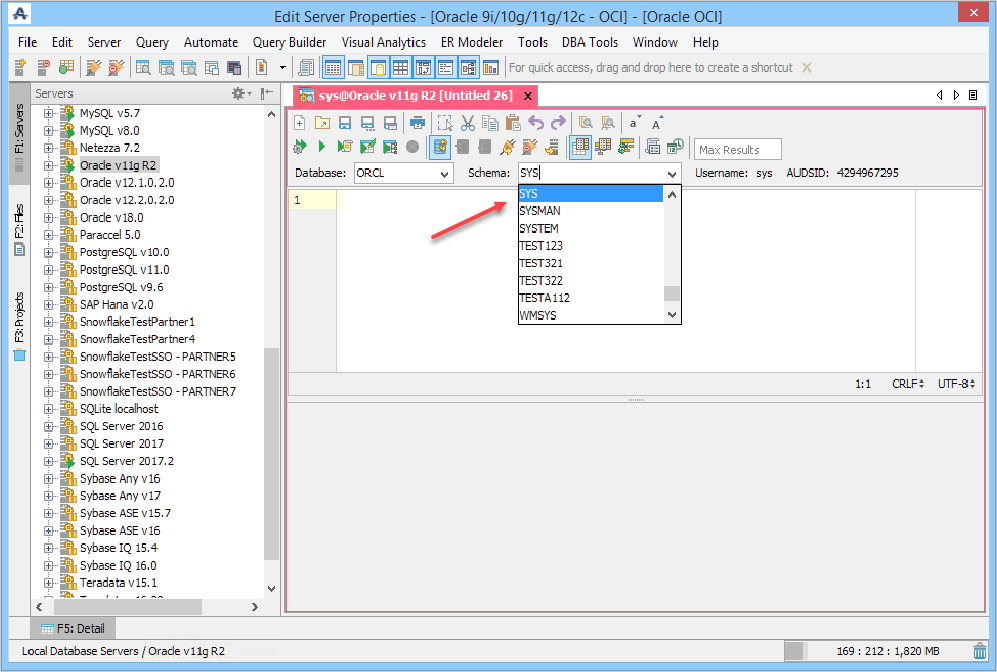
Checking the box next to "Enable DB Filters for the Schema Queries" option enables the schema filter configuration and applies it to the WHERE clause of the query that extracts the list of schemas from the database.
| Enabling both options significantly improves the Schema Tree and Query Analyzer connection performance. |
 Using Advanced Properties (Advanced Tab)
Edit the Server Properties to use Advanced Properties in Aqua Data Studio:
- Locate the Server in the Server Browser.
- Right-click the Server - A Popup Menu Appears.
- Click the Item which displays Server Properties.
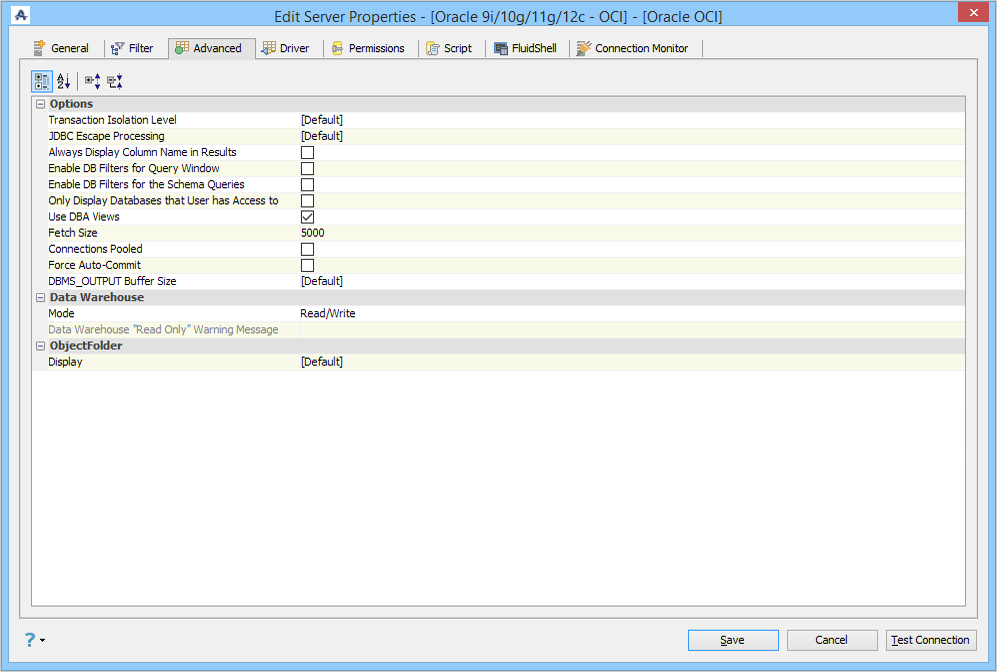
- Go to the Advanced Tab and make changes in the Options.
With options in Advanced properties of a Server, you can:
- Change Transaction Isolation Modes.
- Manage Driver Parameters.
- Enable Database Filters in Query Analyzer.
- Change Read Only / Read- Write Mode.
- Change Object Folder Display.
- Transaction Isolation Level: Support for setting Transaction Isolation Level.
- TRANSACTION_NONE - A constant indicating that transactions are not supported.
- TRANSACTION_READ_COMMITTED - A constant indicating that dirty reads are prevented; non-repeatable reads and phantom reads can occur.
- TRANSACTION_READ_UNCOMMITTED - A constant indicating that dirty reads, non-repeatable reads, and phantom reads can occur.
- TRANSACTION_REPEATABLE_READ - A constant indicating that dirty reads and non-repeatable reads are prevented; phantom reads can occur.
- TRANSACTION_SERIALIZABLE - A constant indicating that dirty reads, non-repeatable reads, and phantom reads are prevented. - JDBC Escape Processing: Allows JDBC driver to perform an escape sequence before sending the SQL code to the server.
- Always Display Column Name in Results: Allows to show/hide column names in query results.
- Enable DB Filters for Query Window: Enables/Disables the schema filter configuration and applies it to the Query Analyzer window schema drop-down.
- Enable DB Filters for the Schema Queries: Enables/Disables the schema filter configuration and applies it to the WHERE clause of the query that extracts the list of schemas from the database. Enabling this option significantly improves the Schema Tree and Query Analyzer connection performance.
- Only Display Databases that User has Access to: Displays only the databases the current user (from the Login Name on the General tab) has access to within the schema browser.
- Use DBA Views: Allows logging in with an account with DBA privileges.
- Fetch Size: Determines the Fetch Size (number of rows physically retrieved from the database at one time by the JDBC driver). One way to improve query performance is to set an appropriate Fetch Size. In general, configuring a larger fetch size increases performance, but it will also increase memory usage. The optimum fetch size depends on the nature of the database query being executed. You may want to start with a fetch size of 5000 or 10000, and then adjust it up or down to see which fetch size gives you the best balance between performance and memory usage.
- Connections Pooled: Enables connection pooling. Read more about connection pooling here.
- Force Auto-Commit: When this option is selected, it sets auto-commit to TRUE for any Query Window to this server and disables the icons on the toolbar, regardless of the option in File > Options > Query Analyzer > [DATABASE] > [Auto Commit].
- DBMS_OUTPUT Buffer Size: Allows setting the upper limit for the amount of buffered information.
- Data Warehouse Mode: Read Only or Read/Write.
- Object Folder Display: [Default], [Name], [Schema].[Name] or [Name]([Schema]) sets how the Schemas will be displayed.
| Using the drop-down at the bottom of the Advanced Tab, quickly change your Object Display in the Server Browser. |
 Using Driver Properties (Driver Tab)
Edit the Drivers Properties to use Driver Parameters in Aqua Data Studio:
- Locate the Server in the Server Browser.
- Right-click the Server - A Popup Menu Appears.
- Click the Item which displays Server Properties.
- Go to the Driver Tab and make changes in the Options.
With options in Driver properties of a Server, you can edit/view the:
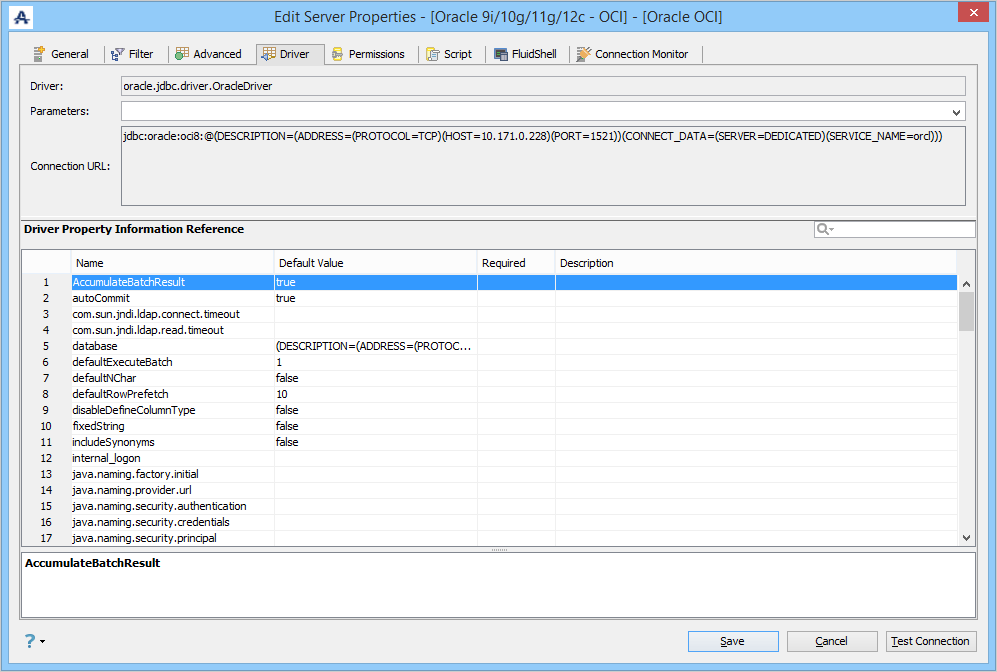
- Driver: This displays the JDBC driver used for this connection.
- Driver Parameters: This option is to allow a user to specify extra JDBC parameters that a user might want use in establishing a connection.
- Connection URL: This displays the connection URL for this server connection.
- Driver Parameters Quickfilter: This option is to allow a user to search JDBC parameters that a user might want to use in establishing a connection.
 Server Permissions (Permissions Tab)
Edit the Permissions in Server Properties in Aqua Data Studio:
- Locate the Server in the Server Browser.
- Right-click the Server - A Popup Menu Appears.
- Click the Item which displays Server Properties.
- Go to the Permissions Tab and make changes in the Options.
With options in the Permissions Tab of a Server, you can:
- Control Statement execution and Properties of the Query Analyzer, Table Data Editor, and Visual Editing.
- Grant / Revoke Permissions easily for executing DDL and DML Statements in the Query Analyzer.
- Change the behavior of the Table Data Editor for manipulating rows in Tables.
- Grant / Revoke Alters, Creates, Drops and View Properties of Visual Editing Tools.
- Allow SQL debugging for this server connection.
 Server Scripts (Script Tab)
Edit Scripts in Server Properties in Aqua Data Studio:
- Locate the Server in the Server Browser.
- Right-click the Server - A Popup Menu Appears.
- Click the Item which displays Server Properties.
- Go to the Script Tab and make changes in the Options.
With scripts in the Script Tab of a Server, you can:
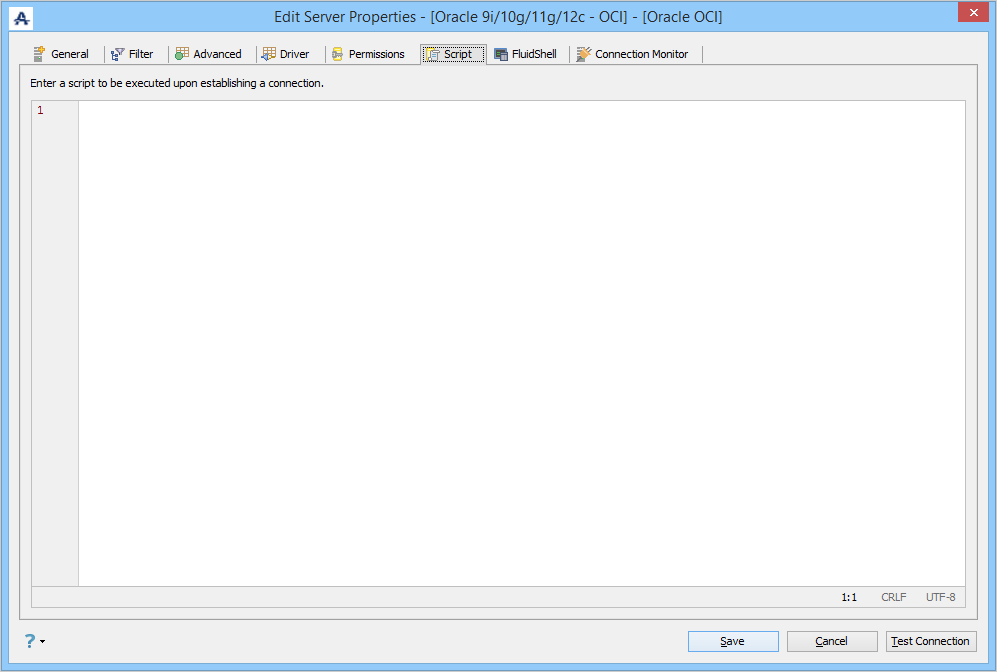
- Enter an SQL Script that is executed each time a new connection is established.
- This allows the user to SET connection settings for a server connection. (eg: SET ROLE, ALTER SESSION SET XXX)

 Shell Scripts (FluidShell Tab)
Edit Shell Scripts in Server Properties in Aqua Data Studio:
- Locate the Server in the Server Browser.
- Right-click on the Server - A Popup Menu Appears.
- Click on the Item which displays Server Properties.
- Go to the FluidShell Tab and make changes in the Options.
With scripts in the FluidShell Tab of a Server, you can:
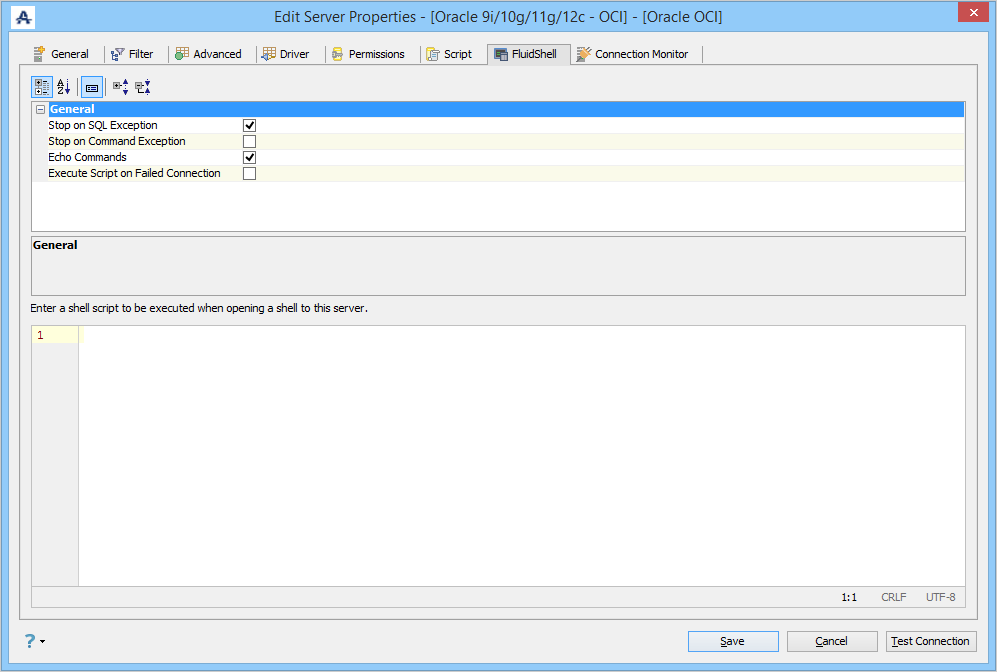
- Enter a FluidShell Script that is executed each time a new FluidShell connection is established.
- This allows the user to cd (change directory) for a server connection. (eg: cd /scripts)
 Server Connections (Connection Monitor Tab)
Enable the connection monitor to start an application thread that monitors the status of the connection associated with the Query Window.
With the connection monitor, you can:
- Set a ping operation that allows activity on the connection to prevent the connection from being terminated.
- Set an execute operation that executes the Query Window on a periodic basis.
- Set an auto-commit operation that checks how long the auto-commit has been disabled and whether the idle threshold has been exceeded. A warning threshold can also be configured so users can turn on auto-commit before it happens.
For more information, see Connection Monitor.
