Every query that is executed in Redshift has explained information collected and stored in explaining tables and in system tables. The exception to this is when using the Explain prefix in front of the query as in the following example:
EXPLAIN SELECT * FROM svl_qlog |
In this case, explain information is not generated. Only a plan is generated because the query is not executed. The plan describes the access path that will get used when the query is executed. It only shows the plan that Redshift will execute if the query is run under current operating conditions. If you change the schema or data for a table and run the analyze command again to update the statistical metadata, the query plan might be different.
The visual explain information displayed in Aqua Data Studio is a compilation of the collected explain information stored in the explain and system tables. The tables used are:
- pg_catalog.stl_explain
- pg_catalog.stl_plan_info
- pg_catalog.svl_query_summary
Contents

Vendor-Specific Information
Aqua Data Studio queries these tables and summarizes the steps used in the access path. Costing, duration, and memory usage are some of the information returned in the summarized steps. Here is a list of the information that is returned:
- Operation - Plan nodes that refer to the execution on compute nodes. Alert messages from the database will also be displayed in this column. For joins, it also specifies a method for how data will be moved around a cluster to facilitate the join. This data movement can be either a broadcast or a redistribution. It also references inner and outer tables. Additional information can be found here.
- Additional Operation Info - Qualifier and filter information for the operation.
- *Total Cost - The estimated relative cost of executing the step.
- *Startup Cost - The estimated relative cost of returning the first row for this step.
- Rows Produced - The estimated number of rows that will be produced by the step.
- Bytes Produced - The estimated number of bytes that will be produced by the step.
- Width - Number of bytes per row.
- Maximum Time(uS) - Maximum amount of time for the step(s) to execute (in microseconds).
- Maximum Time(uS) - Maximum amount of time for the step(s) to execute (in microseconds).
- Average Time(uS) - Average time for the step(s) to execute (in microseconds).
- % of Total Max Time - Percentage of the total maximum amount of time for all steps.
- % of Total Avg Time - Percentage of the total average amount of time for all steps.
- Work Memory - Amount of working memory (in bytes) assigned to the query step(s).
- Rows Pre-filtered - For scans of permanent tables, the total number of rows emitted before filtering rows marked for deletion (ghost rows).
- Step Labels - Consists of the query step name(s) and, when applicable, table ID and table name. A list of step labels and their associated function can be found here.
- Step Location - Location where the step executes, compute node or leader node. The leader node receives the query and parses the SQL. The compute node slices and executes the query segments in parallel. When the compute nodes are done, they return the query results to the leader node for final processing.
- QueryNo - The number assigned to this query.
| Cost is a measure that compares the relative execution times of the steps within a plan. Cost does not provide any precise information about actual execution times or memory consumption, nor does it provide a meaningful comparison between execution plans. It does give you an indication of which operations in a query are consuming the most resources. |
Executing Visual Explain in Aqua Data Studio
In Query Analyzer
Show Execution Plan Button
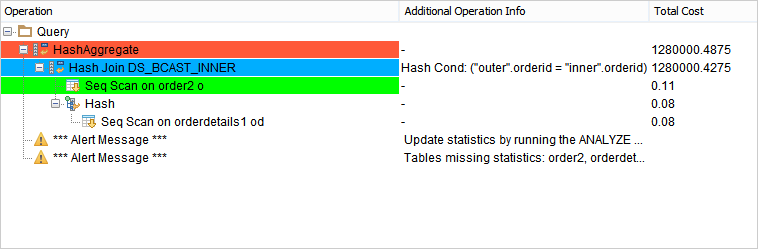
Turning ON this button during normal query execution will return the query data result set as well as the visual explain execution plan with a diagram. The execution plan contains the actual cost for running the query.
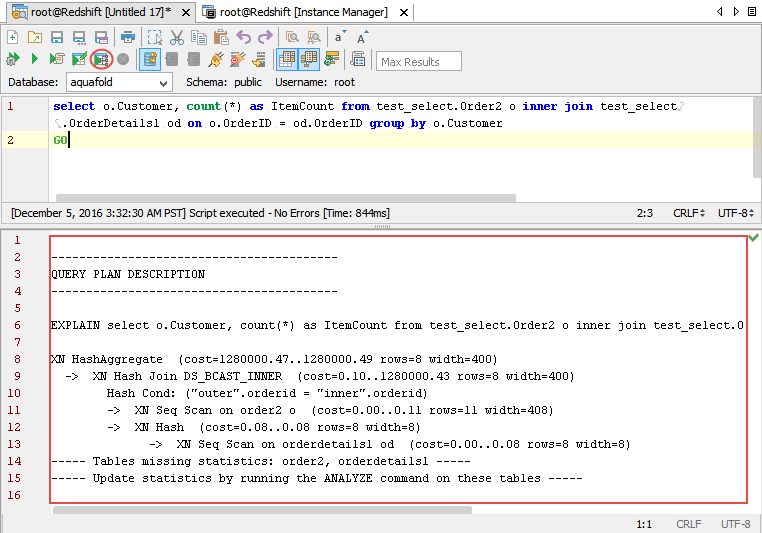
Execute Explain Button
The information returned for this query execution will be a text version of the explain plan and not the visual explain plan grid with a diagram. In this case, no data is returned because the query is never executed. The plan describes the access path that will get used when the query is executed. It only shows the plan that Redshift will execute if the query is run under current operating conditions. If you change the schema or data for a table and run the analyze command again to update the statistical metadata, the query plan might be different.
In DBA Tools Instance Manager
Query History
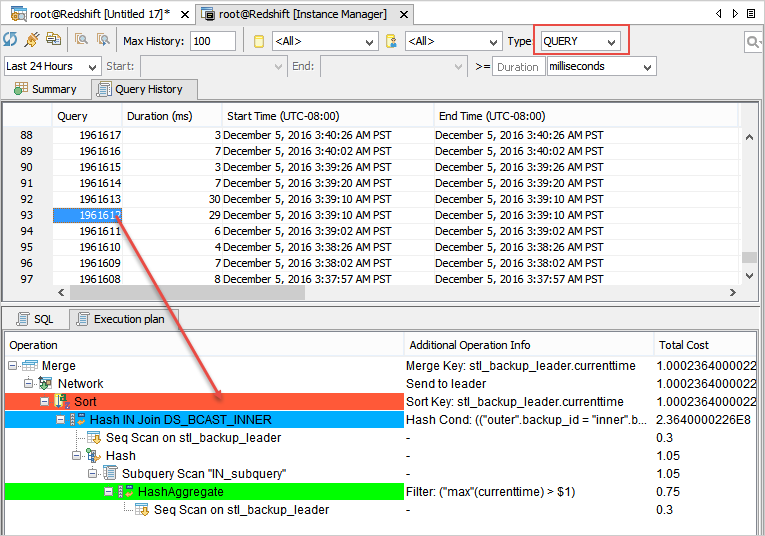
Displays a list of queries. This list is based on your filter selection. Notice the type drop-down at the top of the list panel which shows type equal “Query” initially. There is also an “Execution Plan” tab on the bottom pane. Clicking on this tab will execute a query to gather explain information already stored in the database and display a plan with an explain diagram for the selected query. You can scroll through the query list and look at the execution plan for each query by clicking on the “Execution Plan” tab. Changing the type at the top of the page will return different result lists.
- Type = Query – Lets you scroll through queries that were executed based on your filter selection.
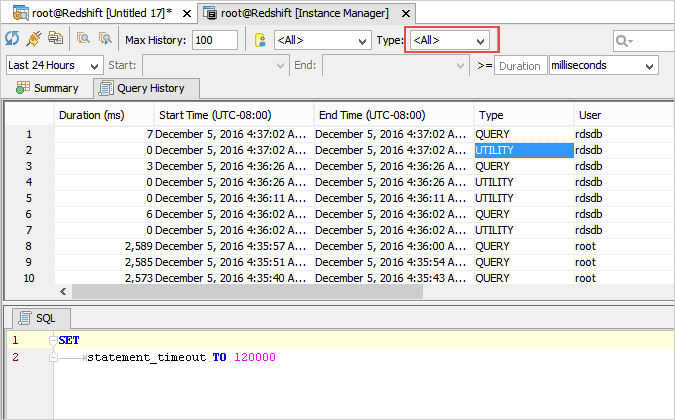
- Type = All - Let's you scroll through a list that contains queries, DDL, and utility statements. This works similarly to the query list described above. However, this list also contains DDL and utility statements and there is no execution plan for them. You will notice that when you select one of these the “Execution Plan” tab disappears. The execution plan tab is only available for queries.
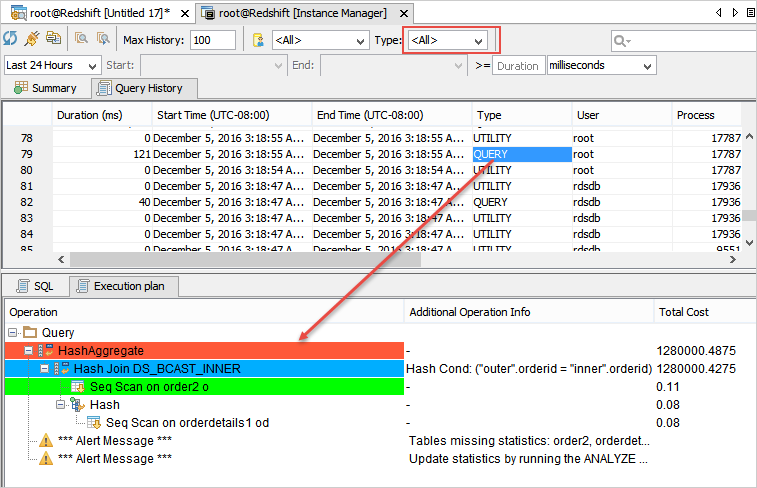
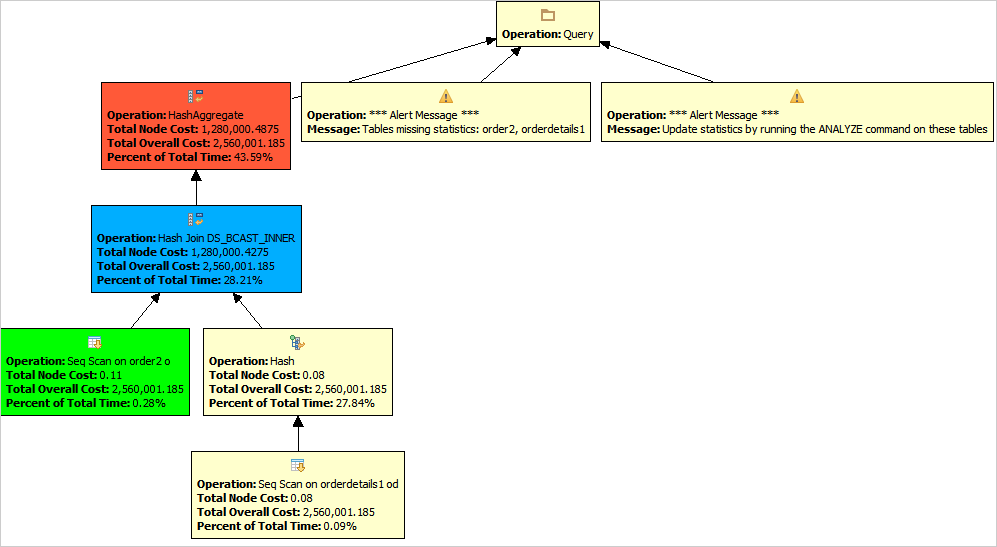
In the case where visual explain is executed, an explain plan grid with detailed summarized information about each step in the query process will be displayed. This plan grid should be read from the bottom up. When you right-click on this grid, a pop-up menu will show you some other options that are available such as an explanatory diagram. Clicking the “Explain Diagram” shows a block hierarchical diagram of the steps for executing this query.
- Type = Utility or DDL – This does not apply since there are no queries in these lists.