This section contains the different customization options for Filled and Symbol maps.
Visual Analytics automatically assigns geographic roles (city, state/province, and country) to string dimensions with common geographical names such as City, State/Province, and Country. You can also manually assign a geographical role to a string dimension that contains geographical data.
To assign a geographical role to a dimension
 string changes to
  icon.
icon.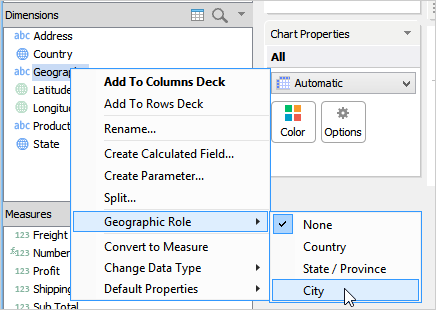
Visual Analytics automatically assigns geographic roles (Latitude and Longitude) to number fields (whether dimension or measure) with common geographical names such as; Longitude and Latitude. You can also assign geographical roles to any number field by right-clicking on the measure and clicking a Geographical Role option. Visual Analytics changes the measure to continuous dimension. The string changes to
icon.
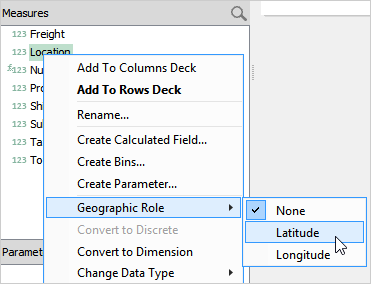
Latitude and Longitude support is only applicable to Symbol Map. |
Visual Analytics supports identifying country locations by using a two-character code based on the Federal Information Processing Standard (FIPS) or a two-letter code (alpha-2) or a three-letter code (alpha-3) country codes on the International Standards Organization (ISO).
By default, when Visual Analytics finds a country value that is 2 characters in length, it attempts to match the value using ISO alpha-2 country codes. If your dataset contains FIPS codes, you should change the 2-char code selection of Country geographic role to FIPS.
| Country Name | ISO alpha-2 | ISO alpha-3 | FIPS |
|---|---|---|---|
| AUSTRIA | AT | AUT | AU |
| AUSTRALIA | AU | AUS | AS |
| CANADA | CA | CAN | CA |
| INDIA | IN | IND | IN |
| GERMANY | DE | DEU | GM |
To change the country code if your dataset contains a different code
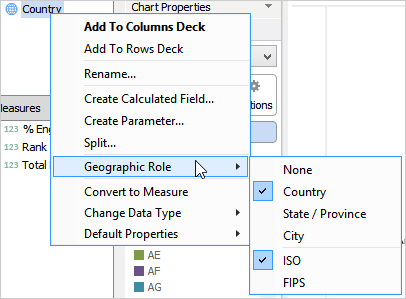
Sometimes, Visual Analytics cannot recognize locations in your geographical data and displays them as unrecognized or ambiguous. The following table contains the description for unrecognized and ambiguous locations.
| Location | Description |
|---|---|
| Unrecognized | Visual Analytics does not recognize state or city names when:
|
| Ambiguous | Visual Analytics finds ambiguity in state or city names when your geographical data contains:
For example, Sydney is present in Australia and Canada. When Visual Analytics plots cities, it considers Sydney ambiguous if a country or a state is not specified. See, Resolve Ambiguous Locations. |
Visual Analytics disables the Edit Locations option when building a symbol map chart with Latitude and Longitude geographical dimensions. |
To resolve ambiguous locations
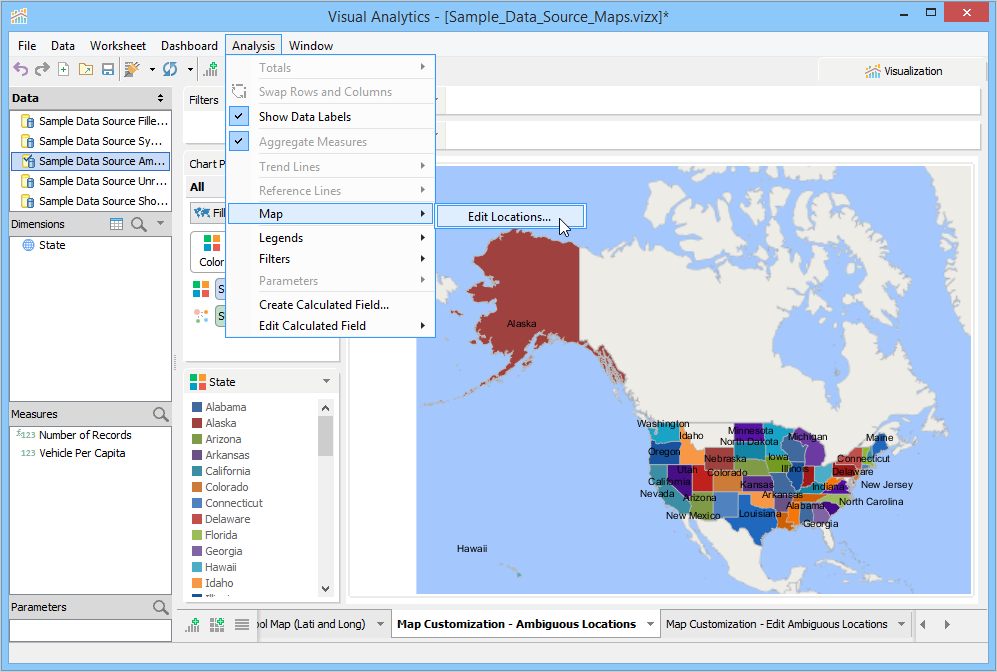
Visual Analytics listed Florida, Maryland, Montana as ambiguous/unknown locations because the country role is not specified. When country is not specified, Visual Analytics searches geographical data against a worldwide dataset and displays these states as ambiguous because similar state names are present in other countries.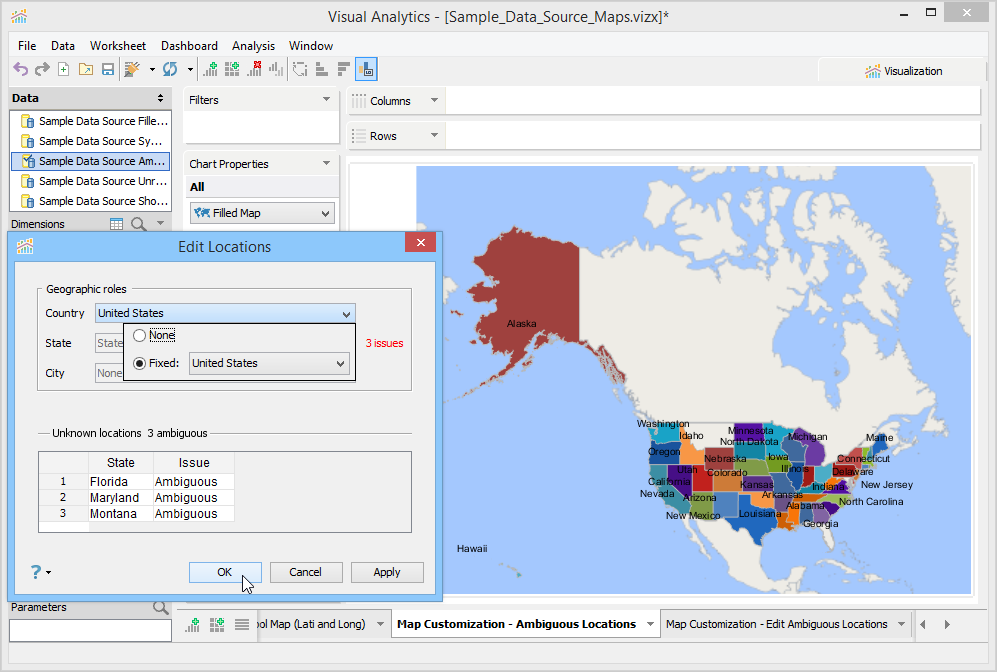
4. In the Country list, click Fixed, and then from the adjoining list, select United States.
5. Click OK. As you have restricted Visual Analytics to search only in the United States, it identifies and plots these states correctly on the map of United States.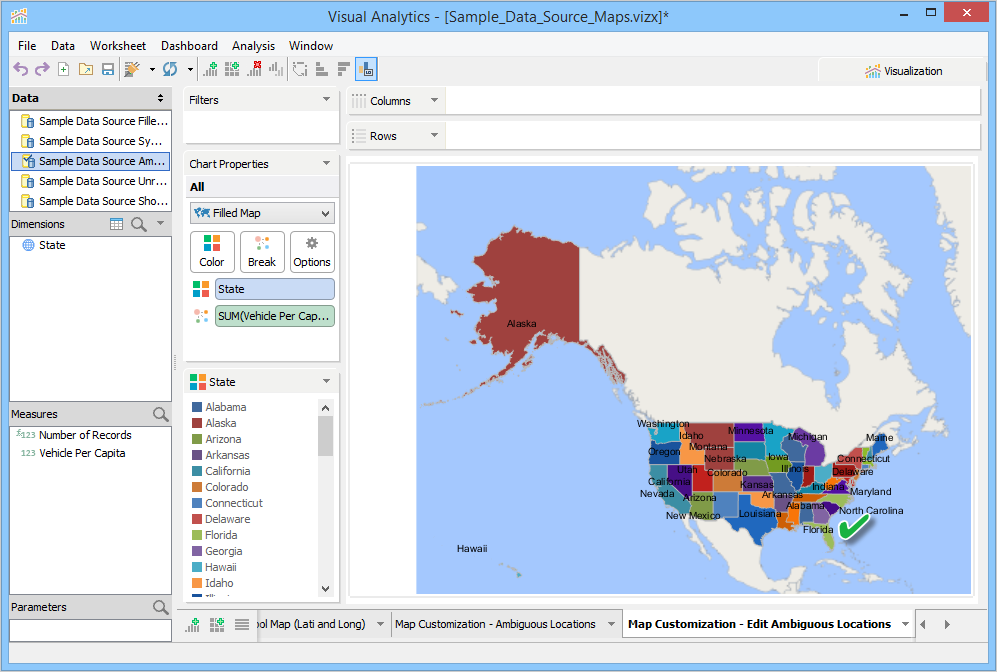
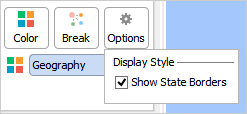
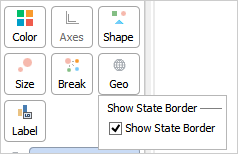
Visual Analytics gives you the control to show state borders for the country whose data is plotted. The borders add clarity between different states of the plotted country. By default, the state borders appear for the plotted data.
To show/hide borders
Other actions that you can perform on a plotted map are as follows: