The mekko chart, also known as Marimekko, utilizes a 100% stacked bar along with varying widths to capture two variables in a single visualization.
Download and connect to the sample data source. We are making this chart using 2 dimensions and 1 measure. |
Contents

Build a Mekko Chart
To build a Mekko Chart
- Connect to the sample data source in Aqua Data Studio.
- From the Dimensions pane, select Coffee and Geography.
- From the Measures pane, select Profit.
Mekko Chart only supports Sum and Count aggregate functions for Measures. - Click the
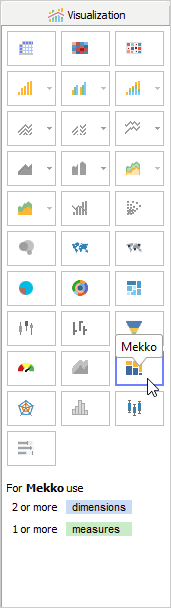
 tab and then click
  . Visualization builds a Mekko Chart.
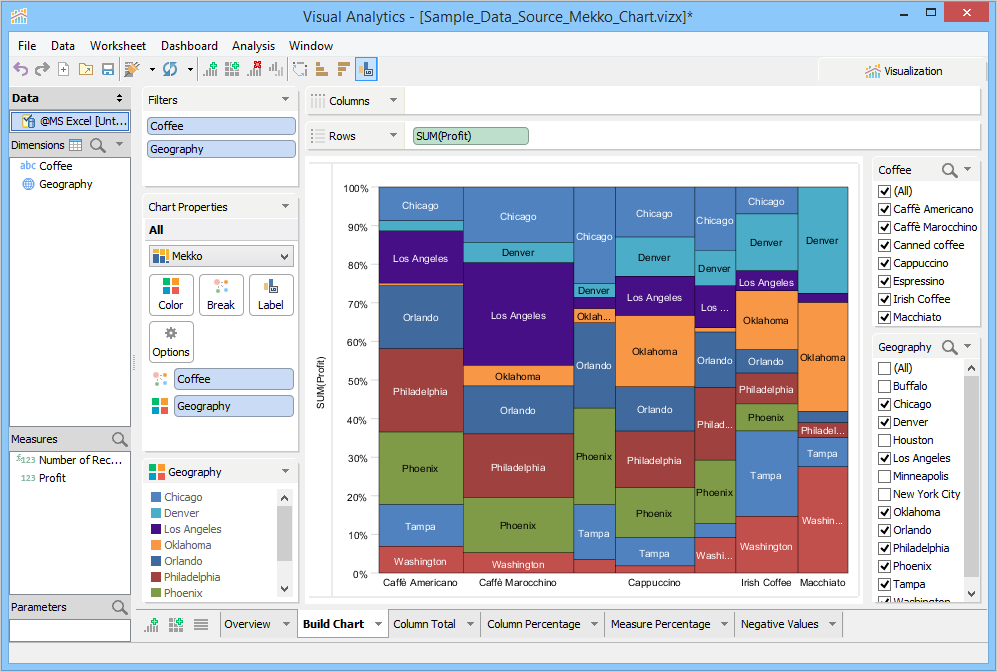
Visualization builds a Mekko Chart. The first dimension that Visualization places in the Break Deck make the X-axis and Measure forms the Y-axis. The second dimension goes to the Color Deck and is represented as a stack column. Any other selected dimension is placed in the Break Deck and divides the stack further. You can rearrange the dimensions in the Break Deck, to change the order of grouping on the chart. In the following example, Coffee forms the X-axis, Geography draws the stacked columns for each coffee brand based on different colors, and Profit forms the Y-axis and displays percentage.
Show Column Total
When you enable the Show Column total check box, Visual Analytics displays the total profit of each coffee brand across cities on top of each column.
To show column total
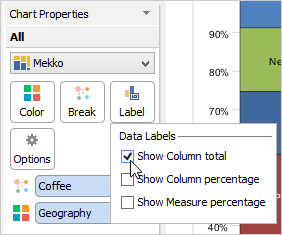
- In the Chart Properties area, click the Label Deck.
- Select the Show Column total check box. The coffee profits for each city appear on top of each column.
Show Column Percentage
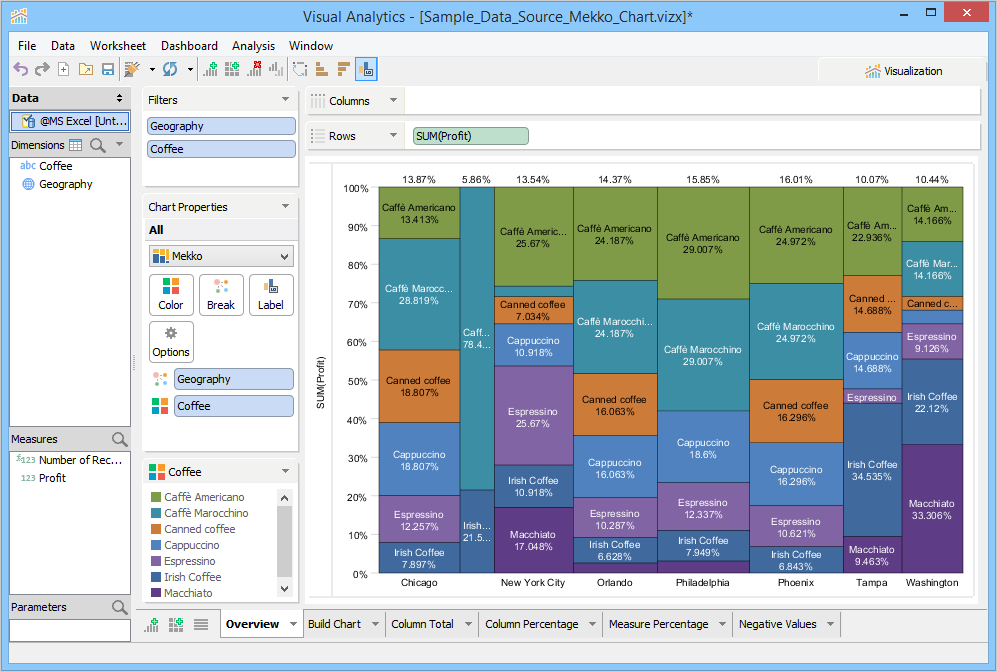
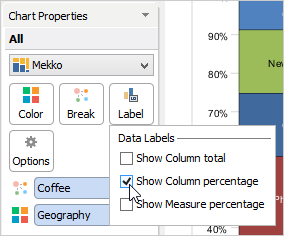
When you enable the Show Column percentage check box, Visual Analytics displays the profit percentage of each coffee brand against all coffee brands.
To show column percentage
- In the Chart Properties area, click the Label Deck.
- Select the Show Column percentage check box. The coffee profits for each city appears as a percentage value on top of each column.
Show Measure Percentage
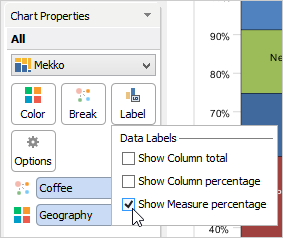
When you enable the Show Measure percentage check box, Visual Analytics displays the breakup of total profit in each column. The profit appears as a percentage value in each cell.
To show measure percentage
- In the Chart Properties area, click the Label Deck.
- Select the Show Measure percentage check box. The profit for each city appears as a percentage value in each cell.
Include Negative Values
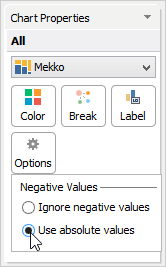
Your data may contain a mixture of both negative and positive values. By default, Visualization does not include negative values while building the chart.
To include negative values
- In the Chart Properties area, click the Options Deck.
- Click the Use absolute values option. As Visual Analytics changes all negative values into absolute values, the total profit for coffee appears more as compared to when Visualization ignored negative values.
Other Actions
Other actions that you can perform on a plotted mekko chart are as follows:
- You can sort data by using various sort options available in the chart view or the Advanced dialog. For more information, see Sorting.
- You can use highlight actions to focus on selected mekko bars. Visual Analytics makes the highlighted bars and its data labels prominent while dimming others in the view. For more information, see Highlight Actions.
- You can filter records directly from the chart view without manually adding any fields to the Filters Deck. For more information, see Filters.
- You can export worksheets containing visualization to Image, HTML, and PDF formats. For more information, see Export Visualizations.