A radar chart, also known as a spider, polar, or kiviat chart, is a dynamic visualization tool that you can use for interpreting small-to-medium data set and comparing different categories of multiple measures. It is most effective when you want to view several different factors related to one area in one holistic view.
In a radar chart, the value of the data point starts from the center of the chart. A point close to the center on any axis represents the minimum value and a point near the edge represent the maximum value.
The following are the most common use case for using this chart.
- You can quickly track and monitor the performance of data when it was high, low, or consistent over a period.
- You can visualize and compare variables across multiple dimensions simultaneously in one dashboard thus allowing viewers to find quickly the information they need.
- You can dynamically view and analyze two or more variable quantities in one chart for most important metrics.
Download and connect to the sample data source. We are making this chart using 1 dimension and 1 measure.
Contents

Build a Radar Chart
To build a Radar Chart
- Connect to the sample data source in Aqua Data Studio.
- From the Dimensions pane, select Athlete.
- From the Measures pane, select Total Medals.
- Click the
 tab and then click
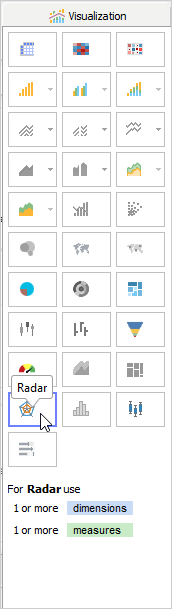
 . Visualization builds a Radar Chart.
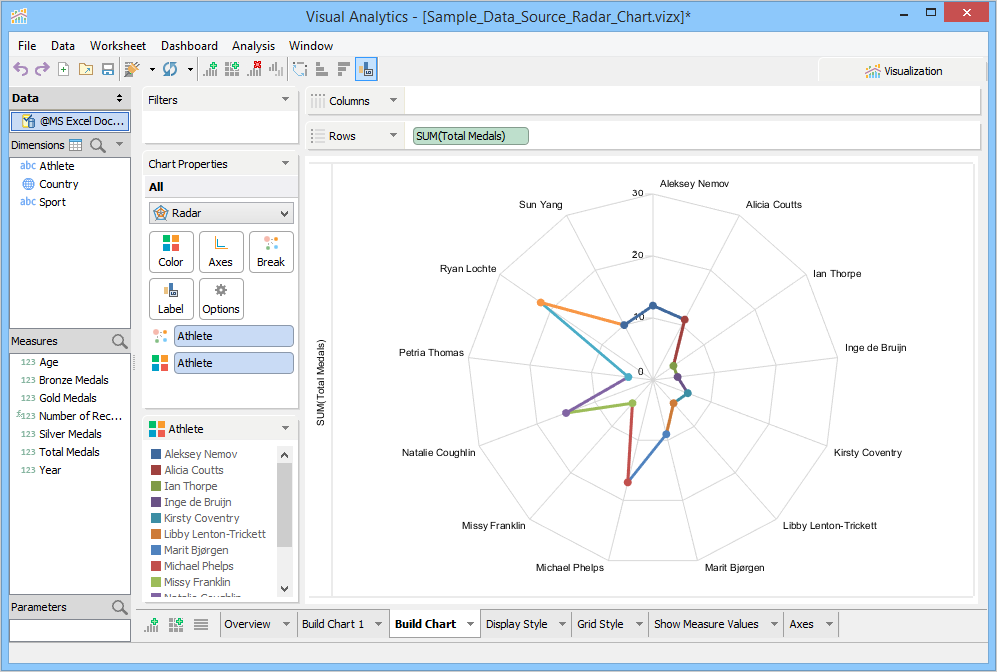
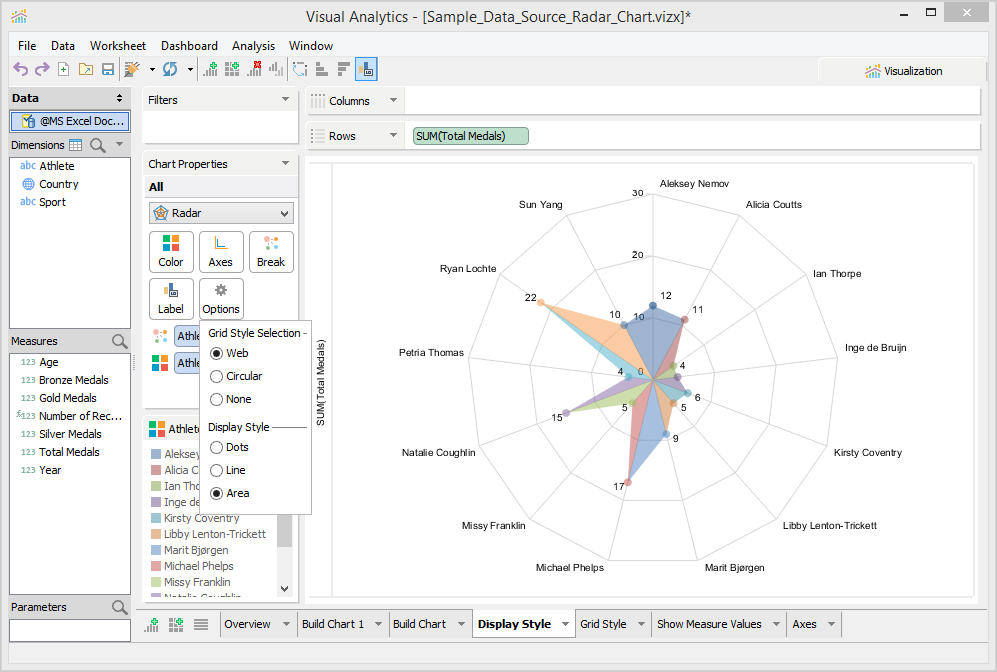
Visualization moves Athlete from the Columns Deck to the Break Deck. Visualization is displaying the athlete names on the chart. If you click the Label Deck, Show Category Labels are selected by default. As the data appears in a spider pattern, it is easy to interpret that Ryan Lochte dominates the medal tally.
Change the Display Style
You can plot your data in three distinguished display styles.
- Line: Ideal for visualizing data that changes over time. The default display type is a line display style.
- Dot: Help identify gaps and clusters for your data. This style is much like a line display style except that there is no line connecting the dots. This display is most suitable for small to medium-sized datasets.
- Area: Indicate changes when you compare multiple data set together. Visual Analytics fills the data points with colors and displays tooltips on mouse-hover in the color-filled area.
To set a display style
- In the Chart Properties area, click Options.
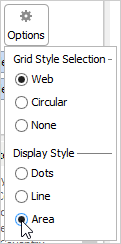
- In the Display Style area, click the desired display style option. In this exercise, we have set Area as the display style, Visual Analytics fills the data points with the default blue color. If you place Athletes in the Color Deck, Visual Analytics fills the area with default colors assigned to athletes. For more information on how to change colors, see Chart Properties Color.
Change the Grid Style
The radar chart uses the web grid style, also known as a spider or star chart, as the primary grid style for your data. You can set the grid style to circle, also known as a polygon, or remove the grid from the plotted chart.
To change the grid style
- In the Chart Properties area, click Options.
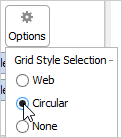
- In the Grid Style Selection list, click the desired grid-style option. In this step, when you select the circular grid style, Visual Analytics changes the grid style from the default web to circular.
Show Measure Values
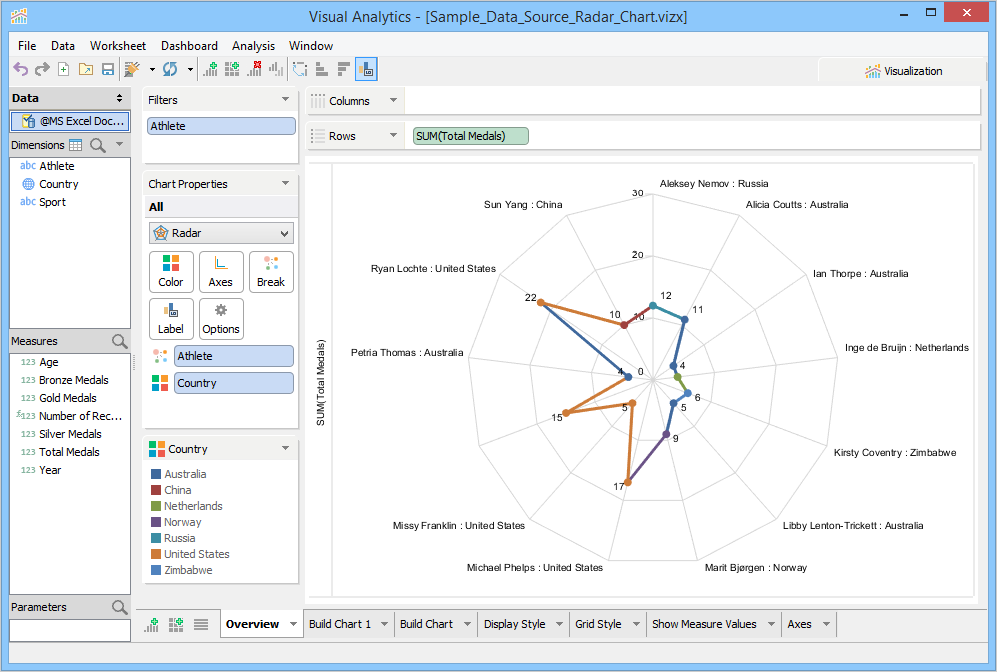
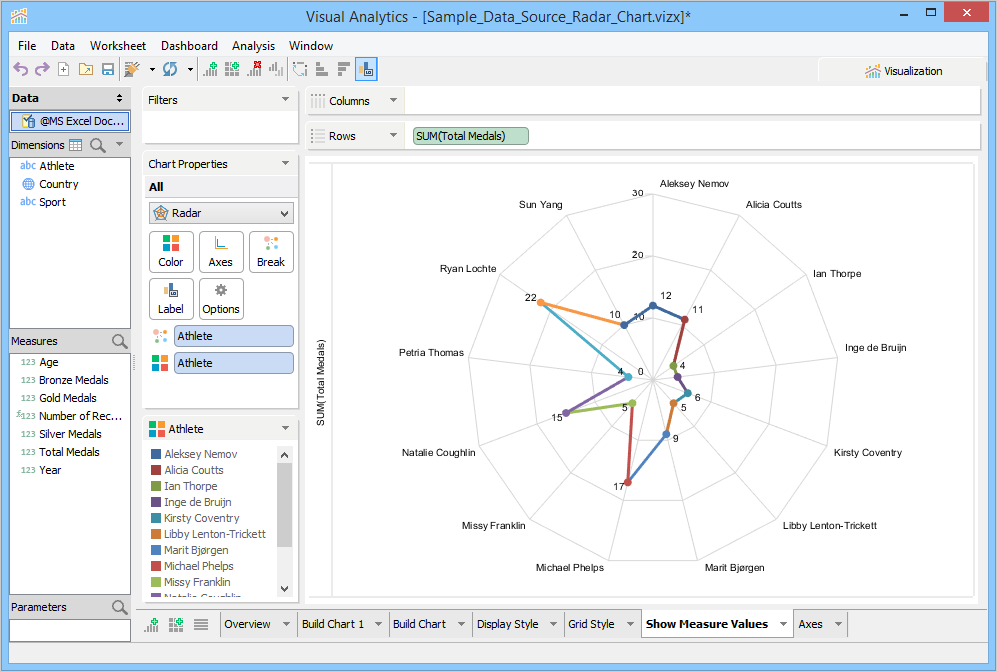
Labels are useful for understanding plotted data. The radar chart includes category labels and measure values. Visualization displays the category labels (Athlete names) when it builds the chart. You can also display the measure values on the chart by selecting the Show Measure Values check box.
To show data labels
- In the Chart Properties area, click Labels.
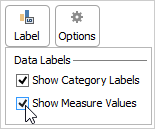
- Select the Show Measure Values check box. Visual Analytics displays athlete names along with their total medal count.
Merge Axis
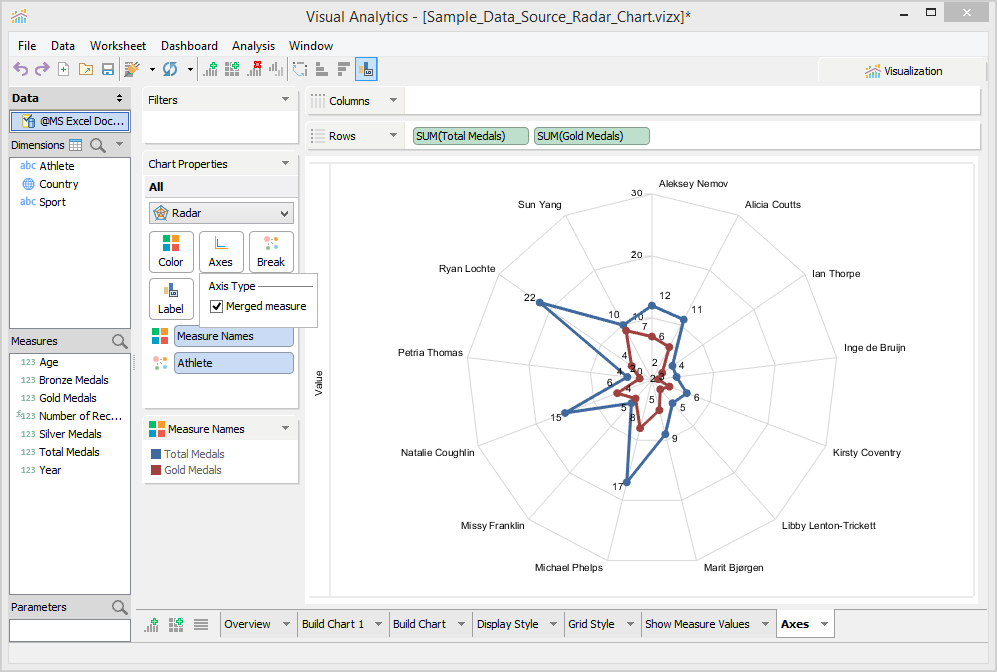
Visual Analytics can merge multiple measures into a single chart, enabling comparison of contrasting data at the same time. After the charts are merged, a new Measure Names entity appears in the Chart Properties Deck. This entity is displayed when Visual Analytics merges multiple measures together. If you disable the Merged measures check box, Visual Analytics displays separate charts for each measure, and the Measure Names entity disappears from the Color Deck. Currently, we have Athletes in the Break and Color Decks, and Total Medals in the Rows Deck. To use this feature, you must have more than one measure in the Rows Deck.
To use this feature, you must have more than one measure in the Rows Deck. |
To merge multiple measures
- Remove Athletes from the Color Deck.
- From the Dimension pane, drag Gold Medals to the Rows deck. Visualization builds two radar charts, displaying the total medal count and gold medal count for each athlete.
- In the Chart Properties area, click the Axes Deck.
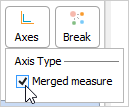
- Select the Merged measures check box. Visual Analytics merges both radar charts in a single view and displays the total medal count in blue and gold medal count in red. You can see the color legend for this color distribution.
Other Actions
Other actions that you can perform on a plotted radar chart are as follows:
- You can sort data by using the Advanced dialog. For more information, see Sorting.
- You can use highlight actions to focus on selected data points. Visual Analytics makes the highlighted data points and its data labels prominent while dimming others in the view. For more information, see Highlight Actions.
- You can filter records directly from the chart view without manually adding any fields to the Filters Deck. For more information, see Filters.
- You can export worksheets containing visualization to Image, HTML, and PDF formats. For more information, see Export Visualizations.