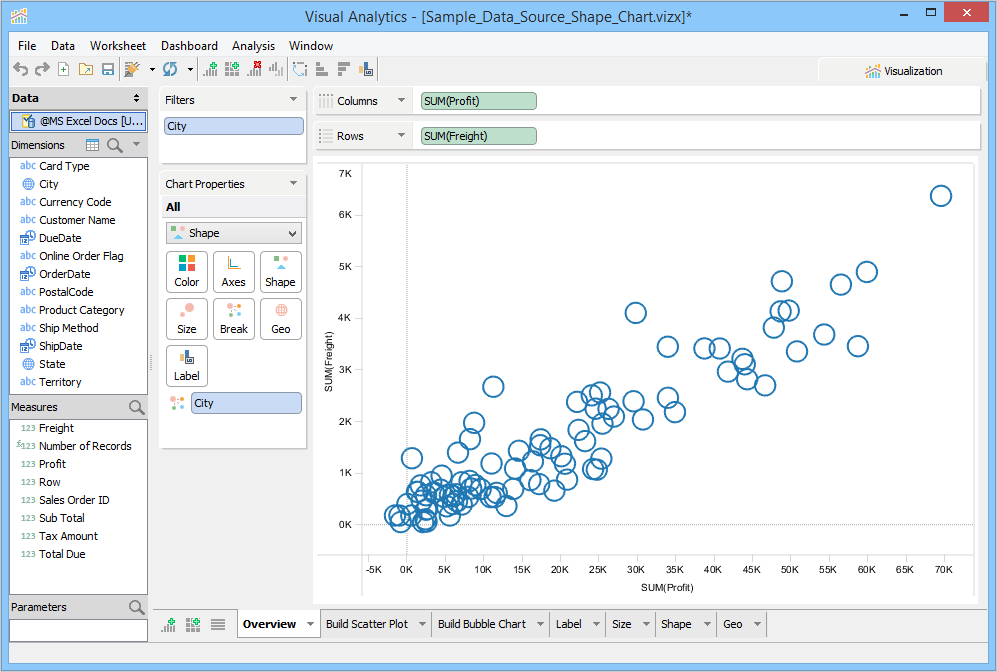
The most common Shape Chart is a Scatter Chart or Scatter Plot. Scatter Charts use Cartesian coordinates to display values for two variables for a set of data and are a useful summary of bivariate data. A variation of a Scatter Chart is a Bubble Chart where the size of the shape indicates a value.
Download and connect to the sample data source. We are making this chart using 1 dimension and 2 measures. |
To build a Scatter Plot Chart
 tab, and then click
 . Visualization builds a Scatter Plot Chart.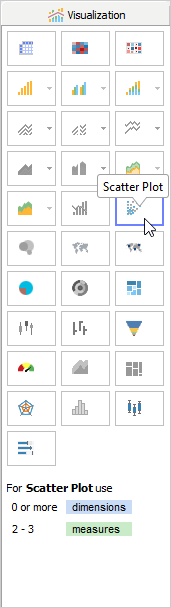
You will notice that Visualization has moved the City Dimension to Break Deck and Profit and Freight Measures to Columns and Rows respectively. We have moved the City Dimension to the Color Deck so that you can view each city in a different color.
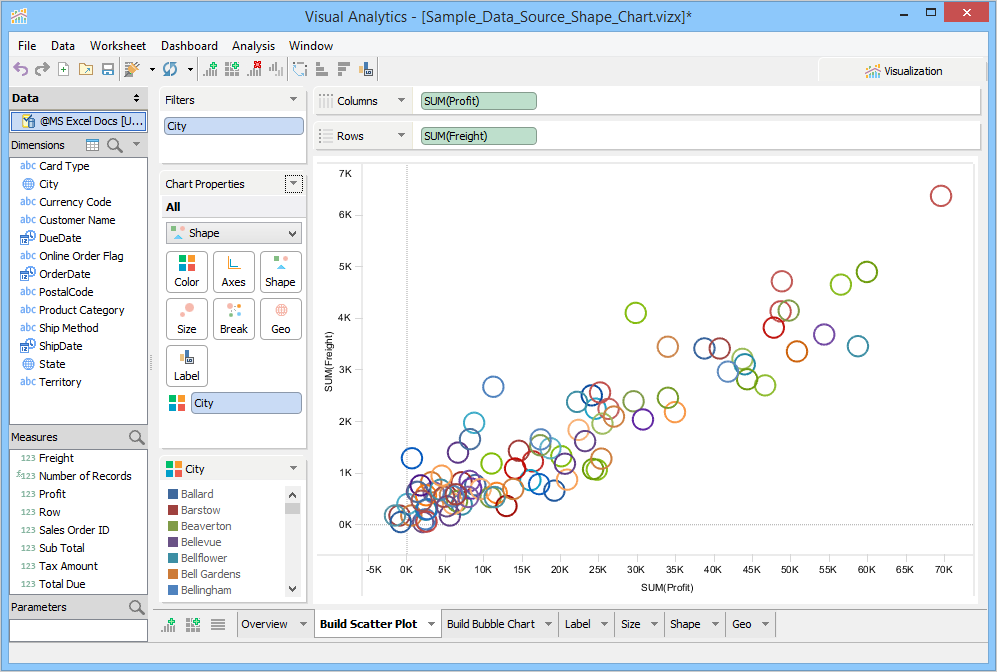
Hollow shapes allow you to see more values in a Scatter Chart than solid shapes because they do not completely obscure values underneath or nearby. |
To build a Bubble Chart
tab and then click . Visualization builds the Bubble Chart.
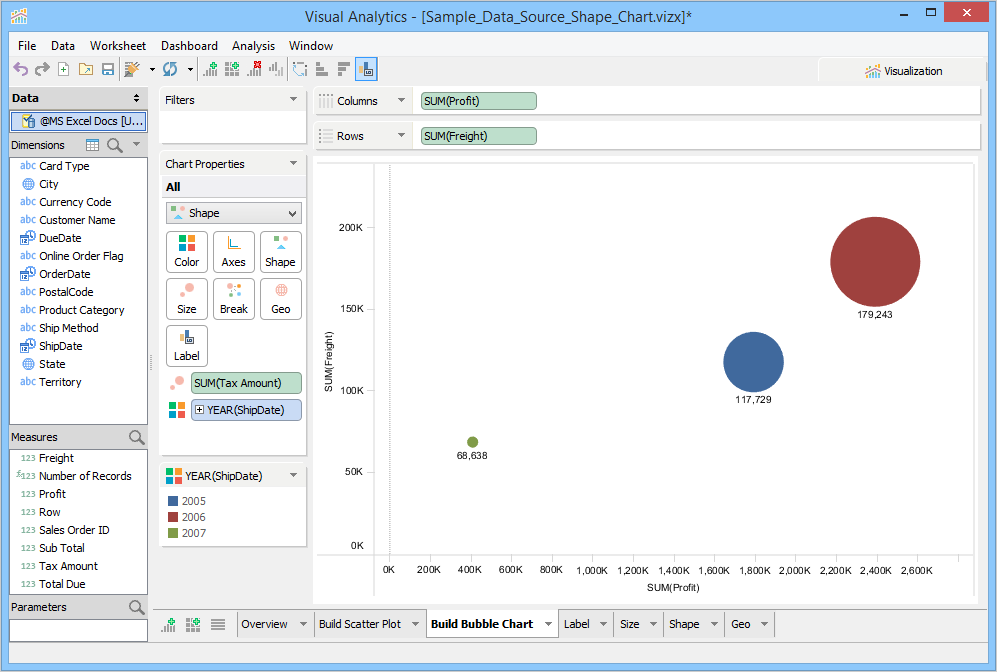
You will notice that Visualization moved Tax Amount to the Size Deck and ShipDate and Proft to the Rows Deck and Freight to the Column Deck. We have moved ShipDate to the Color Deck so that each year is displayed in a different color.
When Visualization builds a Shape Chart, the data labels are not displayed by default on the chart. You can show/hide data labels in the chart view, using these methods:
 : Click this icon on the Visual Analytics toolbar to see data labels for dimension fields in the chart view.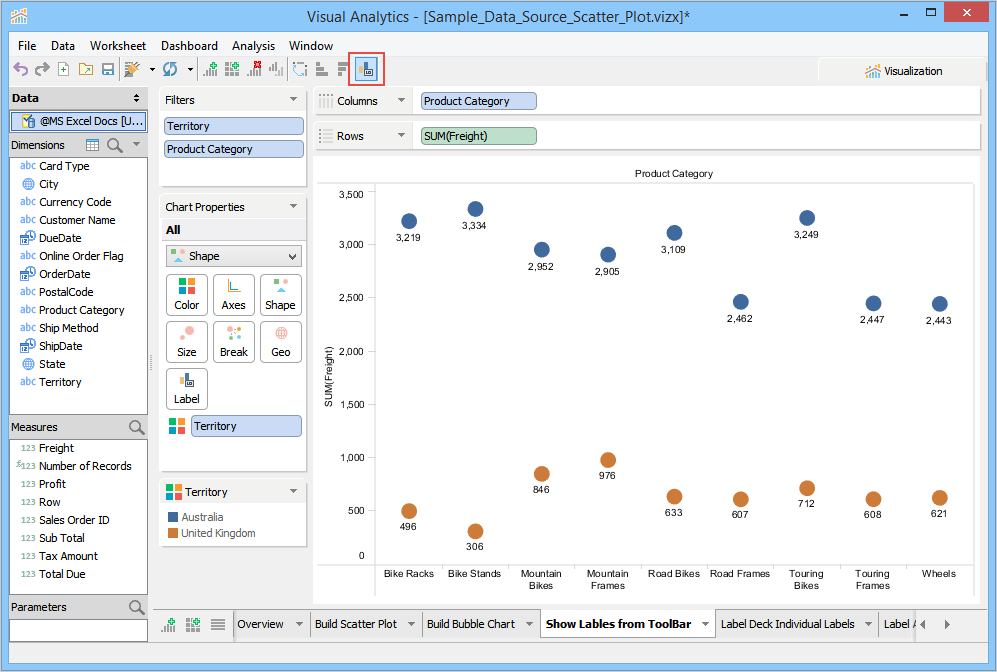

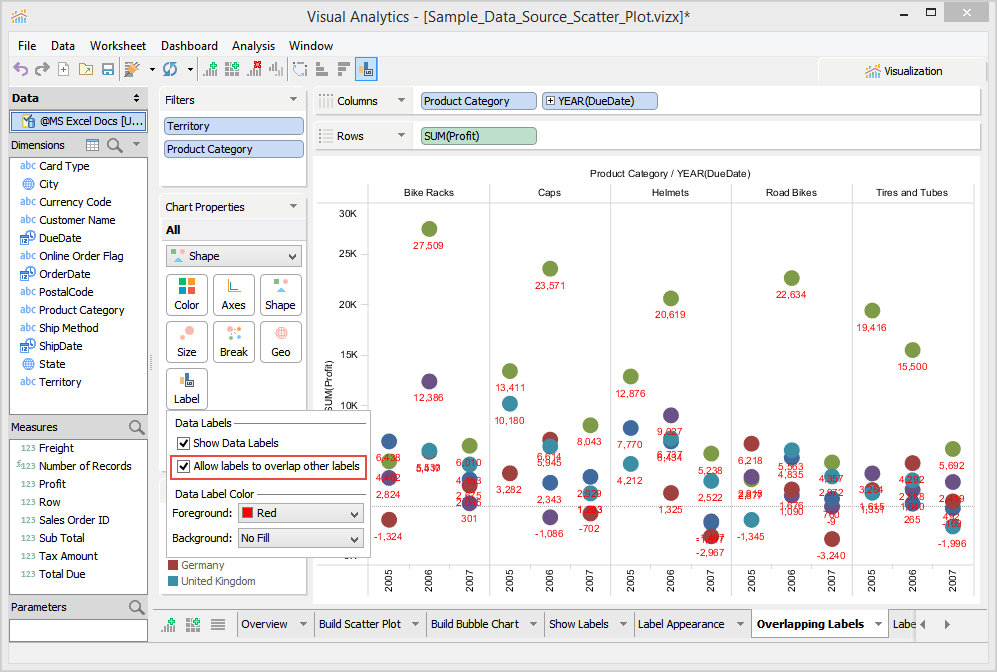
When you enable data labels, Visual Analytics only shows those labels that can be displayed without overlap. When you choose to see all data labels, Visual Analytics shows all labels even those that overlap other labels. To see all data labels, open the Label Deck and then select the Allow Labels to overlap other labels check box. To reposition data labels, see Data Label Repositioning.
In dual axes and merged axes separate scale scenarios, the data labels will overlap each other, even when the check box is unselected. This is by design. |
You can reposition data labels to best fit your chart view. When you click and drag a label to a new location, Visual Analytics automatically draws a leader line from the label to the data point.
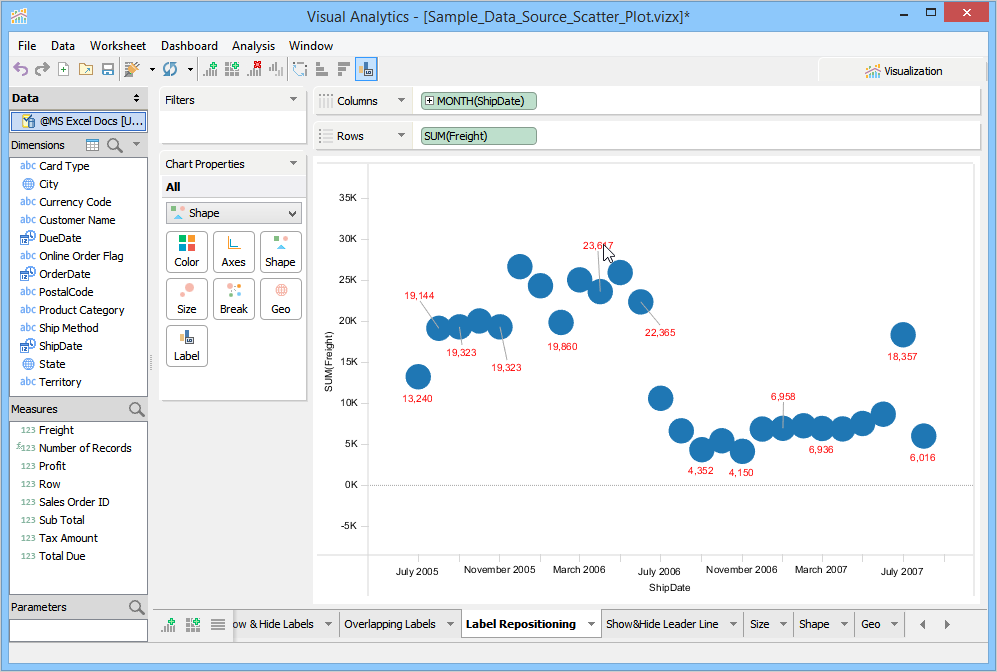
You can also reset the position of individual data labels to their previous position, by right-clicking the data label and choosing Reset Position.
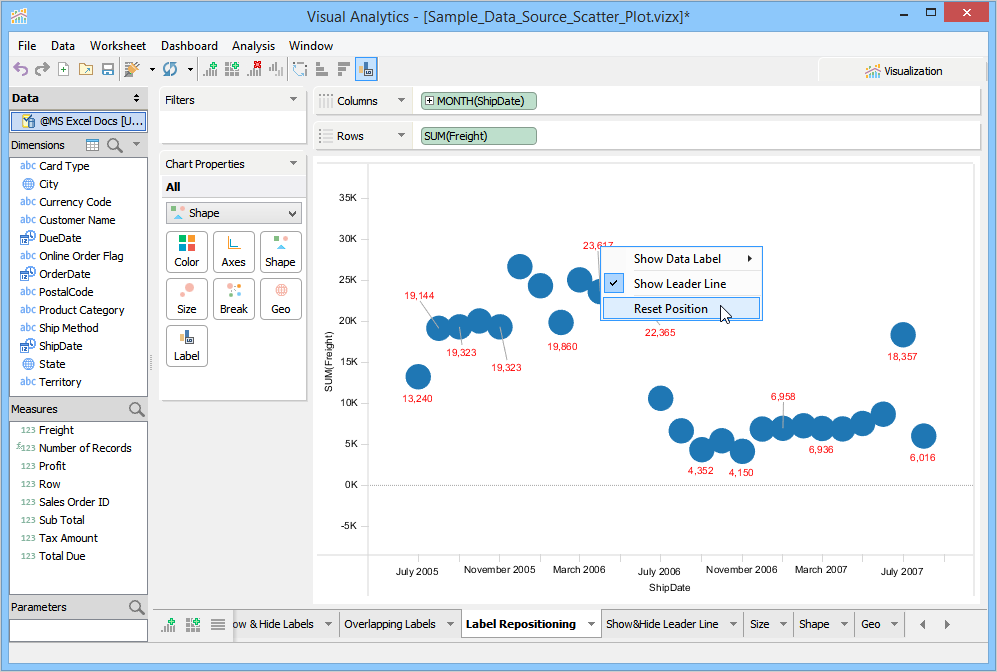
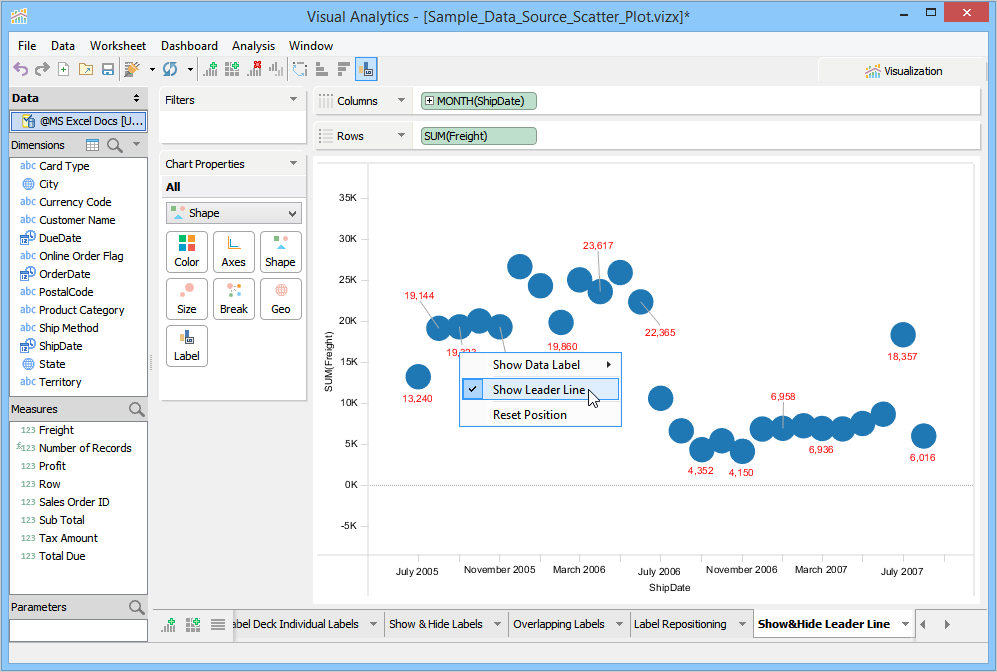
You can turn on and off leader line for individual data points, by right-clicking the data label and choosing Show/Hide Leader Line.
You can show or hide data label for individual data points even when data label control is turned on or off for the complete view. To do this, right-click the data label and choose a Show Data Label sub-menu option. To show hidden data labels again, undo your last action by pressing the undo buttons on the Visual Analytics toolbar, or press CTRL+Z for undoing your last action.
Show Labels 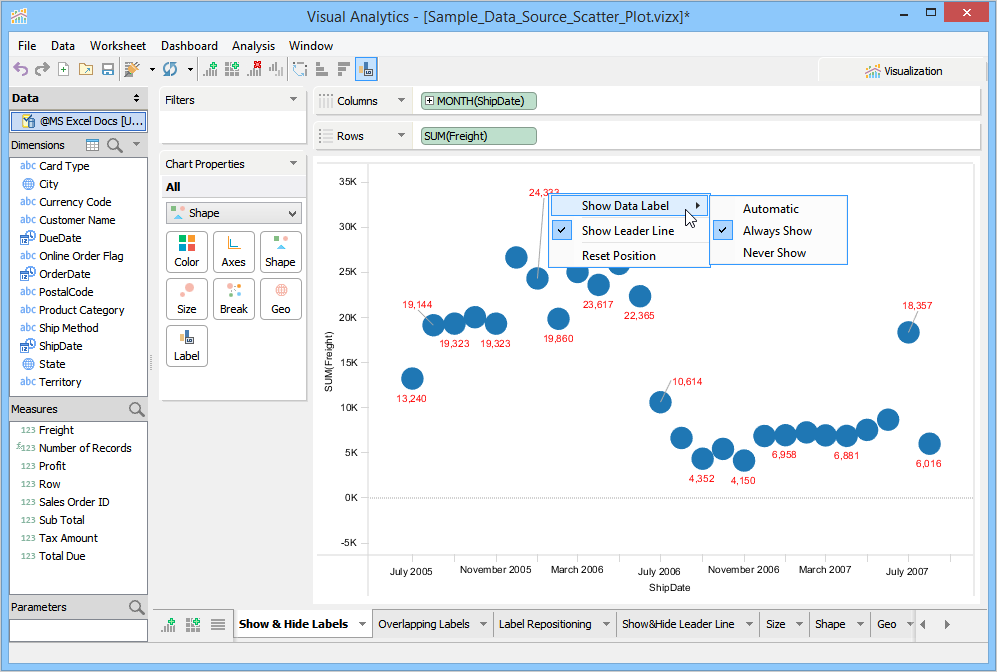
Hide Labels 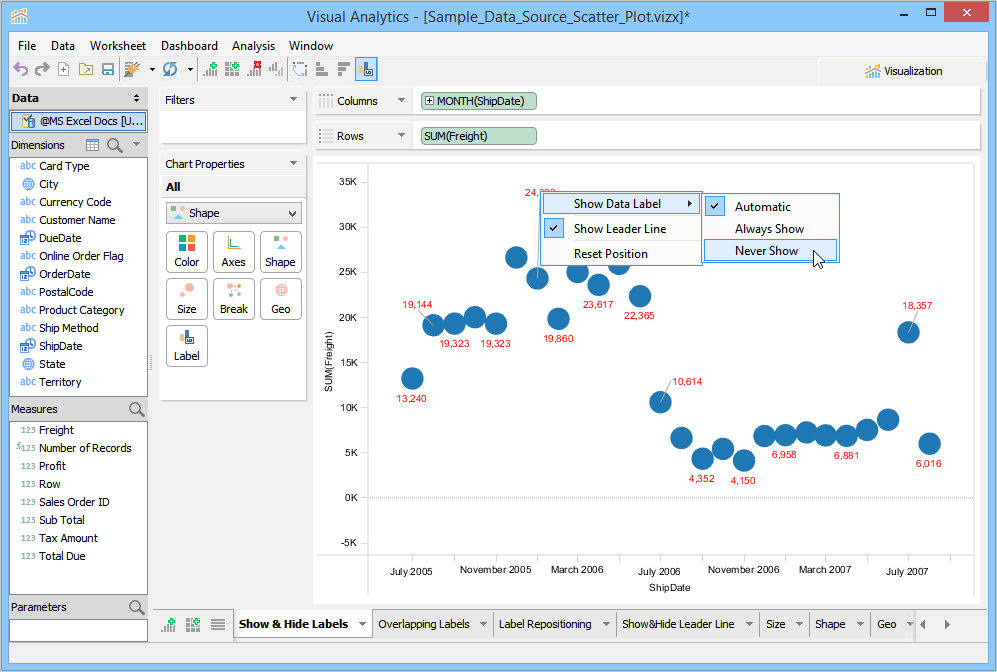
To change shape size
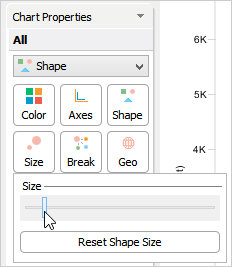
You can also add a measure field to vary the size of the shape. In the following example, we have added Total Amount from Measures into the Size Deck. This alters the circles so that their size represents the sum of Total Amount for each City. 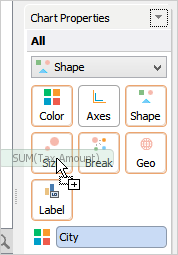
To change the shape type
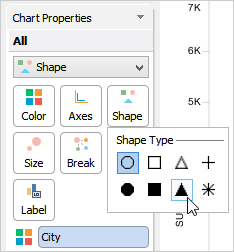
You can plot a symbol map by placing a geographical dimension in the Geo Deck.
To plot a Symbol Map Chart
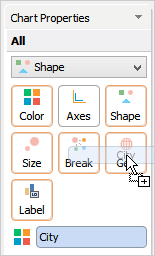
Visual Analytics plots shape for each city based on freight. In the vizx file, we have removed Profit from the Columns Deck. For more information on Symbol Map, see How to Make a Symbol Map.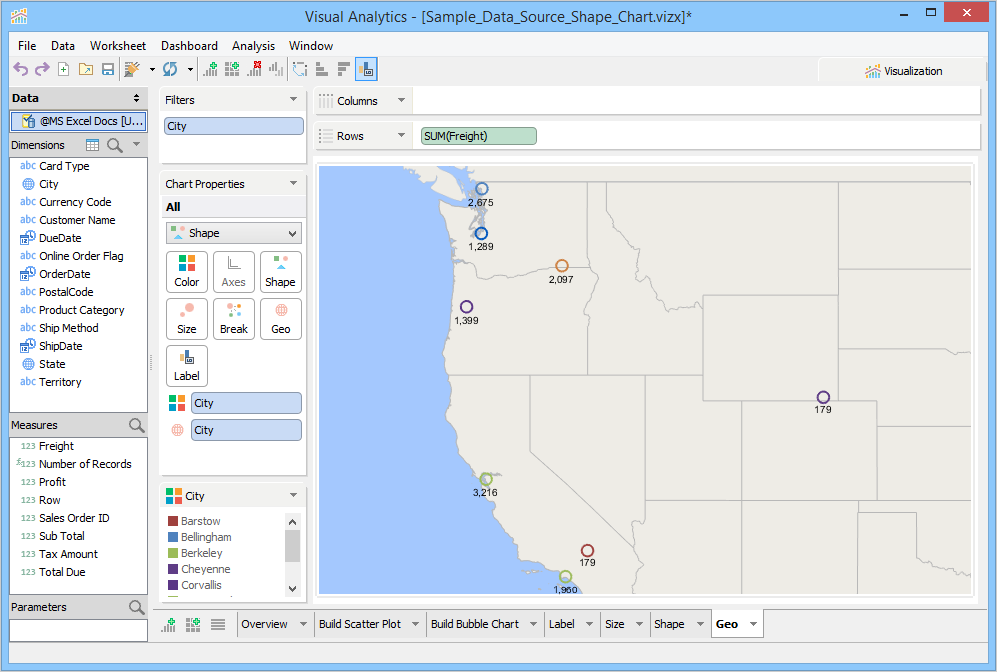
In the Geo Deck, you also have the option to show/hide borders for the plotted state/city. The borders add clarity between different states of the plotted country. By default, the state borders appear for the plotted data.