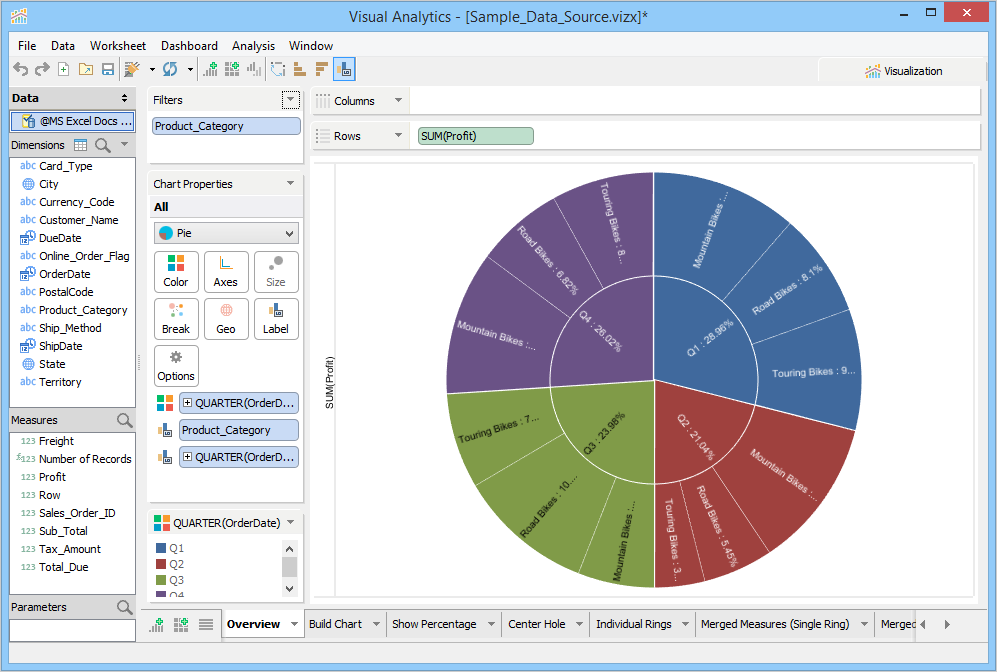
The sunburst chart is a multi-dimensional chart that enables you to visualize hierarchical data. The data is organized and displayed in a series of correlated rings where the innermost ring represents the top hierarchy. The outer rings are arranged and colored to indicate their hierarchical relationship with the inner rings.
Download and connect to the sample data source. We are making this chart using 2 dimensions and 1 measure. |
To build a Sunburst Chart
 tab, and then click
  . Visualization builds a Sunburst Chart.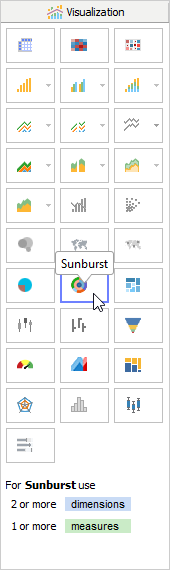
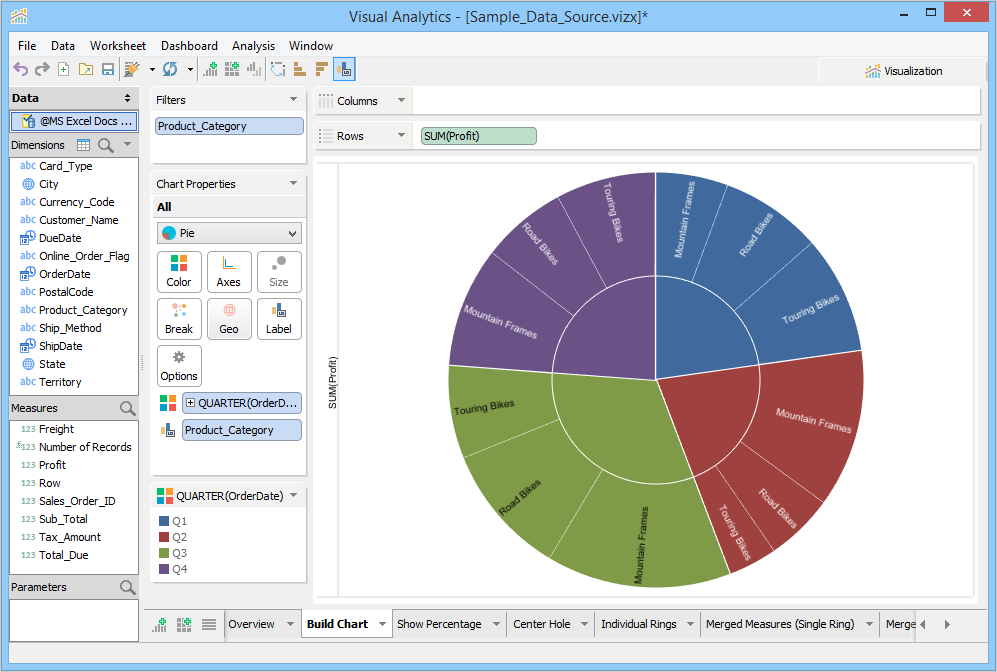
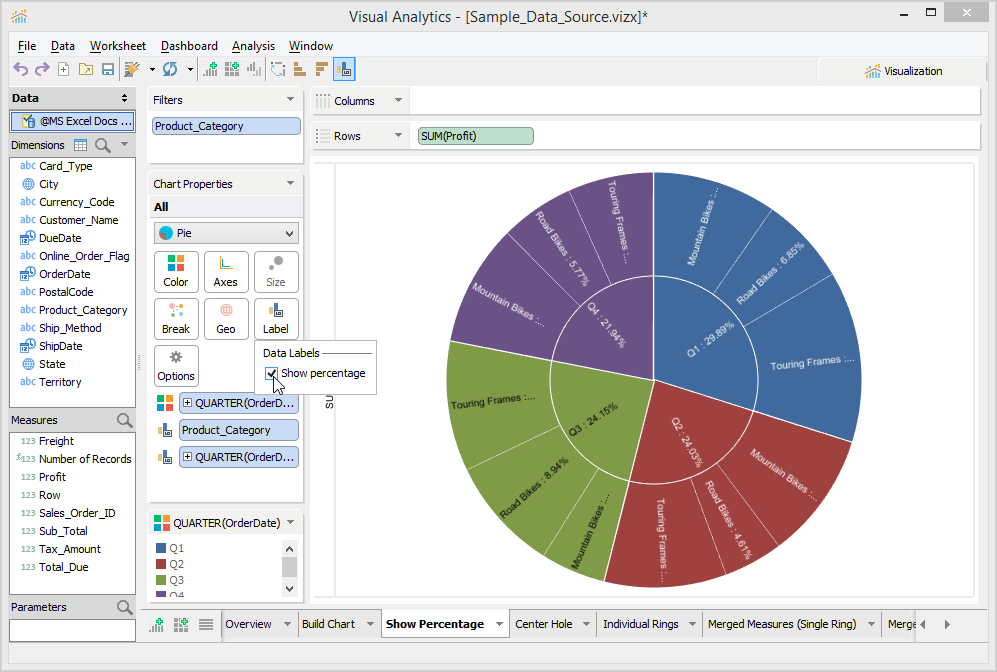
In the sample data source, you will notice that Visualization has moved the Product Category Dimension to the Color Deck, moved Profit Measure to Rows Deck, and Order Date Dimension to the Label Deck. Also, the Product Category Dimension is moved to the Label Deck. The order of hierarchy formed in Sunburst is based on the placement of dimensions in the Label Deck. You can rearrange the fields in the Label Deck, to change the order of grouping in the chart. In the above example, Product Category forms the inner circle, followed by Order Date that forms the outer circle. Moreover, Visualization places the first dimension to the Color Deck for better display. When you change the default grouping, the chart visualization changes accordingly.
In the sample data source, we have changed the YEAR(OrderDate) to QUARTER(OrderDate) and moved it to the Color Deck so that you can analyze profits of each quarter based on the order date of the product categories.
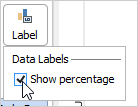
With Product Category Dimension in the Labels Deck, the product category names appear on the rings. Additionally, you can also enable the Show percentage check box and see the profit of each product category directly on the chart rings.
To show percentage on the chart rings
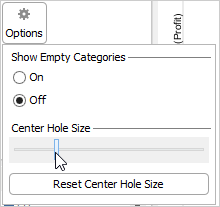
You can configure a hole in the center of the chart. The hole adds to the visualization experience of the Sunburst chart. Depending on the need, you can increase or decrease the size of the rings.
To configure a hole
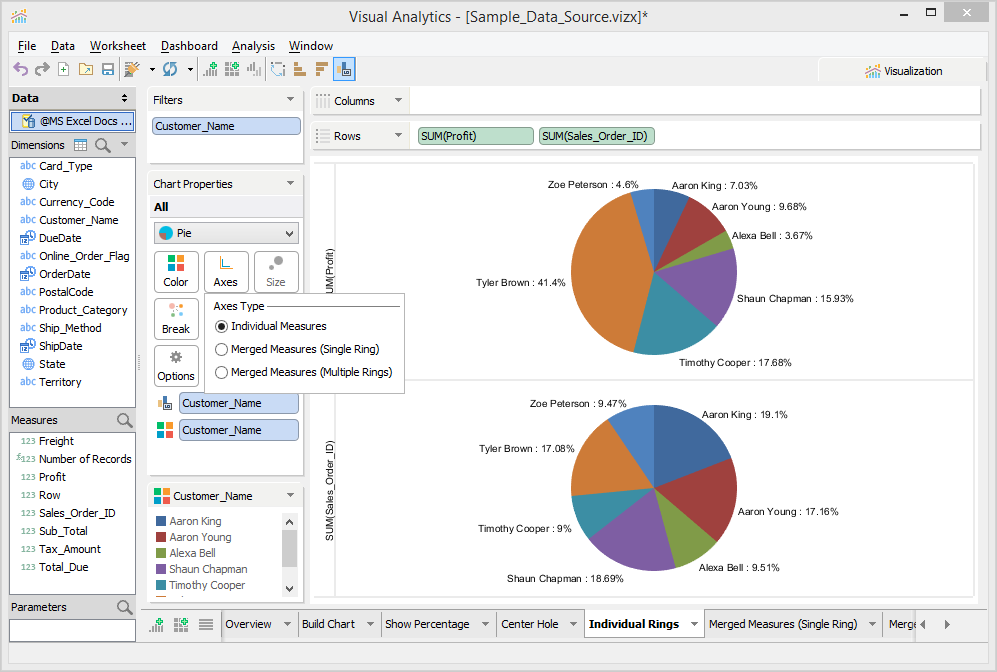
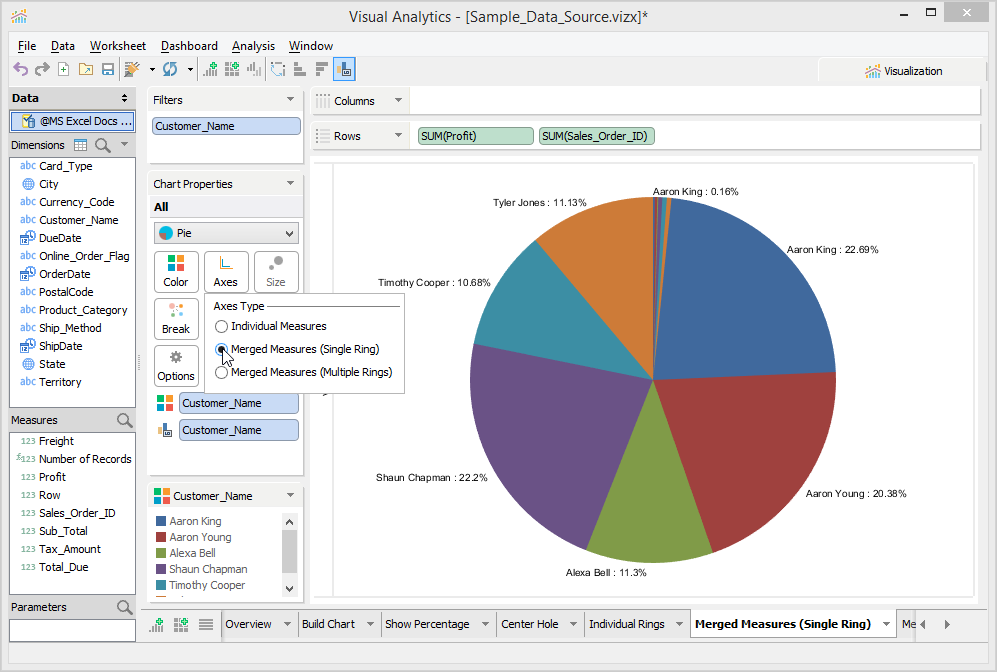
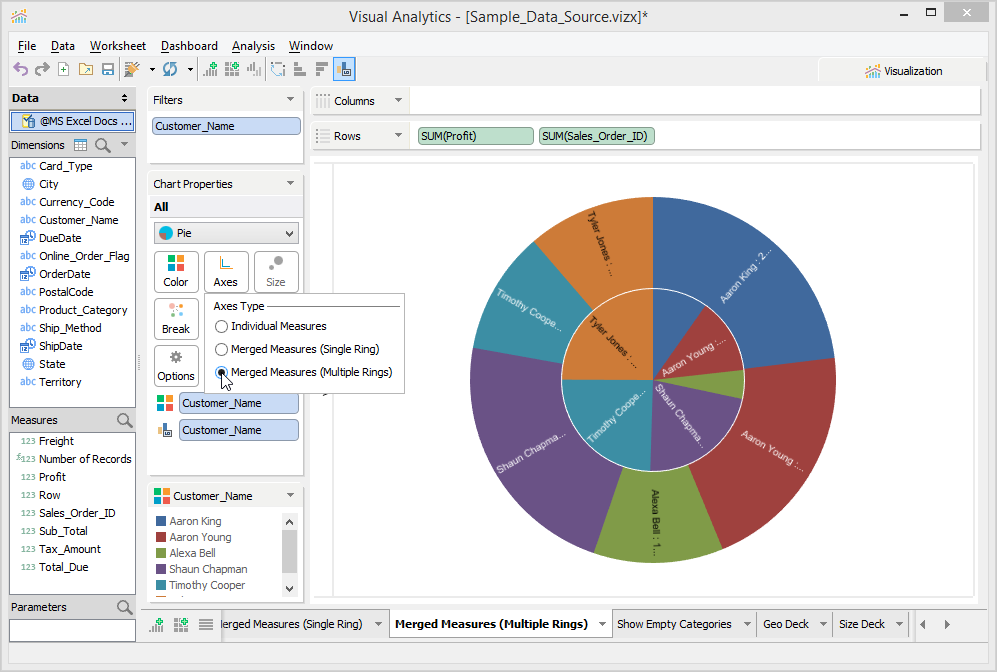
Visual Analytics offers three distinct axes style.
The minimum requirement to build a chart using merged measures is 1 dimension and 2 or more measures. |
To set the axes style
Choose one of the following axes type.
|
|
|
| This is the default style. | Visual Analytics merges multiple measures in a single ring. In this example, Visual Analytics merges both Profit and Sales Order ID profits in a single ring. The customer name (Aaron King) appear twice; one contains profit (0.16%) and the other contains profit by sales 22.69%). | Visual Analytics merges multiple measures in multiple rings. The number of rings depends on the number of measures selected. In this example, Visual Analytics merges both Profit and Sales Order ID profits in multiple rings; profits are in the inner ring and profit by sales appear in the outer ring. |
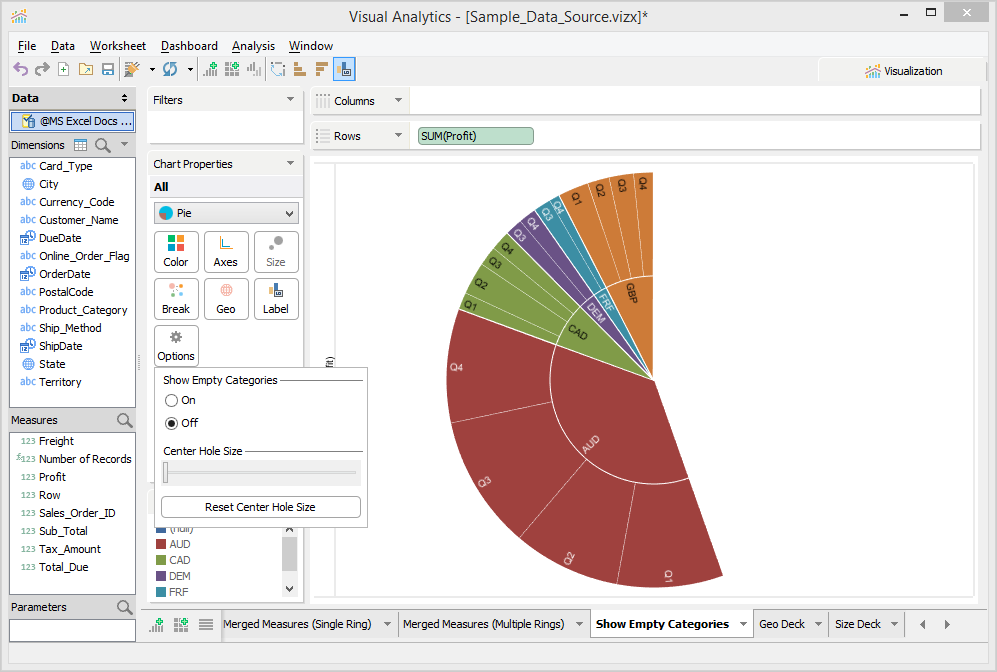
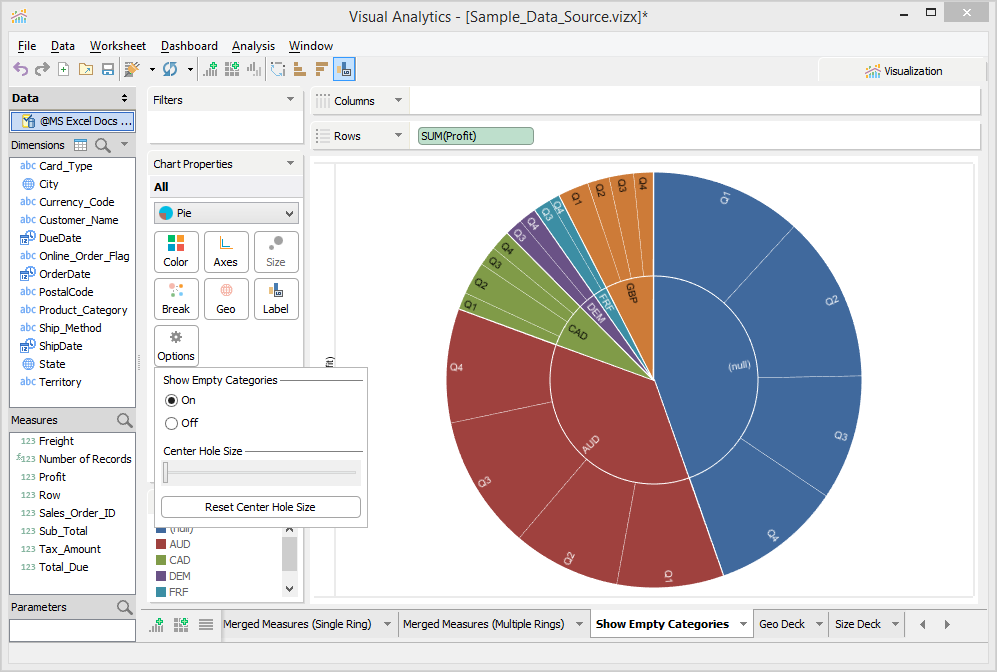
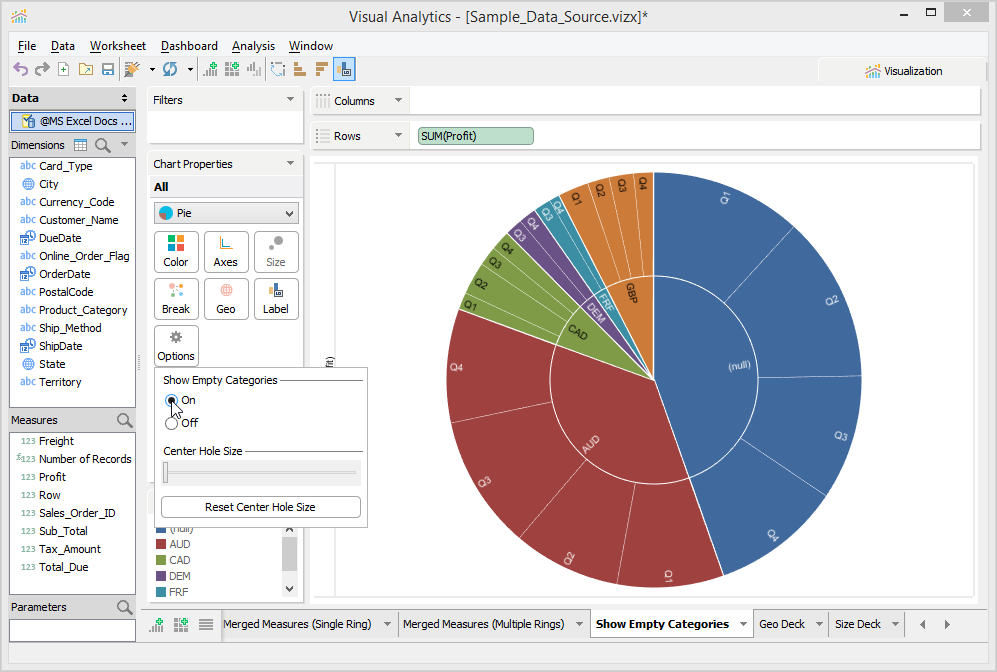
If your dataset contains null values, Visualization does not display these values while plotting the Sunburst chart. Instead, it displays white space. On enabling Show Empty Categories, Visual Analytics plots null values on the chart. To show empty categories, we have used Currency Code Dimension in place of Product Category.
| Default Behavior | After updating the Show Empty Categories setting |
|---|---|
|
|
To display null values
You can plot a symbol map by placing a geographical dimension in the Geo Deck.
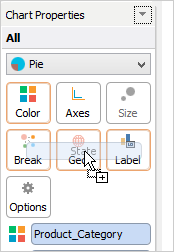
To plot a Symbol Map Chart
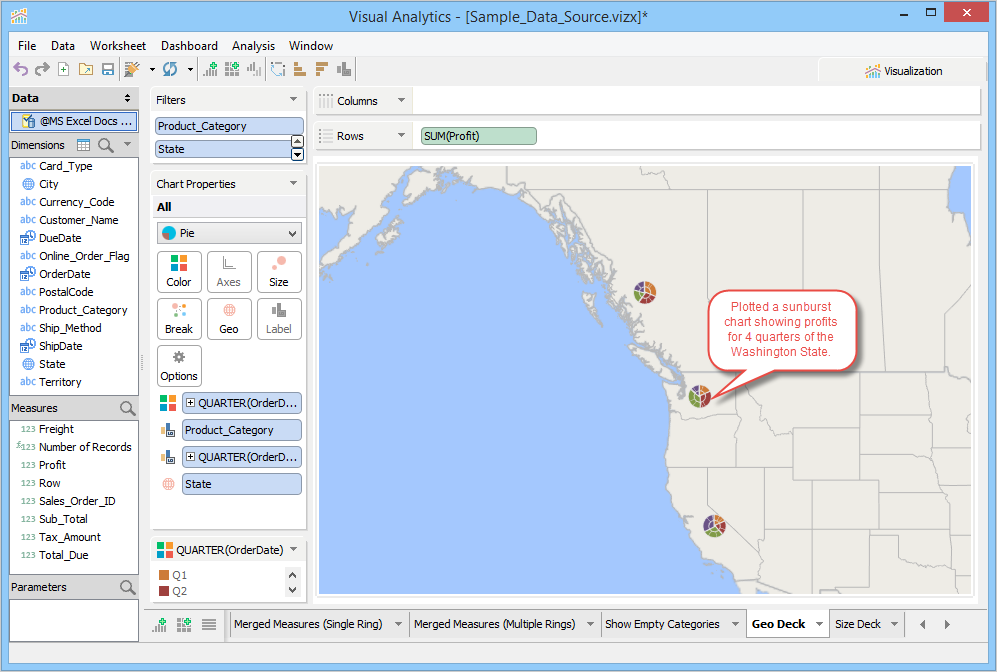
Visual Analytics plots sunburst charts for each state based on profit. We have filtered records to concentrate only on the US region. For more information on Symbol Map, see How to Make a Symbol Map.
This deck is enabled when you use the Geo Deck.
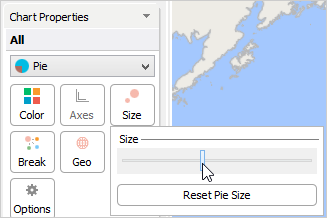
To change sunburst size
Other actions that you can perform on a plotted sunburst chart are as follows: