A simple Treemap Chart is created by dragging a Measure in the Rows deck and dividing it into areas by dragging Dimensions into the Chart Properties Break and Color buttons. Treemap Charts are useful for showing hierarchical data by representing it as nested rectangles.
Download and connect to the sample data source. We are making this chart using 2 dimensions and 1 measure. |
To build a Treemap Chart
 tab and then click
 .Visualization builds a Treemap Chart.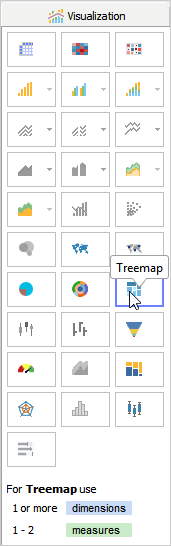
The order of hierarchy formed in Treemap is based on the placement of dimensions in the Label Deck. You can rearrange the fields in the Label Deck, to change the order of grouping on the chart. |
Visualization moves Coffee and Geography to the Labels Deck and Freight to Color Deck. If you click the Label Deck, Show Data Labels are selected by default. Now, in the Color Deck, replace Freight with Geography and apply a filter to both Coffee and Geography dimensions.
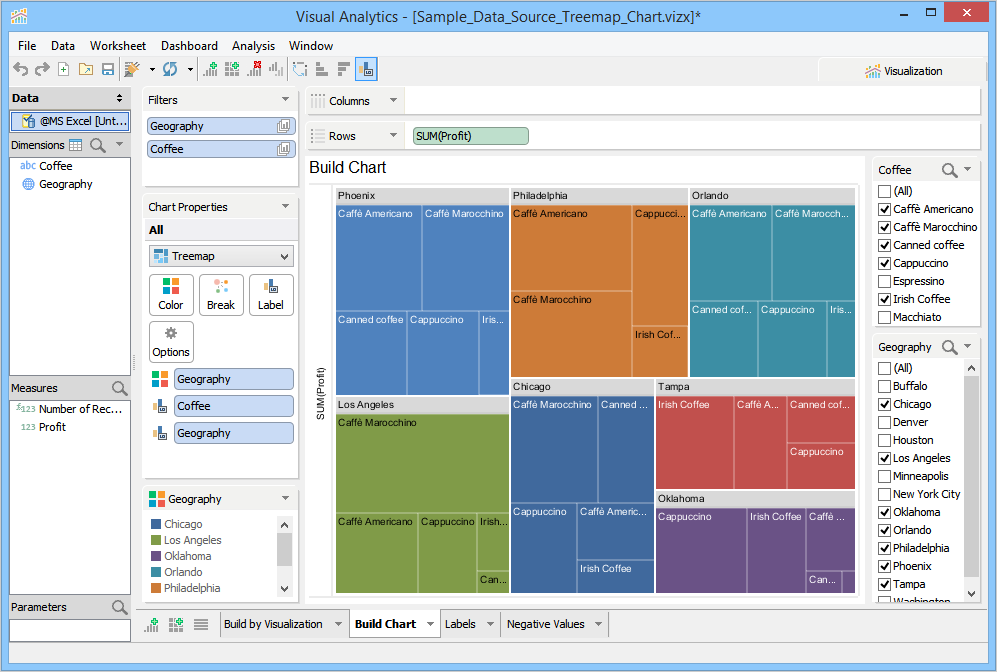
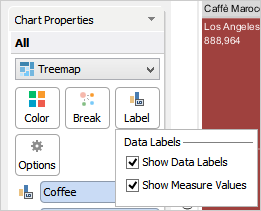
Labels are useful for understanding plotted data. When Visualization builds a Treemap chart, the data labels are displayed on the chart but to see the percentage values, you have to select the Show Measure Values check box from the Label Deck. Alternatively, right-click Freight, then point at Label and then turn on Show Measure Values. To know more, see Chart Properties Label.
To show data labels
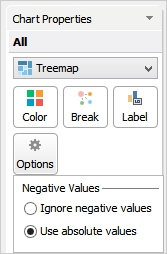
Your data may contain a mixture of both negative and positive values. By default, Visualization does not include negative values while building the chart.
To include negative values
Other actions that you can perform on a plotted treemap chart are as follows: