ACTIVE (Alpha 1)
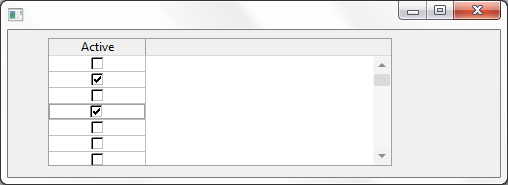
How to visualize a field as a Check Box in a grid.
This Visualization type is useful for a Field that is used as a Boolean(TRUE\FALSE).
1. Through the Field Component source add a Picklist visualization ( PRIM_EVPL ) and a Picklist. Note that these are separate classes in the Field source. Add PicklistItems for Male and Female to the Picklist. Save the field.
2. Create a grid component. From the fields tab add the ACTIVE field to the grid as a column. Set the following properties on the column.
3. Load the grid and the column can be edited as a checkbox.
     Begin_Com Role(*EXTENDS #PRIM_OBJT)
     Begin_Com Role(*picklist) Name(#Picklist)
     Define_Com Class(#PRIM_PKIT) Name(#Item_1) Caption('Yes') Default(True) Parent(#Picklist) Value(1)
     Define_Com Class(#PRIM_PKIT) Name(#Item_2) Caption('No') Parent(#Picklist) Value(0)
     End_Com
     Begin_Com Role(*Visual #PRIM_EVPL) Name(#VisualPicklist) Appearance(CheckBox) Defaultvisual(True) Height(69) Width(209)
     End_Com
     End_Com
     Function Options(*DIRECT)
     Begin_Com Role(*EXTENDS #PRIM_FORM) Clientheight(147) Clientwidth(492) Height(174) Left(369) Top(152)
     Define_Com Class(#PRIM_GRID) Name(#GRID) Captionnoblanklines(True) Columnbuttonheight(17) Componentversion(1) Displayposition(1) Height(128) Left(40) Parent(#COM_OWNER) Showbuttonselection(True) Showselection(True) Showselectionhilight(False) Showsortarrow(True) Tabposition(1) Top(8) Width(344)
     Define_Com Class(#PRIM_GDCL) Name(#GDCL) Columnalign(Center) Displayappearance(CheckBox) Displayposition(1) Editappearance(CheckBox) Parent(#GRID) Readonly(False) Source(#ACTIVE) Usepicklist(True) Width(30)
     Evtroutine Handling(#COM_OWNER.CreateInstance) Options(*NOCLEARMESSAGES *NOCLEARERRORS)
     Select Fields(#SECTION) From_File(PSLMST)
     Add_Entry To_List(#GRID)
     Endselect
     Endroutine
     End_Com
Note: Clicking the check box will set the corresponding value for the field from the picklist items. Values are chosen from the following rule.
|