Or using the Find command in the context menu that opens when you right-click one of the Repository items.
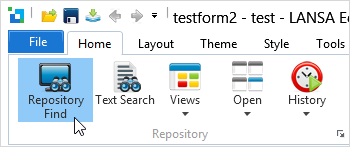
Repository Find can be opened with the Repository Find command in the ribbon:
Or using the Find command in the context menu that opens when you right-click one of the Repository items.
Use the Find dialog to search though single or multiple object types, using a combination of different filter criteria: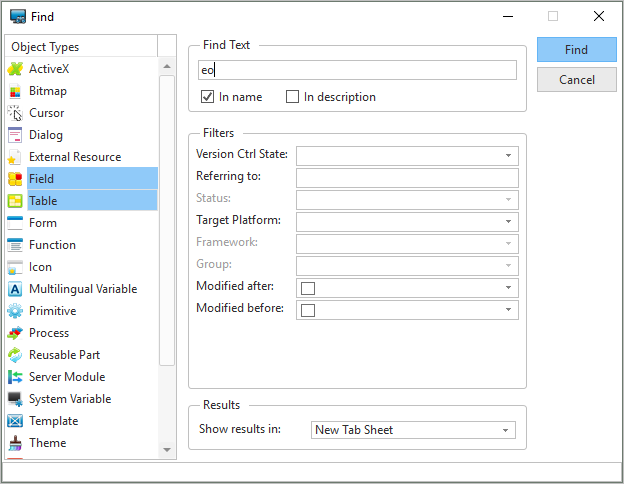
In the Object Types list, select the object types that will be included in the search. One or more object types may be selected from the list - press the Shift key while you click the object types to be included in your search.
The specified criteria in the Find dialog will be applied to the object types selected. The criteria that can be entered will be determined by the object type(s) selected. For example, status may only be used with objects that are compiled and Framework may only be used with objects stored in Frameworks.
Enter a whole or partial string. For example:
Use the In name and In description check boxes to specify whether the string is searched in the name or the description of the selected Object Types or both.
Specify the filters that will be used in the search. All specified criteria will be combined using AND logic.
Task ID | Choose a task ID you want to use as search criteria. All tasks defined for the current partition can be used. You can use the System Initialization options to refresh the task list if using a LANSA for i System. | |
|---|---|---|
User | Specify a user ID to use as search criteria. You can use the System Initialization options to refresh the user list if using a LANSA for i System | |
Referring To | Specify the name of an object for which you want to find cross-reference information.
| |
Status | Select the object status of the selected 4.7.1 Repository Find to be searched. More than one status can be selected. This criteria can only be specified if the selected object can be compiled. | |
Framework | Select the Framework you want to use as search criteria. More than one Framework can be selected. This criteria can only be specified if the selected object is stored in a framework. Refer to Frameworks in the Administrator Guide. | |
Group | Select the Group you want to use as search criteria. More than one Group can be selected. This criteria can only be specified if the selected object is stored in a group. Refer to Groups in the Administrator Guide. | |
Modified After | Select the first modified date of the objects to be searched, i.e. all objects that have been modified on or after this date. | |
Modified Before | Select the last modified date of the objects to be searched, i.e. all objects that have been modified on or before this date. |
Using the Show results In option, specify the tab in which you want the search results to be displayed.
By default:
Specify New Tab Sheet in Show results in as the location of the find results if you don't want them added to the end of the last results found.