In Visual LANSA you create the interface of the application before you write the code.
2a. Set the Form's Properties
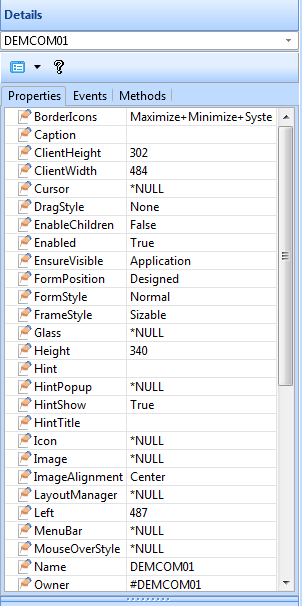
| To view the form's properties, select it on the desktop or in the Outline tab. Bring the Details tab topmost. It consists of a list of properties and a list of events for of the form. The list of properties shows the name of the property on the left and its value on the right. You can change the value of any of the properties except the name of the form. You do this by selecting a property and then specifying its value. You can either type in values, or if they are predefined, you can select them from a list.
|
Write the Caption
The first property you need to change is the form's Caption property to create a title for your window:
- Click on the Caption property.
- Type Employee. As you type it, the new caption is displayed in the title bar of the form.
Size the Form
Next make the form a bit larger than the default size:
- Select it and move the cursor towards its edge.
- When the cursor changes to a double-arrow, drag the edges with the left mouse button pressed down.
- Alternatively, you can change the Height and Width properties of the form.
You can keep resizing the form as required as you add controls and fields on it.
2b. Add Fields and Controls
This section shows you how to add the required fields and controls to the form.
#Partname field and a button
First add the #PARTNAME field which uses #SURNAME as the reference field.

To add the PARTNAME field:
- Start by locating it in the Repository.
- Drag the PARTNAME field to the form or double-click it.
- Bring up the Details tab and make its LabelType property Caption.
- Type 'Enter partial surname:' in its Caption property
Command Buttons
In addition to the Get command button used with the partial surname field, you need these command buttons to work with the employee details:
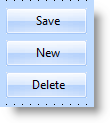
To add buttons to the form:
- Select the Controls tab.
- Drag push button to the form four times. Alternatively you can double-click it four times.
- Change the captions of the buttons.
a. Make the caption of the first button Get
b. Make the caption of the second button Save
c. Make the caption of the third button New
d. Make the caption of the fourth button Delete - Change also the default names (#PHBN_n) of the buttons to match the caption. In this way it will be easier to identify the buttons when you write event routines for them.
- Position them on the form as shown in the picture in Create an Application at the beginning of these steps.
List View
Next create the list view which shows the employees:
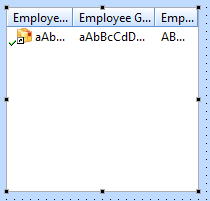
To create the list view, display again the the Controls tab. Drag a list view control (PRIM_LTVW) to the form or double-click it. Now you need to create the columns for the list. To do this:
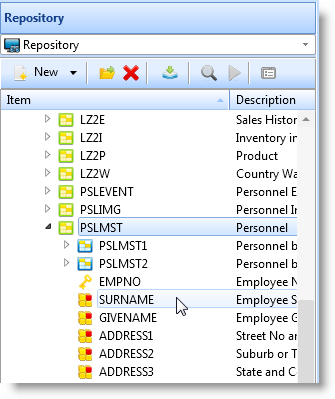
| - Locate the file PSLMST in the Repository tab.
- Click on the plus sign in front of it to display the fields defined for this file.
- Make sure the list view has the focus in the Design view. In the Repository tab double-click these fields to add them to the list view (or drag them):
SURNAME
GIVENAME
EMPNO
When you add a field to a list, a list column is created.
|
Display the Outline tab. The list view columns are named LVCL_n:
- LVCL_1 is the column created from the #SURNAME field
- LVCL_2 is the column created from the #GIVENAME field
- LVCL_3 is the column created from the #EMPNO field
You can rename these fields if you want to use more descriptive names.
| In the Design view notice how the list view shows that a column has been added to it. - Now size the columns as shown by dragging them.
- Display the Details tab for all three columns and set their CaptionType property to ColumnHeadings. This sets the column headings to the value specified in the field definition of the source fields.
|
Employee Details Fields
You will need these fields showing employee details on the form:
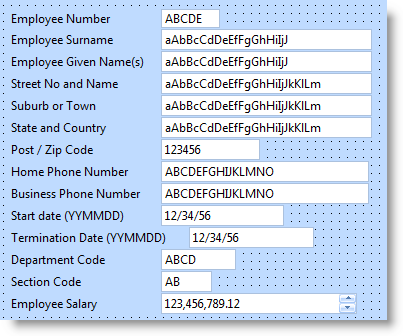
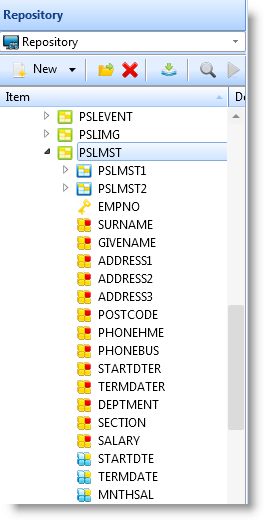
| To add the fields, again display the PSLMST file in the Repository tab. Drag and drop these fields to the form: - EMPNO, GIVENAME, SURNAME (add these fields to the form even though they are in the list to make it simple to add new employees)
- ADDRESS1, ADDRESS2, ADDRESS3 and POSTCODE
- PHONEHME and PHONEBUS
- SALARY
- STARTDTE and TERMDATE
- DEPARTMENT and SECTION
Notice that as you drag the fields to the form, they are displayed with a label specified in the field definition. Also, they are filled with sample data which indicates the required length for the field. |
Status Bar
Lastly, you need a status bar for showing messages:

Display the the Controls tab and drag a status bar to the form. It will automatically attach itself to the bottom of the form.
Finalize the Interface
Make sure that the interface of the application corresponds to the picture shown in Create an Application at the beginning of these steps.