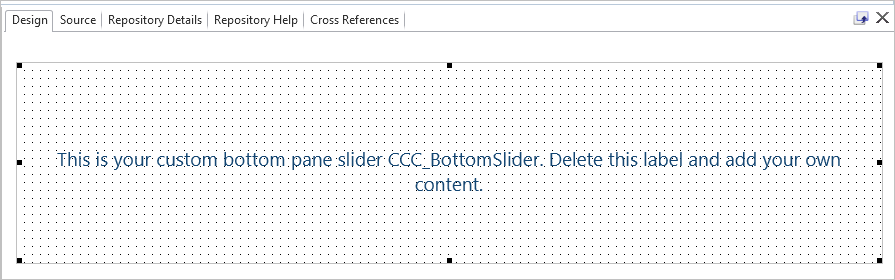
Select the label with text and delete it.
Switch to the Visual LANSA editor, where the slide in panel is open:
Select the label with text and delete it.
Then display the Material Design Controls tab on the left and drag a button to the panel:
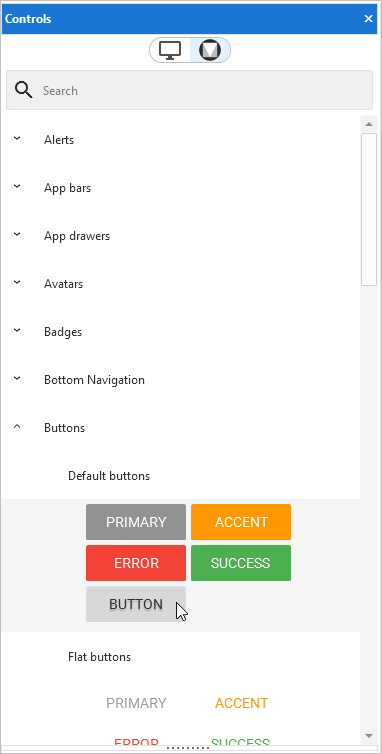
Make the button's Caption Switch to [name of business object]:
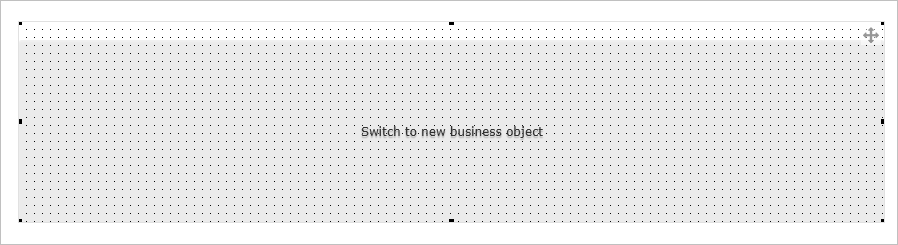
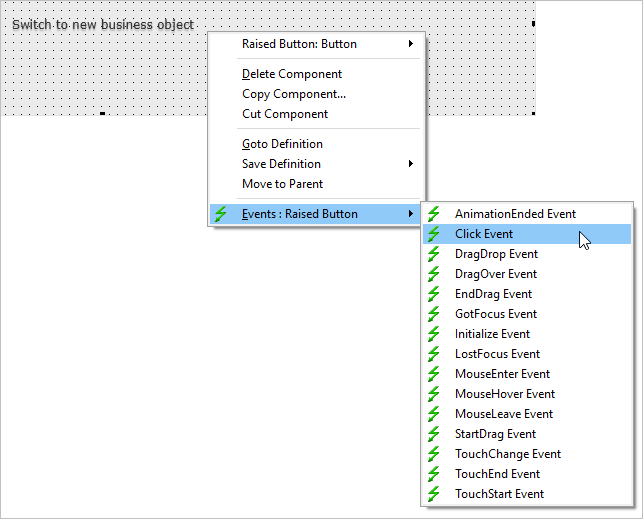
Create an event routine for the button handling Click:
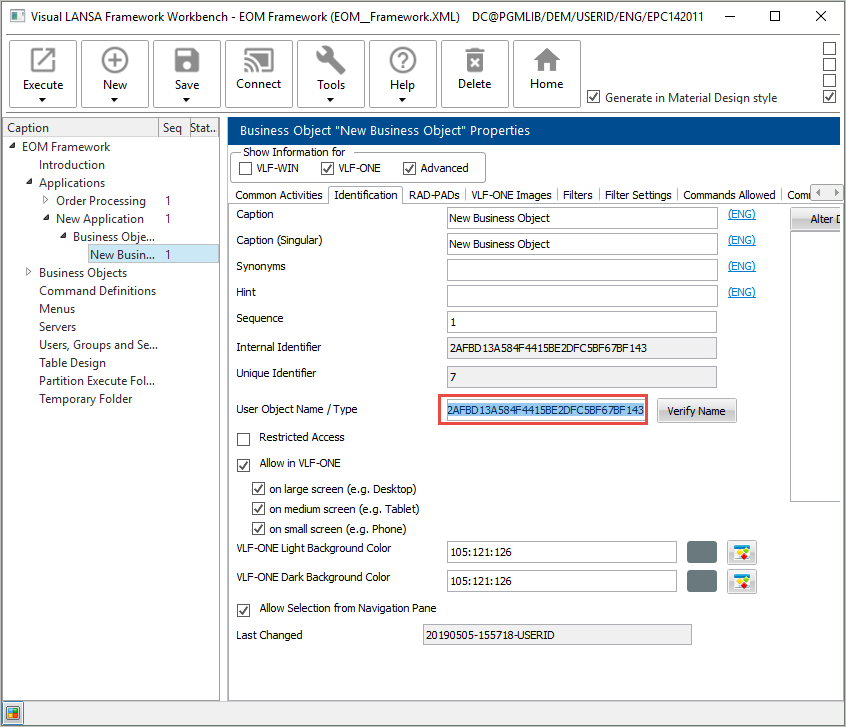
In order to switch to a business object, you need to know its User Object Name. To find the name, display the workbench, and check the User Object Name / Type of your business object. Copy the name:
Switch back to the Visual LANSA editor, and add this code in the Click event routine, replacing the name of the business object with your own:
#avFrameworkManager.avSwitch Caller(#COM_OWNER) Toobjectnamed(4B67CD299E5B43838CDBCD167E8B796C)
Compile the panel.
Switch to the workbench and execute the Framework as a VLF-ONE application.
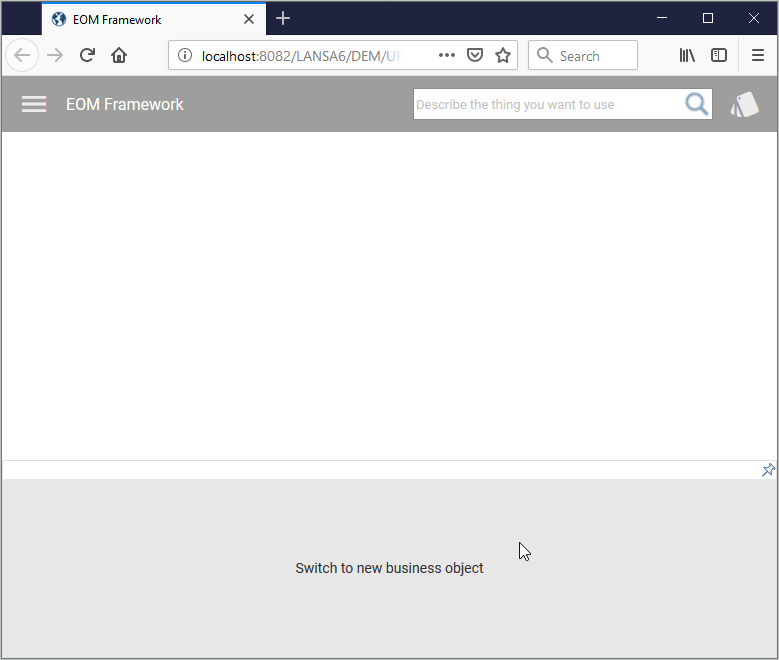
Display the bottom slider panel:
Click the button to switch to your business object:
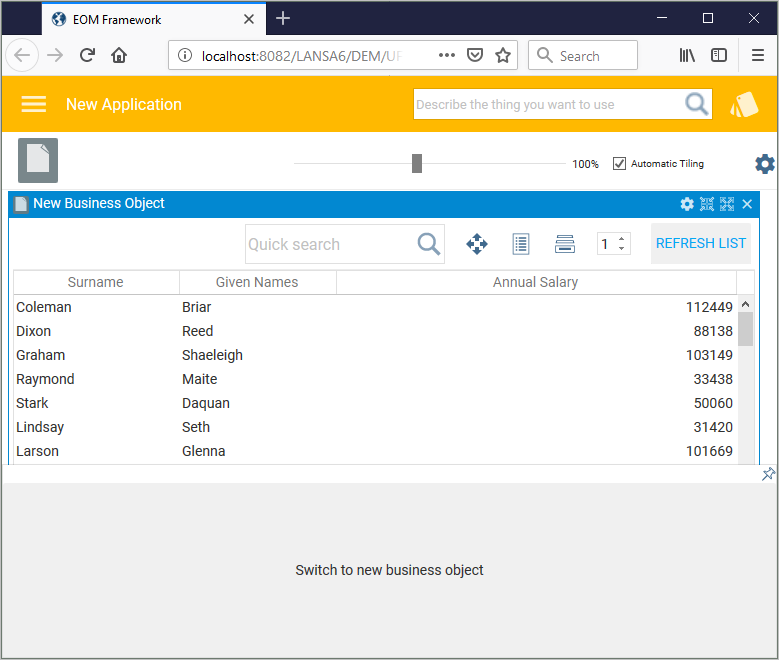
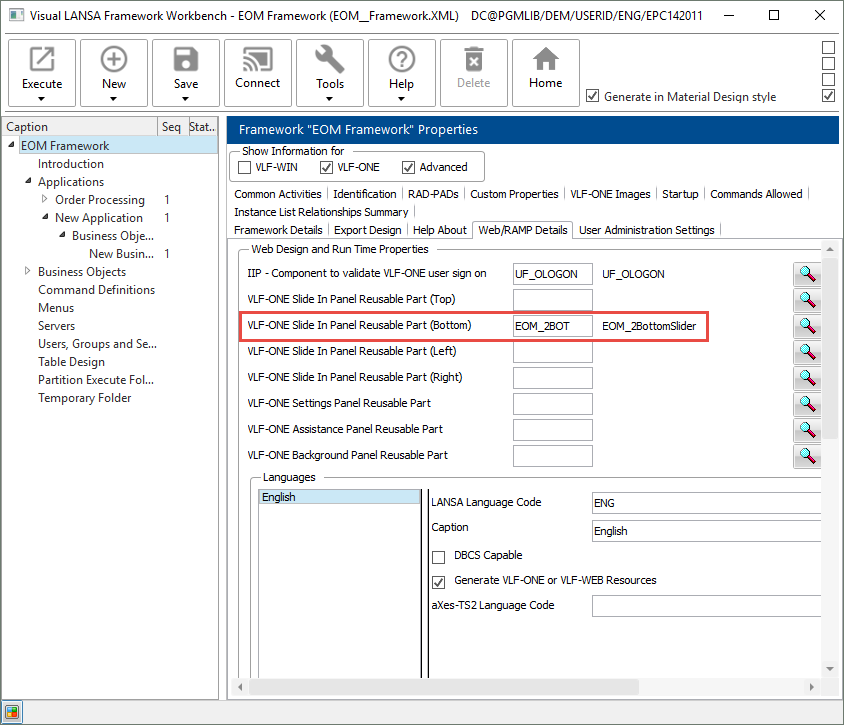
Note that the Bottom Pane Slider is snapped in in the Framework's Web/RAMP Details tab: