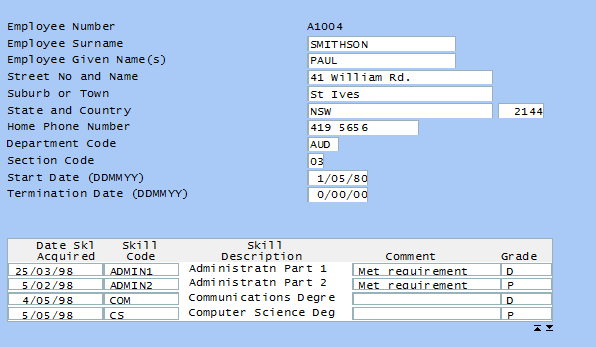
Note the page up and down clickable images appearing at the bottom of the subfile. When clicked they invoke the handler functions HandlePageUp and HandlePageDown, which then send page up / down keystrokes to the server.
A 5250 screen specific thing we can do is to add scrolling buttons to a subfile it displays.
In the script associated with this example screen, three new functions could be added like this:
/* Apply layout changes specific to this screen */
ApplySpecificLayout : function() { if (CHECK_FIELD_EXISTS("PageDownMarker"))
HTMLAPI.insertSubFileScrollers("/ts/skins/images/pageup.gif",this.HandlePageUp,"/ts/skins/images/pagedown.gif",this.HandlePageDown,9,9,-46,82); else
HTMLAPI.insertSubFileScrollers("/ts/skins/images/pageup.gif",this.HandlePageUp,null,null,9,9,-46,82); },
/* Handle clicks on the subfile scroller images images */
HandlePageDown: function() { EXECUTE_BUTTON_SCRIPT(KeyPageDown); },
HandlePageUp: function() { EXECUTE_BUTTON_SCRIPT(KeyPageUp); },
And the arrival script part of the screen definition is modified to invoke this new logic every time a screen arrives:
vHandle_ARRIVE: function(oPayload, oPreviousForm) { var bReturn = true;
/* If the department input field exists on the screen, display it */
if ( CHECK_FIELD_EXISTS("DEPTMENT") ) {
SHARED.ApplyStandardLayout(); this.ApplySpecificLayout();
etc, etc
When executed the example 5250 screen now looks like this:
Note the page up and down clickable images appearing at the bottom of the subfile. When clicked they invoke the handler functions HandlePageUp and HandlePageDown, which then send page up / down keystrokes to the server.
| Note: They do this by executing the vHandle_BUTTONCLICK function, so you need to make sure that it can handle the page up and page down keys correctly. |