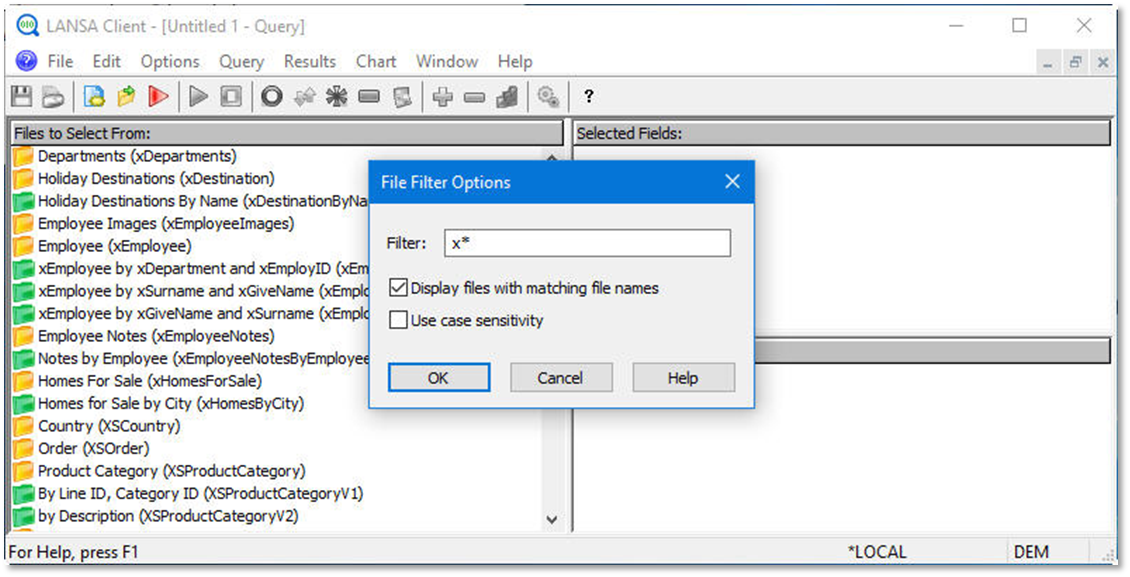
1. From the toolbar select the Options menu and then choose the File Filter command.
2. Choose these options for this exercise:
Filter: | x* |
Display files with… | Click this checkbox |
Use case sensitivity: | Do not click this checkbox |
3. Click the OK button.
Tips & Techniques
- If there are a large number of files in the File to Select From area and you are only interested in part of them, you can apply a 'File Filter' to limit the number of files displayed.
- The File Filter dialog box lets you specify a "filter". A filter is a string of characters that the file names or file descriptions have to match.
- You can indicate whether the filter applies to the file names or file descriptions. The default is to apply the filter to file descriptions. If the filter applies to file descriptions, then case sensitivity might matter.
- You can use the wildcard character '*' or "%" in your filter.
- Filter '*Employee*' on file description will find all files that have a description containing "Employee". Filter "x*" on file name will find all files that have a name starting with "x".