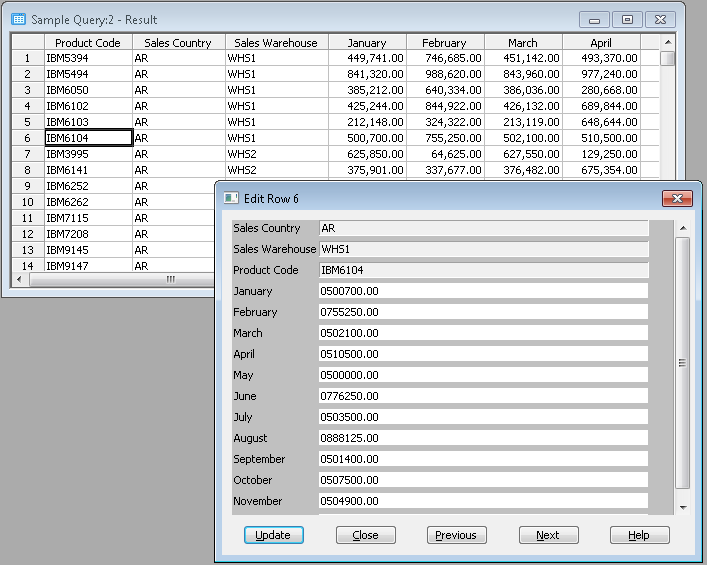
To change existing data, in the Results window, highlight a row of data to be changed and select the Edit Row command from the Results menu on the menu bar.
An Edit Row dialog box matching the row you have selected will be presented to you with:
If there are too many fields to be displayed at once in the window, LANSA Client will provide a vertical scroll bar on the right hand side of the dialog box so that you can scroll down or up through the fields.
Change the data as required.
A "..." button will open a DateTime Selection dialog, containing a calendar and fields for entering time values. You can use this as an alternative to typing in lengthy date/time values by hand. Refer to DateTime Selection for more information.
Using the Previous or Next buttons in the dialog box, you can cycle through the rows of data and edit them without returning to the Results window. LANSA Client will cycle from the top-most row to the bottom row as appropriate.
Once you are satisfied with your changes, select the Update button.
LANSA Client will then update the relevant file in the host database. If any errors are found, error messages will be displayed and the update will not be successful. Amend the data according to the errors reported and select the Update button again.
Once you have finished editing the data, select the Close button to dismiss the Edit Row dialog box.
Notes:
|