toolbar button to add a multiple line edit box visualization for the Notes field.
In this step, you will review the field visualizations created for the iiiEmployNotes field. You will add a multiline edit box and make this the default visualization.
| Multiline edit box is often the best visualization to use for long character fields. |
1. Open the iiiEmployNotes field in the Editor.
2. Select the Visualization tab.
You will notice that the standard visualization for a String field is simply an entry field.
3. Click the Multiline Entry Field toolbar button to add a multiple line edit box visualization for the Notes field.
4. Adjust the width of the Multiline edit box.
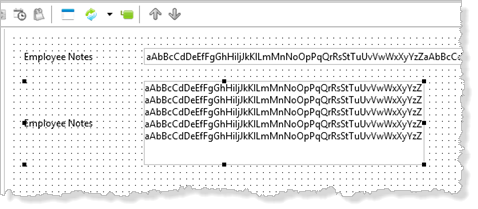
5. Double-click the VisualMultiLineEdit component in the Field Parts list to open the Details tab. Change its DefaultVisual property to True.
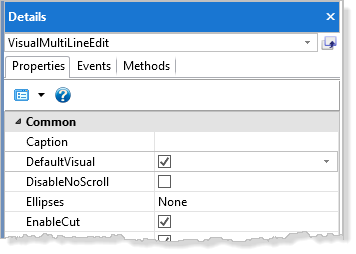
By changing the DefaultVisual property to True for the multiline edit box, the DefaultVisual property of VisualEdit component will be set to False, because only one visualization can be the default.
6. Save and close the field.
Notes:
|