The Program Coding Assistant window is displayed. It allows you to create different types of components that can be plugged into your filters, instance lists and command handlers. It is highly recommended to use the program coding assistant when you first start using the Framework.
Initially, you will most likely use filters that generate a component that can be executed (e.g. CRUD Filter (Create/Read/Update/Delete), Filter that searches a file or view). As you progress you might only use a skeleton filter or simply copy from one that is similar to one that you want to create.
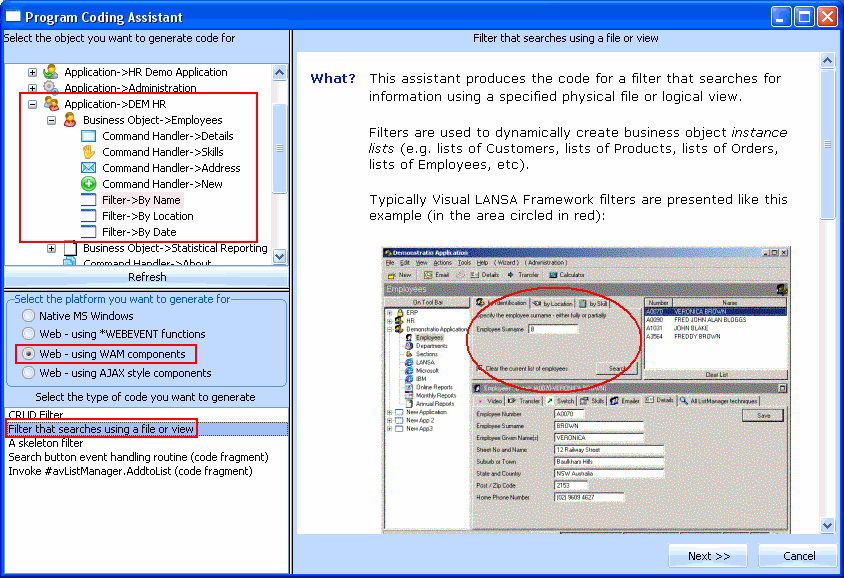

The Program Coding Assistant detects the Visual and Programmatic Identifiers required.

The next page, Generated Code, displays the source code for your filter. You now need to create the component that will contain this code:

After a brief delay a message is shown indicating the WAM has been created.
This statement tells the Framework that new entries are about to be added to the instance list:
#avListManager.BeginListUpdate
This statement clears the instance list:
#avListManager.ClearList
This statement reads the records that match the surname entered by the user:
Select Fields(#XG_Ident) From_File(PSLMST2) With_key(#XG_Keys) Generic(*yes) Nbr_Keys(*Compute)
This statement sets up the visual Identifier(s)
     #UF_VisID1 := #EMPNO
     #UF_VisID2 := #SURNAME
     #UF_VISID2 := #UF_VISID2.BlankConcat(#GIVENAME )
This statement adds the data to the instance list
Invoke #avListManager.AddtoList Visualid1(#UF_VisID1) Visualid2(#UF_VisID2) AKey1(#EMPNO)
VisualId1 will be shown in column one of the instance list and VisualId2 will be shown in column two of the instance list. Akey1 is the key that uniquely identifies an employee (in this case the field is alphanumeric, so its Akey1, not Nkey1).
This statement tells the Framework that you have finished adding entries to the instance list:
#avListManager.EndListUpdate
You may want to read WAM Filter and Command Handler Anatomy to see how WAMs are structured.
Web_Map For(*both) Fields(#XG_Keys (#UB_SEARCH *Desc))
- Locate the layout weblet for your WAM under Weblets in the Repository. It is called iiiCOM04_layout (where iii correspond to your initials).
- Right-click the weblet to bring up the associated pop-up menu and choose the Check in option.
- Click OK.
