In this step, you will create a LoadDropdowns method routine to populate the SearchType dropdown when the web page is initialized.
1. On the Design tab, select the SearchType dropdown. This is a reusable part. Press F2 to discover what services it provides. Note that it has Add, Clear, and Find methods. You have already seen that it has an ItemGotFocus event.
Double click on any of these to display the help in your default browser.
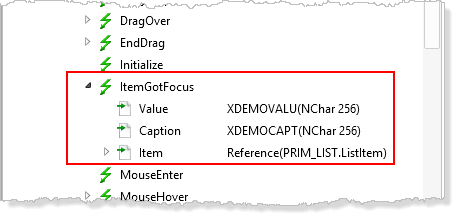
On the Feature tab, note that the ItemGotFocus event passes three values:
As you would expect:
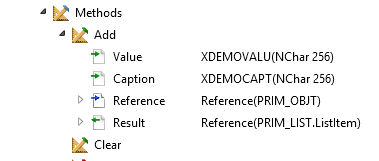
The Add method accepts parameters of Value and Caption:
2. In your web page, define a work field TypeSearch, with a reference field of STD_OBJ. For consistency, all field, list and group_by definitions should be at the top of your source code, below component definitions
3. Create a LoadDropDowns method routine.
4. Add code to the LoadDropDowns method to populate the SearchType dropdown.
The application will support a Start Date search using Month and a Name search which supports "Names Beginning" or "Names Containing" logic.
Add code which adds three values to the SearchType dropdown, positions to the first entry and sets the TypeSearch value to MONTH. For example.
#SearchType.add( MONTH "Month" ) #SearchType.add( BEGIN "Name Beginning" ) #SearchType.add( CONTAINS "Name Containing" ) #SearchType.Find( Month True ) #TypeSearch := MONTH
The name search in the server module will use the LANSA SELECT_SQL command to select employees using either a LIKE or CONTAINS comparison.
5. Create a CreateInstance event routine for the web page which invokes the LoadDropDowns method.
Evtroutine Handling(#Com_owner.CreateInstance) #com_self.LoadDropDowns Endroutine
The CreateInstance event occurs before the page is displayed, avoiding flicker.
6. Complete the SearchType.ItemGotFocus event for the dropdown component.
The SearchType component is based on xDemoWebDropDown reusable part, which is part of a shipped demonstration applications.
You need to note the following about this component:
a. Add the Value() parameter to the SearchType.ItemGotFocus event routine definition
Evtroutine Handling(#SearchType.ItemGotFocus) Value(#Value) Endroutine
b. Define the SearchType.ItemGotFocus event based on the following:
Assign TypeSearch to Value as a native string
Within a CASE loop for Value
When = MONTH
Show Label_Month and iiiSearchMonth
Hide Label_Name and iiiSearchName
When = BEGIN
Hide Label_Month and iiiSearchMonth
Show Label_Name and iiiSearchName
When = CONTAINS
Hide Label_Month and iiiSearchMonth
Show Label_Name and iiiSearchName
End CASE
Your code should look like the following:
Evtroutine Handling(#SearchType.ItemGotFocus) Value(#Value) #TypeSearch := #Value.asNativeString Case Of_Field(#Value) When (= MONTH) #Label_Month.visible := true #SearchMonth.visible := true #Label_Name.visible := false #SearchName.visible := false When (= BEGIN) #Label_Month.visible := false #SearchMonth.visible := False #Label_Name.visible := True #SearchName.visible := True When (= CONTAINS) #Label_Month.visible := False #SearchMonth.visible := False #Label_Name.visible := True #SearchName.visible := True Endcase Endroutine
7. Compile and test your web page. Initially, the SearchType should show Month, and the Month dropdown should be visible and contain 12 months.
Selecting SearchType Name Beginning or Name Containing should display SearchName field.