The following steps are intended to narrow down where the web problem is occurring so that you can more easily zero-in on the cause and the necessary resolution.
The suggested steps are by no means exhaustive. Once you've narrowed down the issue to one of these steps, you may need to refer to other IBM i, Microsoft IIS and/or LANSA documentation to further diagnose and resolve it.
1. To start, cut down the URL to just its root. For example, you might be using a URL like this to open the Management Console in your web browser…
http://XXXXXXXX:8080/XXXPGMLIB/lic/dxweblc.html?dxpage=home (IBMi) or
http://XXXXXXXX:8080/composer/lic/dxweblc.html?dxpage=home (Windows)
Remove everything from and including 'cgi-bin' to give you the root URL (in other words, just the server and optional port number identification, without any path specification).
Your resulting root URL might look like this:
http://XXXXXXXX:8080/
Note, if the web server instance for LANSA Composer uses port 80, then you may not see the ':80' in your URL. That is OK (and normal) because port 80 is the default port number for HTTP. If your web server instance for LANSA Composer uses a different port number, then it will be necessary to specify the port number in the URL. For example, if the web server is configured to use port number 7015 on server 'myserver':
http://myserver:7015/
2. Start your web browser and type your root URL:
http://XXXXXXXX:8080/
IBM i servers: If this succeeds, a home page for the IBM HTTP Server powered by Apache should be shown.
Windows servers: If this succeeds, a Welcome page for the Microsoft IIS Web Server should be shown.
| This confirms that thewebserver instance used by LANSA Composer on yourLANSA Composerserver is active. |
If, instead, you see a page that indicates that access to the specified URL is "Forbidden", this may indicate that the server is not configured to allow access at this root level of the web server instance. This alone would not necessarily prevent you successfully loading the LANSA Composer web applications, so continue with the next step.
If, however, the response indicates connection problems…
Eg: "This web page is not available (ERR_CONNECTION_REFUSED)"
Eg: "This page can't be displayed"
…then this suggests that the web server instance is not running or the network is not configured correctly to allow access to the LANSA Composer web server.
For information about starting the web server instance for LANSA Composer, refer to the topic below that is appropriate to your LANSA Composer server:
IBM i servers: Subsystems and Jobs
Windows servers: Services used by the LANSA Composer Windows Server
3. Start your web browser and type a URL like one of these (using your root):
http://XXXXXXXX:8080/images/xfd_logo.gif
http://XXXXXXXX:8080/images/colpick.htm
If these succeed, the LANSA Composer logo or a color picker page should be shown.
| Thisfurtherconfirms that thewebserver instance used by LANSA Composer on yourLANSA Composerserver is activeand that it is able to servefiles from the LANSA Composer web installation. |
If, instead, you receive an error, refer to the previous step for diagnosis information. If this step failed and the previous step succeeded, then you should start by checking that the LANSA Composer web installation is correct, complete and that security for it and its contents is configured appropriately.
4. Start your web browser and type a URL like this (using your root):
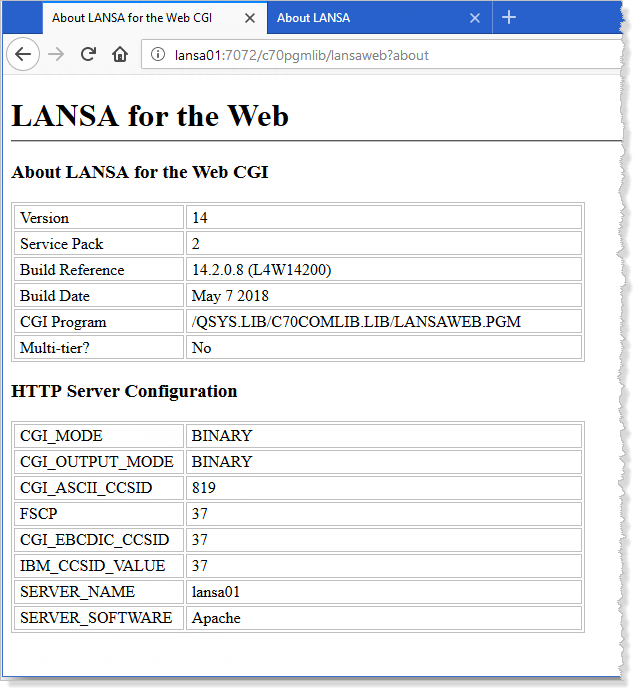
http://XXXXXXXX:8080/XXXPGMLIB/lansaweb?about (IBM i) orhttp://XXXXXXXX:8080/Composer/lansaweb?about (Windows)
If this succeeds, the LANSA for the Web About page should be shown.
| This confirms that thewebserver instance used by LANSA Composeris able to successfully invoke the LANSAWEB programor IIS plug-in. |
If, instead, you receive an error, then you should start by checking that the LANSA Composer web installation is correct, complete and that security for it and its contents is configured appropriately.
5. Start your web browser and type a URL like this (using your root):
http://XXXXXXXX:8080/XXXPGMLIB/LIC/dxwebtest.html (IBM i) orhttp://XXXXXXXX:8080/Composer/LIC/dxwebtest.html (Windows)
If this succeeds, the LANSA Web Application Module About page should be shown.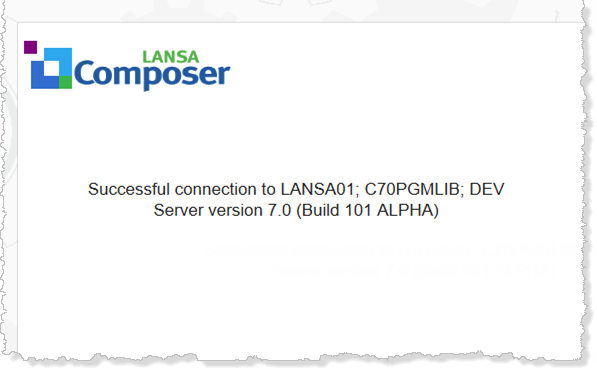
| This confirms that the LANSAWEB CGI programor IIS plug-inis able to connect to the LANSA Composer data/application server and can successfully execute a web application from it. |
If, instead, you receive an error, the most usual cause is that the LANSA listener for the LANSA Composer Server is not active. For information about starting the LANSA listener, refer to the topic below that is appropriate to your LANSA Composer server:
IBM i servers: Subsystems and Jobs
Windows servers: Services used by the LANSA Composer Windows Server
If the listener is running, then you should start by checking that the LANSA web configuration is correct, especially that part concerning the connection to the data/application server. Use the LANSA Web Administrator program to do this. A shortcut to start the LANSA Web Administrator is installed with your LANSA Composer client software.
6. Start your web browser and type a URL like this (using your root):
http://XXXXXXXX:8080/XXXPGMLIB/dev/dxweblc.html?dxpage=performancemonitor&status=All&period=Daily (IBMi) orhttp://XXXXXXXX:8080/Composer/dev/dxweblc.html?dxpage=performancemonitor&status=All&period=Daily (Windows)
| If this succeeds, you will see the Performance Monitor Page of the Management Console. You have completed the trouble-shooting procedure. |
If, instead, you receive an error or the Management Console does not load or display correctly, then there may be a problem with the installation or configuration of LANSA Composer or the web components on your LANSA Composer server. If you are unable to identify and resolve the issue, then you should refer it to LANSA Support.