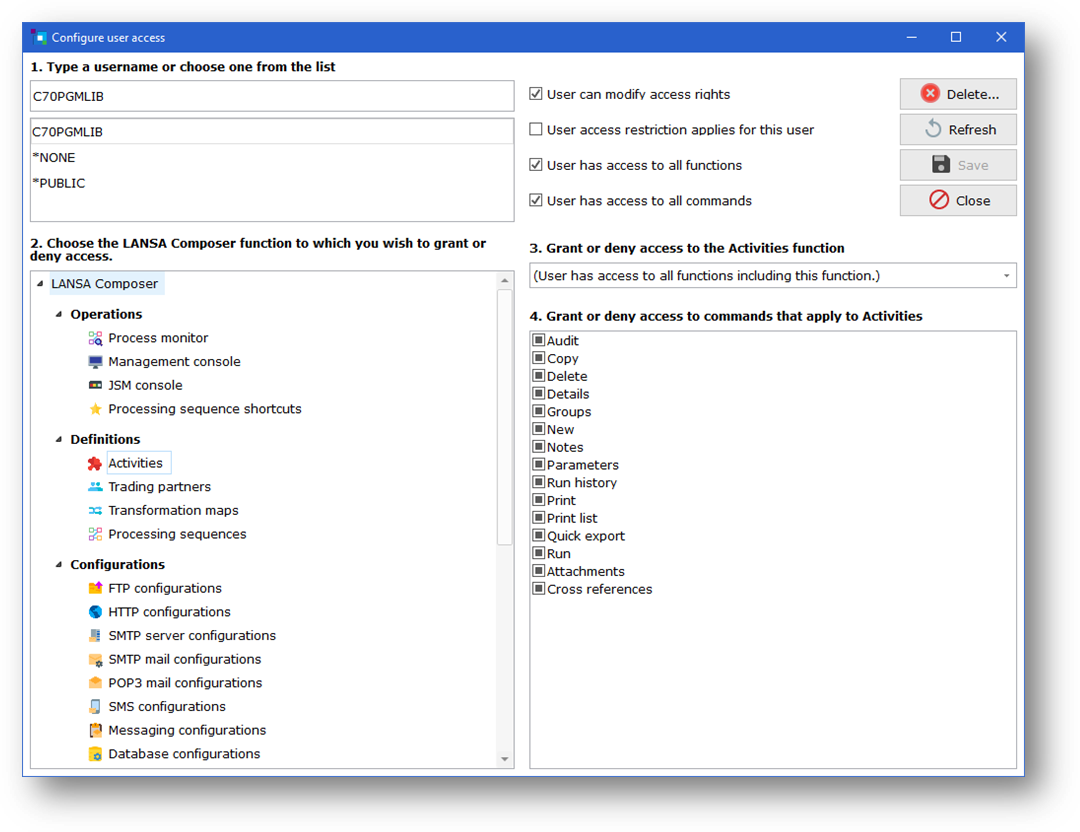
The Configure User Access window is shown and allows you to set access restrictions in four simple steps. These steps are outlined below.
The Configure User Access display allows access restrictions to be set for a specific user or group. Using this feature, access rights can be modified so that users will only see items relevant to them. This is meant to be a convenient way of simplifying a user's view of the LANSA Composer or LANSA Composer Document Manager application. It is not meant to be a used as a security mechanism to prevent users from viewing or modifying sensitive information.
The LANSA Composer and LANSA Composer Document Manager applications each provide their own interface for this task.
To access this feature, select Tools from the menu bar and then Configure User Access in either LANSA Composer or LANSA Composer Document Manager. If you do not see this menu option, that is usually because it has been disabled by the administrator. If there are issues, please contact the system administrator or other relevant parties.
The Configure User Access window is shown and allows you to set access restrictions in four simple steps. These steps are outlined below.
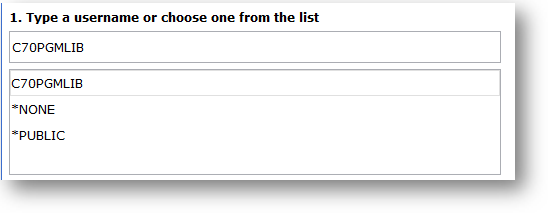
First, select a user by typing in the username in the textbox, followed by the Enter key or the refresh button. Alternatively, one can be selected from the given list. This user can be refer to a user profile, a group profile (on IBM i server) or '*PUBLIC'. A group profile only applies to IBM i server and will change access rights for everyone in that group. '*PUBLIC' applies for both Windows and IBM i server and will modify settings for all users. If a setting has been set at multiple levels, settings for group will override '*PUBLIC' setting while setting for user profile will override both.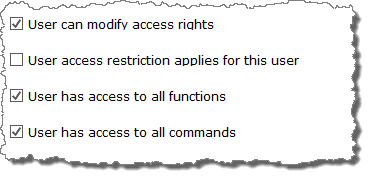
Immediately to the right of the user selection area are four checkboxes. These checkboxes controls global access rights for the user. Their function are as follows:
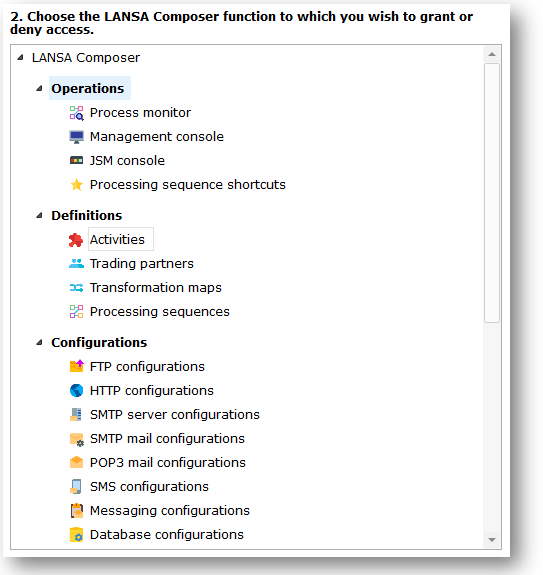
Next, select a relevant function from the tree on the left hand side that shows all the functions available in the relevant application (LANSA Composer or LANSA Composer Document Manager). This will populate a drop down on the right and possibly also the list view.

The drop down will have three entries by default and will control whether or not this function will be visible when the said user logs in. The first, default entry means that access rights to this function (and all functions) is controlled universally by the "User has access to all functions" checkbox. This means access can be granted or denied for all functions via said check box except for those that have been explicitly set. The second and third entry allows access to be granted or denied specifically for the function.
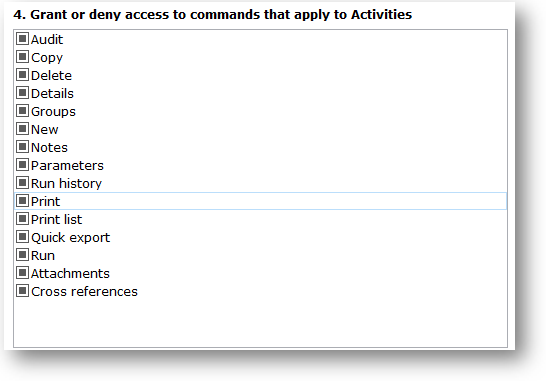
Most functions will have commands associated with them that identify the range of operations that can be performed for that function or for an instance of that type of definition (for example, for a selected Trading Partner). Commands will reflect things that users can do usually through the command tabs shown for the function or by clicking one of the toolbar buttons or by right-clicking an instance. Commands can include such things such as New and Copy, Details, Parameters and Notes, depending on which of the LANSA Composer functions is selected.
If there are commands for the function, the list below the drop box will have several entries, each with a check box. Each item in the list represents a command for the selected function. By toggling the checkboxes, access rights can be given or revoked accordingly. By default, checkboxes will be grayed, indicating that access to commands is controlled (granted or revoked) universally, using the User has access to all commands checkbox.
Do note that Default commands, as indicated by '(Default)' tag cannot be disabled.
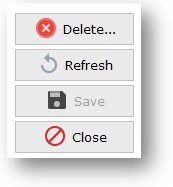
To save all changes so far, click the save button. Note that for these changes to take effect, the User access restriction applies for this user option needs to be checked (selected) before saving. If not selected, users would be exempt from an authority check, giving them access to all functions and commands.
Alternatively, the Refresh button can be used to clear all unsaved changes. Clicking Refresh will reload currently saved settings for the user. To undo all the changes and stop modifying access rights, use the Close button. As a safety net, a warning message will pop up asking whether changes are to be saved. To proceed, click No.
You can also delete both saved and unsaved changes using the Delete button. In addition to clearing changes in the user interface, the Delete button will also clear all previously saved changes. Data will then be reloaded as per normal. As data for the user would have been cleared, loaded data will be based on group settings, '*PUBLIC' settings and default settings, whichever ones may apply to the user.