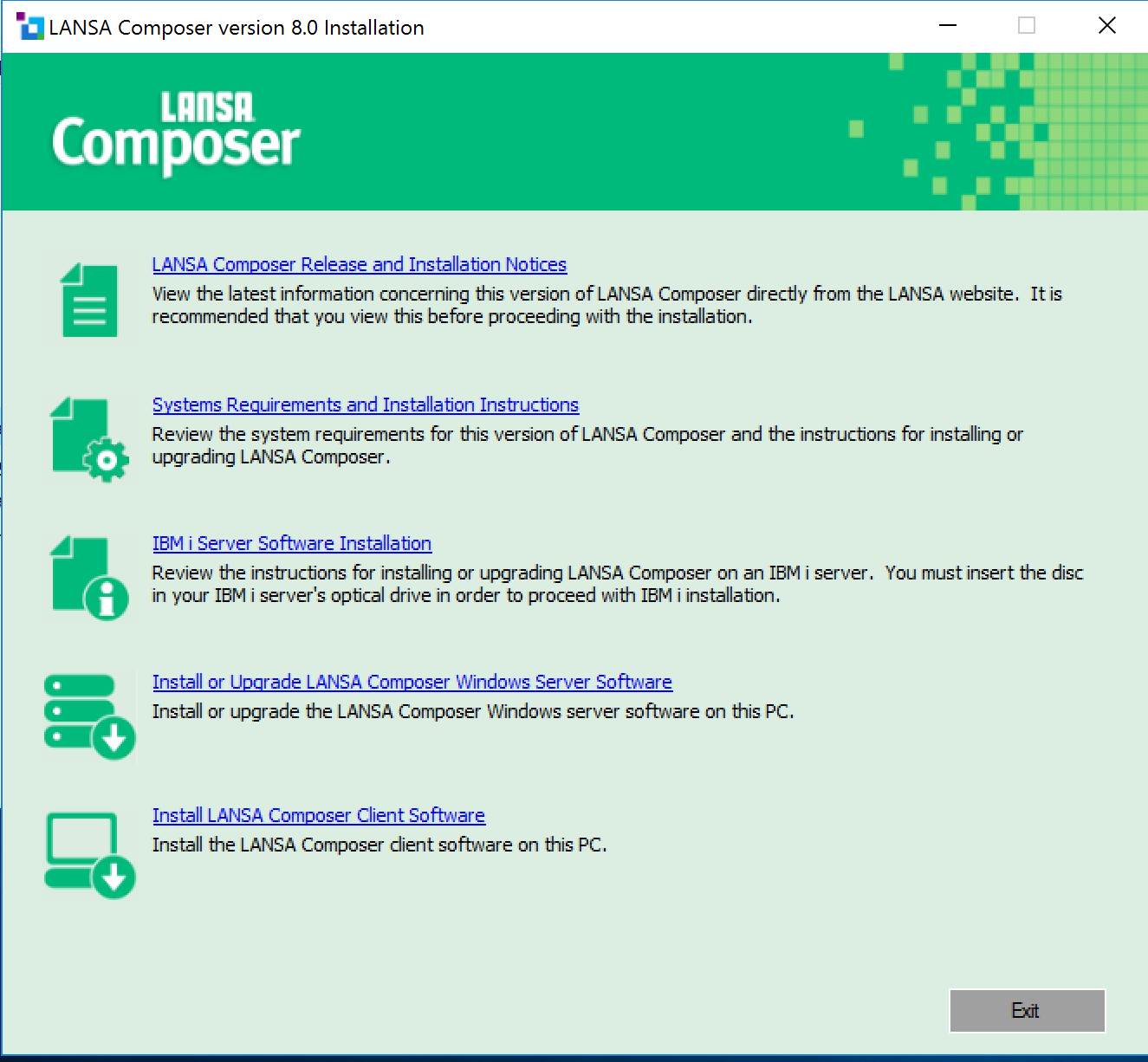
Log on to your Windows PC. We recommend using a user that has administrative rights on the computer.
Insert the LANSA Composer installation DVD into the DVD drive on your Windows PC. After a short pause, the LANSA Composer installation program should load. (If the installer does not start automatically, use Windows Explorer to locate and open the setup.exe file in the root directory of the installation DVD.)
Click the Install LANSA Composer Client Software option to start the LANSA Composer client setup program.
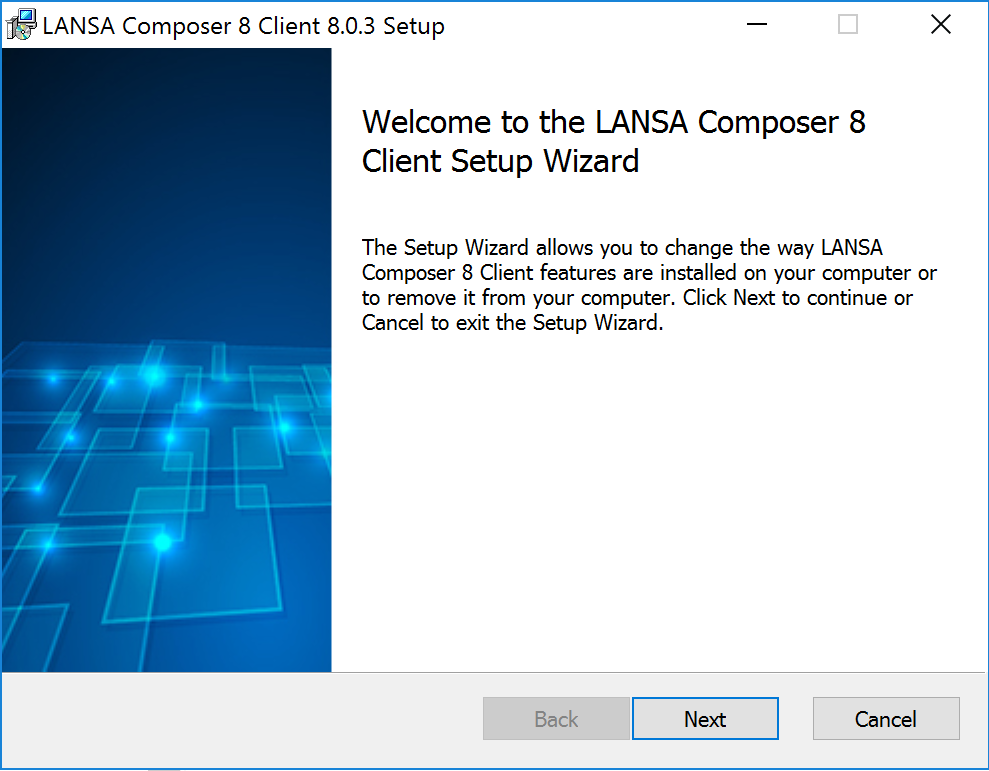
The installations will proceed in two parts:
Completing LANSA Composer Client Setup
Click Next and follow the prompts through each step of the LANSA Composer Client Setup wizard as follows:
Installation Scope | Providing you are logged on with local Administrator privileges, we suggest that you select the option Install for all users of this machine. |
|---|---|
Destination Folder | Type the directory path into which LANSA Composer is to be installed. The setup program will create the folder if necessary. |
Choose Setup Type | Click the Complete button. Note that this stage of the LANSA Composer client software installation does not have any optional components. |
Ready to install | Click Install to proceed. |
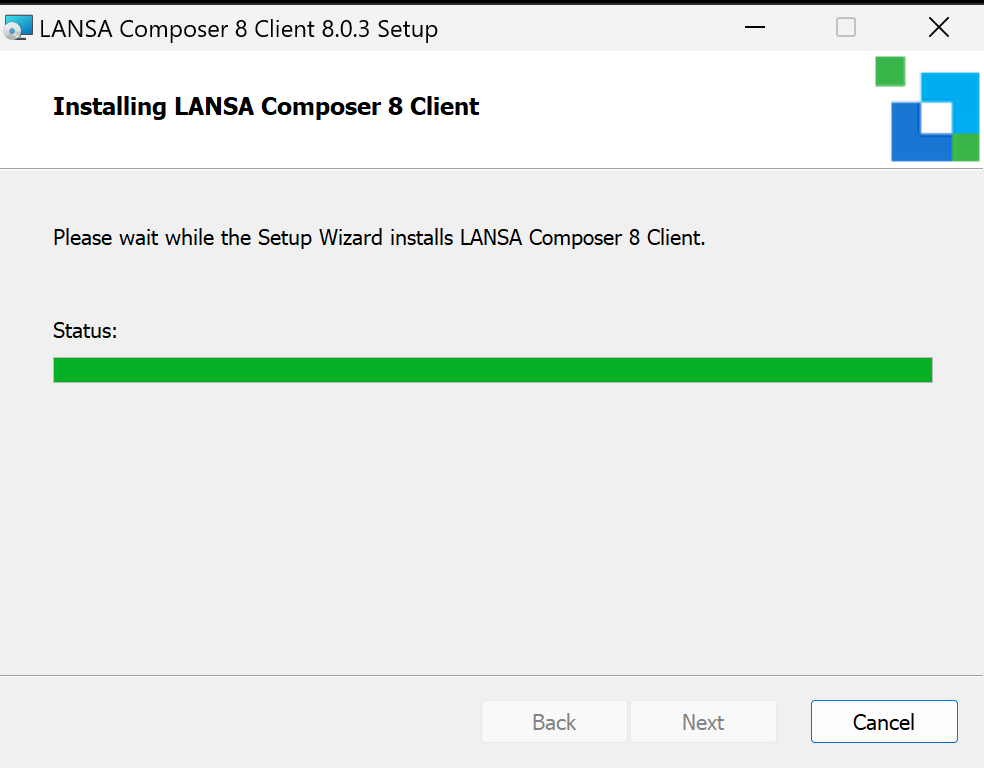
As this stage of the installation proceeds, the setup wizard will show you the progress. Depending on your computer, this may take several minutes:
The setup wizard will report when this stage of the installation is complete:
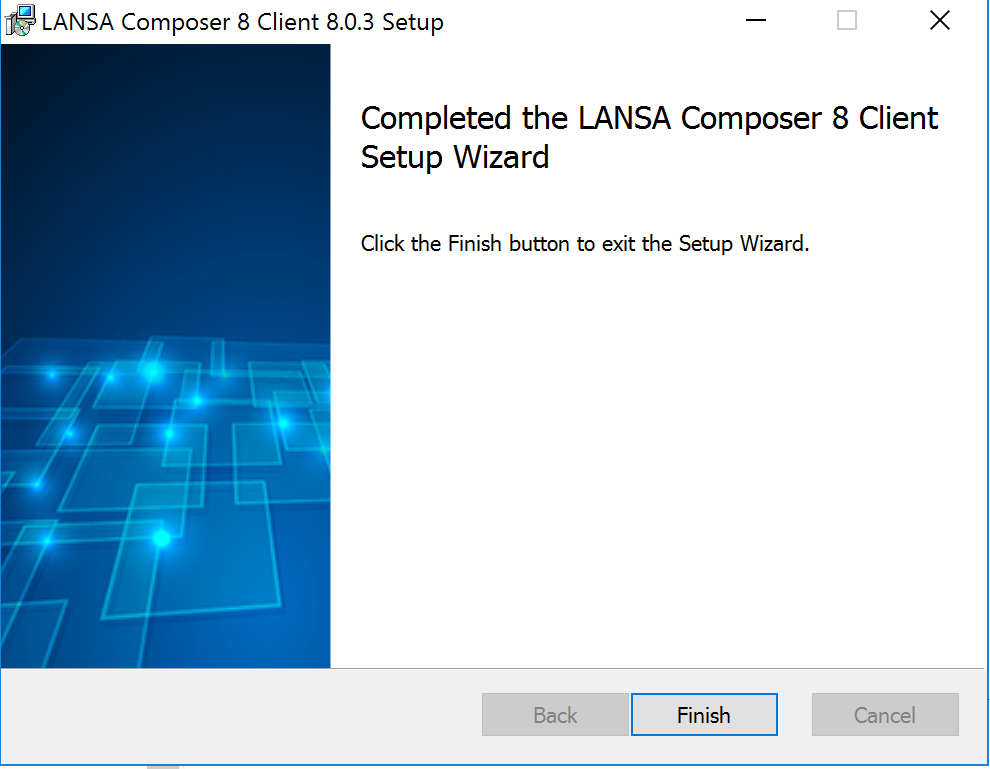
When you click the Finish button, the LANSA Composer Client Setup wizard will close after starting the next stage of the installation:
Completing LANSA Composer Client Setup
The Completing LANSA Composer Client Setup wizard will help you to configure the client software to connect to the LANSA Composer server and will offer to install additional software components.
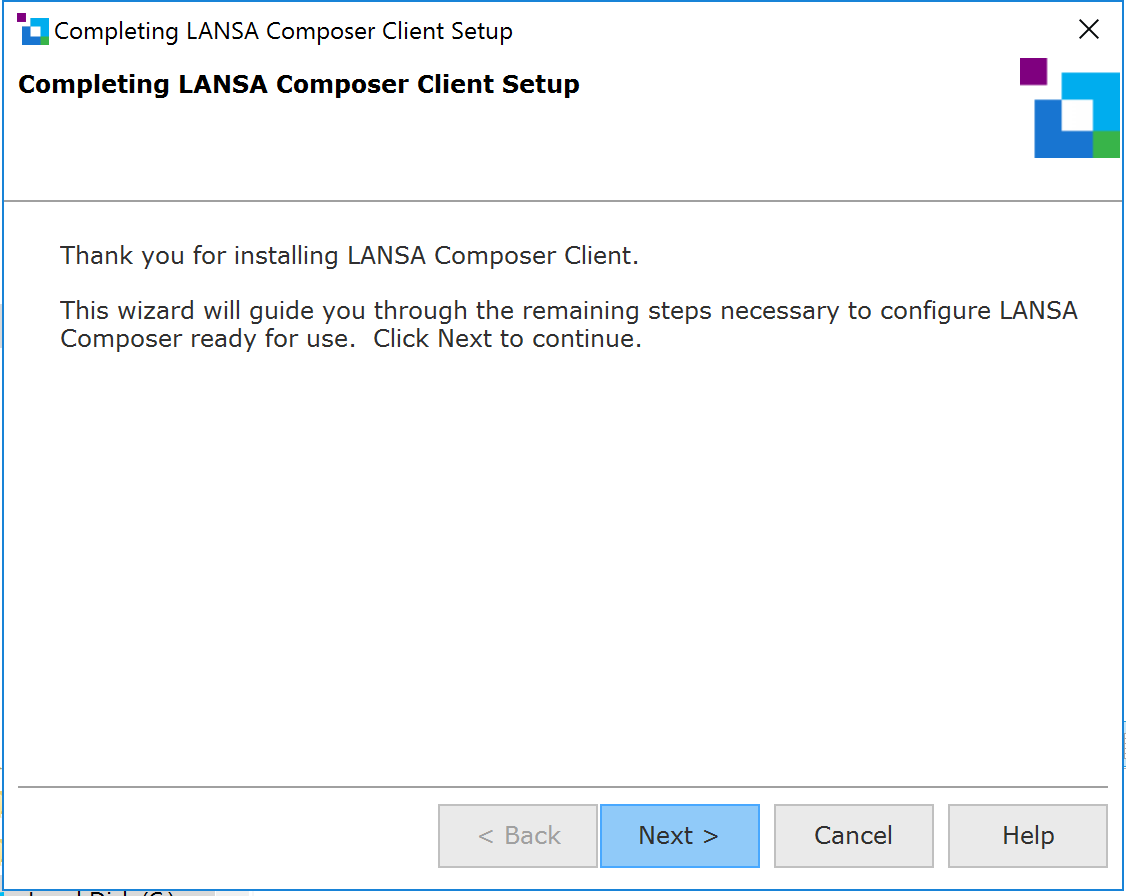
Click Next and follow the prompts through the steps of the Completing LANSA Composer Client Setup wizard as follows:
LANSA Composer server connection | Specify the DNS name or IP address of the LANSA Composer server to which you will connect and the communications port number used by the LANSA Listener for the specified LANSA Composer server. (These details will be used to initialize the COMPOSER01 server entry in the LANSA Communications Administrator. The LANSA Composer client will default to using the COMPOSER01 entry for its server connection, although you can change this if necessary when you connect.) |
|---|---|
Install or Upgrade Altova MapForce | Altova MapForce is used to visually define Transformation Maps that transform data between formats such as database, XML, EDI, and text. If you wish to work with Transformation Maps in LANSA Composer then you need to install Altova MapForce. If you check the box to install Altova MapForce, the installer, and select whether you wish to install 32 or 64bit (Note to use 64bit Mapforce you cannot have a 32bit installation of Mapforce installed.) The installer will be started after you click Next at the Ready To Install step. |
The Ready To Install step summarizes the choices you have made:
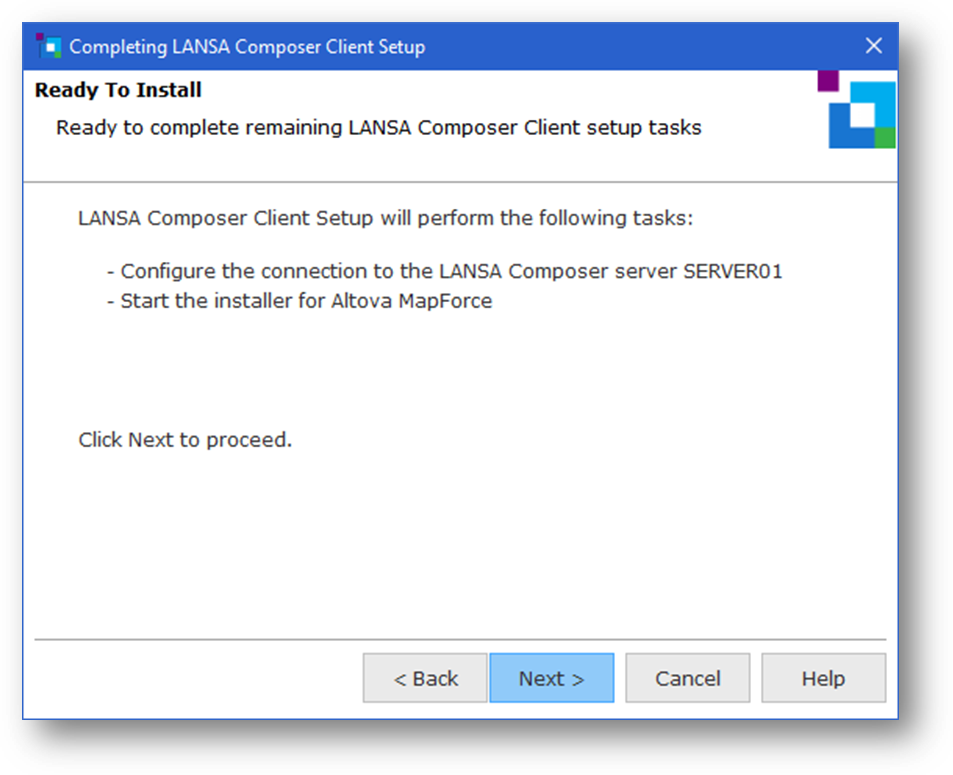
When you click Next, the Completing LANSA Composer Client Setup wizard will complete the configuration and, in addition, it will:
The installation of Altova MapForce requires administrative rights on the computer. If necessary, you will be prompted to enter security credentials for a user with administrative rights before the installation proceeds. |
the installation of the JDK requires administrative rights on the computer. If necessary you will be prompted to enter security credentials for a user with administrative rights before the installation proceeds. |
If Altova MapForce is already installed at a version earlier than supplied with this version of LANSA Composer, we recommend that you upgrade it to the supplied version. You can do so before or after installing LANSA Composer by directly running the appropriate installation executable file supplied on the LANSA Composer installation media. Refer to Mapping Tool Requirements for specific considerations that apply to upgrading from an earlier version of Altova MapForce. |
If you intend to use Altova MapForce to create mappings involving EDI X12, EDIFACT, HL7 or certain other specialized transaction standards, you may need to install additional configuration files for that transaction standard. These are not installed by the LANSA Composer client installation. The additional installers for EDI X12 and EDIFACT for the shipped version of Altova MapForce are provided on the LANSA Composer installation media. Configuration files for other versions or standards may be downloaded from the Altova website at http://www.altova.com/components_mapforce.html. |
When complete, you will be able to start the LANSA Composer client application using the shortcuts provided on your start menu or on your desktop. You should continue with the following steps: