&<img src="../resources/images/opentocr.png" title="Open Contents list" border="0"&>
You are here:

 Reusable Part
Field Name
SECTION(Alpha 2)
Description
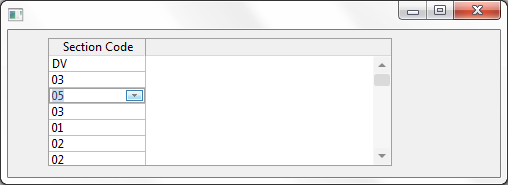
How to visualize a field as an ReusablePart in a grid.
You can edit a field in a list as a reusable part. The first step to this is to create the reusable part. The part form MUST have a default property in order to work as expected.
How to create the sample
1. Create a reusable part called SECTION. Paste the reusable part code from below
2. Create a form and copy the form code from below. Compile and run.
How it works
When creating a reusable part we ensure we follow the reusable part guidelines. We add a property to the form as follows and ensure it is made the default property for the reusable part (eg Defaultpty(Section) )
Define_Pty Name(Section) Get(Get_Section) Set(Set_Section)
The set of this property will be called when the user activates the cell in the grid. When called the property will be given the current value of the field. This is to allow the reusable part an opportunity to ensure that the correct section is selected prior to the display of the form.
The reusable part will then be made visible and the user is free to enter the new section. When the grid needs the new value for the cell it will call default property Get routine to retrieve the value and update the grid cell.
When time to commit the grid then calls the get of the default property to retrieve the reusable part value and updates its contents from the new value.
Reusable Part Source (SECTIONR)
Function Options(*DIRECT)
Begin_Com Role(*EXTENDS #PRIM_PANL) Defaultpty(Section) Displayposition(1) Height(68) Layoutmanager(#ATLM_1) Left(0) Tabposition(1) Top(0) Width(224)
- Reusable consists of a combo box with a client layout item attachment
Define_Com Class(#PRIM_CMBX) Name(#SECT_CBX) Displayposition(1) Fixedheight(False) Height(68) Left(0) Parent(#COM_OWNER) Tabposition(1) Top(0) Width(224)
Define_Com Class(#PRIM_CBCL) Name(#CBCL_1) Displayposition(1) Parent(#SECT_CBX) Source(#SECTION) Width(20)
Define_Com Class(#PRIM_ATLM) Name(#ATLM_1)
Define_Com Class(#PRIM_ATLI) Name(#ATLI_1) Attachment(Center) Manage(#SECT_CBX) Parent(#ATLM_1)
Define_Pty Name(Section) Get(Get_Section) Set(Set_Section)
Evtroutine Handling(#COM_OWNER.Initialize) Options(*NOCLEARMESSAGES *NOCLEARERRORS) - Select all entries from PSLMST and add to our combo box
Select Fields(#SECTION) From_File(PSLMST)
Add_Entry To_List(#SECT_CBX)
Endselect
Endroutine
Ptyroutine Name(Get_Section)
Define_Map For(*output) Class(#SECTION) Name(#o_section) - Default property Get.
- Get_Entry on the combo box focus item and set the return value
If_Ref Com(#SECT_CBX.focusitem) Is_Not(*NULL)
Change Field(#STD_NUM) To('#SECT_CBX.FOCUSITEM.ENTRY')
Get_Entry Number(#STD_NUM)
Endif
Set Com(#o_section) Value(#SECTION)
Endroutine
Ptyroutine Name(Set_Section)
Define_Map For(*input) Class(#SECTION) Name(#i_section) - Default property Set.
- Select_List on Combo and set focus to mathing item from input
Selectlist Named(#SECT_CBX)
If Cond('#SECTION *ne #I_SECTION')
Continue
Endif
Set Com(#SECT_CBX.currentitem) Focus(true) Selected(true)
Endselect
Endroutine
End_Com
Form Source
Function Options(*DIRECT)
Begin_Com Role(*EXTENDS #PRIM_FORM) Clientheight(147) Clientwidth(492) Height(174) Left(369) Top(152)
Define_Com Class(#PRIM_GRID) Name(#GRID) Captionnoblanklines(True) Columnbuttonheight(17) Componentversion(1) Displayposition(2) Height(128) Left(40) Parent(#COM_OWNER) Showbuttonselection(True) Showselection(True) Showselectionhilight(False) Showsortarrow(True) Tabposition(2) Top(8) Width(344)
Define_Com Class(#PRIM_GDCL) Name(#GDCL) Displayappearance(Edit) Displayposition(1) Editappearance(ReusablePart) Editorpart(#SECTIONR) Parent(#GRID) Readonly(False) Source(#SECTION) Width(30)
Define_Com Class(#SECTIONR) Name(#SECTIONR) Height(17) Left(8) Parent(#COM_OWNER) Tabstop(False) Top(8) Width(25)
Evtroutine Handling(#COM_OWNER.CreateInstance) Options(*NOCLEARMESSAGES *NOCLEARERRORS)
Select Fields(#SECTION) From_File(PSLMST)
Add_Entry To_List(#GRID)
Endselect
Endroutine
End_Com
Appearance
Note:
To allow for a section reusable part that is filtered by department you can add an event handler for the Grid.Changed event. This handler can then access another property on the reusable part that takes the department to filter by. The reusable part can then respond by updating its contents.
&<img src="../resources/images/opentoc-dark.png" title="Open Contents List" border="0"&>