Visual Analytics offers you the ability to export the summarized or underlying data of a dataset or data of a view into a CSV file or an Excel workbook, via the View Data window.
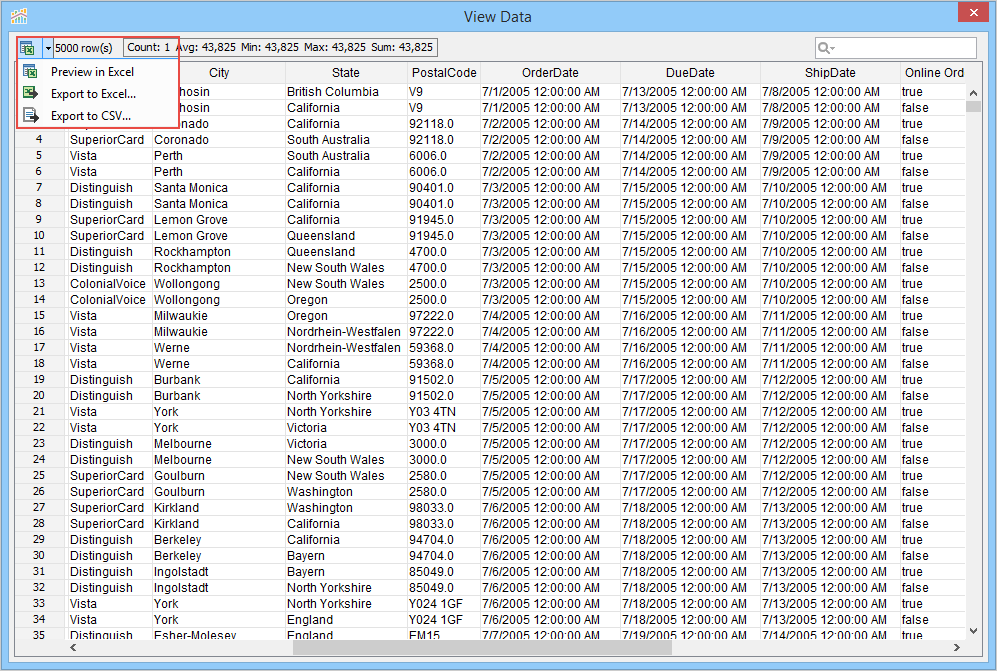
Preview in Excel
If you want to quickly review the data in Excel and then discard it, you can use the Preview in Excel feature. On clicking  or Preview in Excel option, Visual Analytics opens an Excel file containing the data and saves the file in your system's temporary directory. On closing Aqua Data Studio, the temporary Excel file is deleted from your system.
To preview your data
- Click
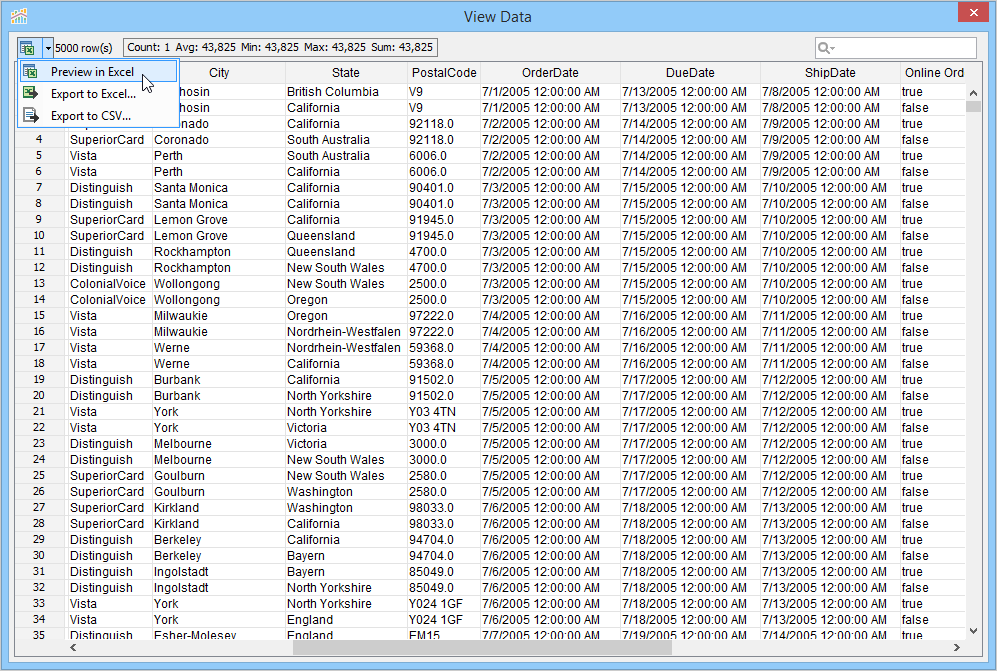
 or click the down arrow next to the icon (
  ) and click Preview in Excel.
Export to Excel
You can export view data to Excel from the View Data window.
To export view data to Excel
- On the Dimension pane, click
 .
. - Alternatively, if you want to export summarized or underlying data of a particular data point, then hover your mouse on a data point, and then on the tooltip, click .
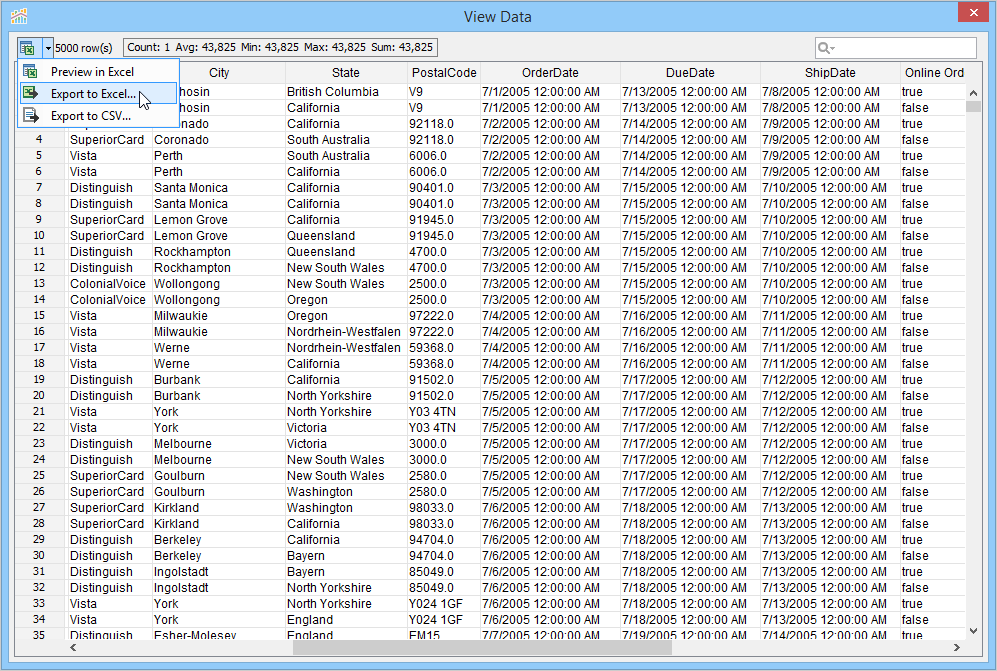
- In the View Data window, click the down arrow next to the icon () and then Export to Excel.
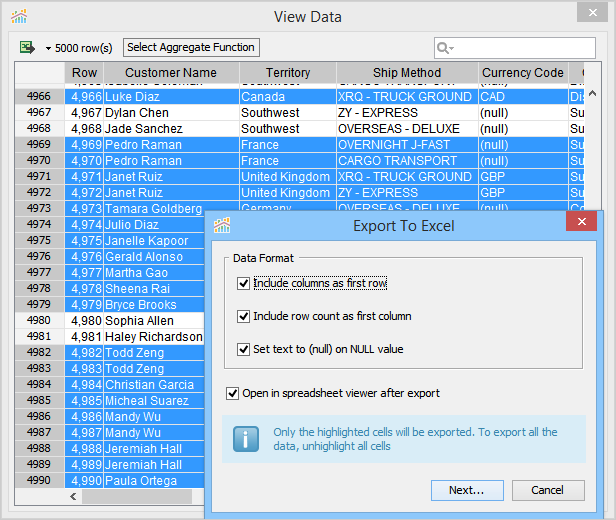
- Specify the export settings.
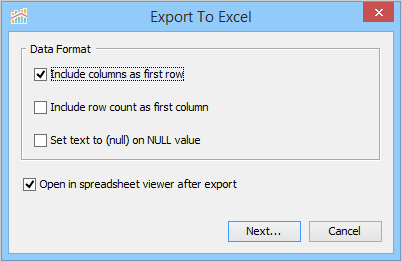
- Choose to export the column headers and row count.
- Choose to replace blank cells representing NULL data by "(null)" text.
- Choose to open the exported worksheet immediately after the export process completes.
- Click Next, then browse and select a folder where you want to export the worksheet, type a name for the exported Excel file, and then click Export.
You can also export selected records to Excel. The process of exporting selected records is the same as exporting complete view data. When in the View Data window, select the records you want to export to Excel. The Export to Excel dialog will display a message about highlighted cells exporting.
 |
Export to CSV
The Export to CSV exports data in a comma-separated value (CSV) file. By default, Visual Analytics uses the comma delimiter to separate each cell of a row in the exported CSV file and saves the file with .csv extension. If you use any other delimiter, you can save the file with a .txt extension.
To export view data to CSV
- On the Dimension pane, click .
- Alternatively, if you want to export summarized or underlying data of a particular data point, then hover your mouse on a data point, and then on the tooltip, click .
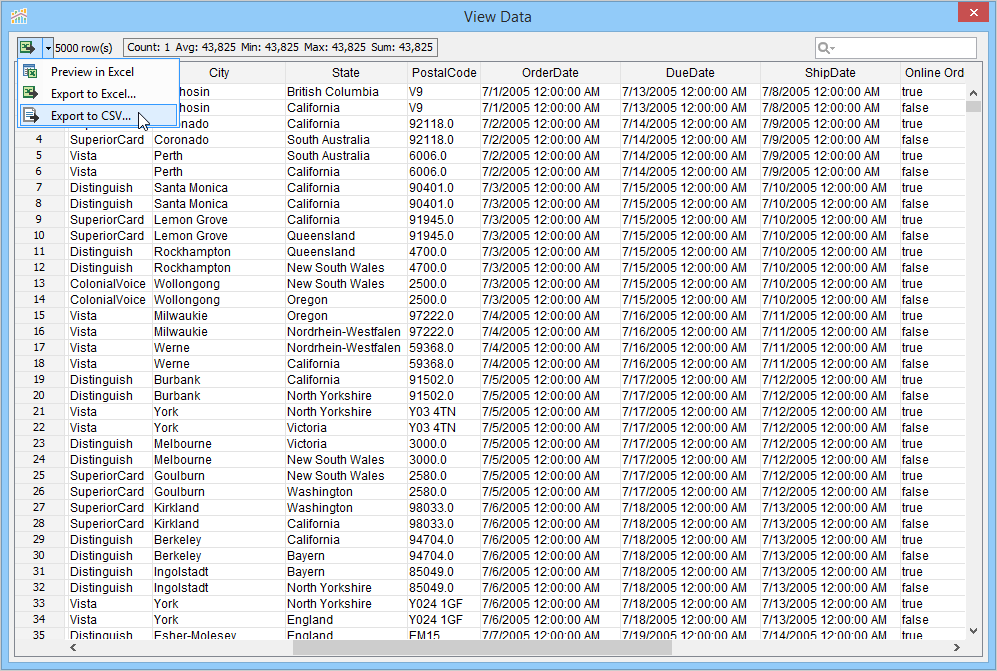
- In the View Data window, click the down arrow next to the icon () and then Export to CSV.
- Specify export settings.
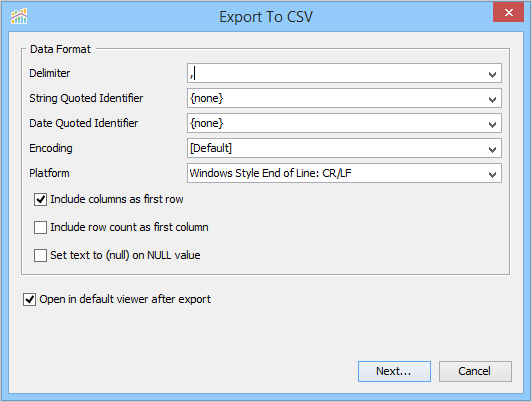
- Choose a delimiter to separate the values in each row.
- Choose a string and date quoted identifier. The string and date quoted identifiers add quotes to string and date type values.
- Choose an encoding and platform into which the file will be saved.
- Choose to export the column headers and row count.
- Choose to replace blank cells representing NULL data by "null" text.
- Choose to open the exported file immediately after the export process completes.
- Click Next, then browse and select a folder where you want to export the file, type a name for the exported CSV file, and then click Export.