You can export rendered charts in Image, HTML, PDF, and Excel formats.
- Image: Visual Analytics exports the visualization to an image file in PNG, JPEG, or BMP formats. We always recommend using PNG format, especially for exporting large charts.
- HTML: Visual Analytics creates a folder with the workbook or dashboard name appended by _files. Visual Analytics adds three sub-folders containing chart icons, images, and individual HTML files of the exported worksheets.
- PDF: Visual Analytics exports the visualization to a single PDF file, displaying multiple charts in separate pages.
- Excel (Table only): Visual Analytics can export grid and tabular views; such as Pivot tables to Excel in .xlsx format.
Contents

Multiple Ways of Exporting
You can export rendered charts via File menu, Worksheet menu, and Dashboard menu.
- File Menu: Allows exporting worksheets and dashboards from a single dialog.
To export: On the Visual Analytics Menu Bar, click File > Export To > [format]. - Worksheet Menu: Allows exporting only worksheets.
To export: On the Visual Analytics Menu Bar, click Worksheet > Export To > [format]. - Dashboard Menu: Allows exporting only dashboards.
To export: On the Visual Analytics Menu Bar, click Dashboard > Export To > [format].
Export to Image and HTML
- On the Visual Analytics Menu Bar, click File > Export To > [format].
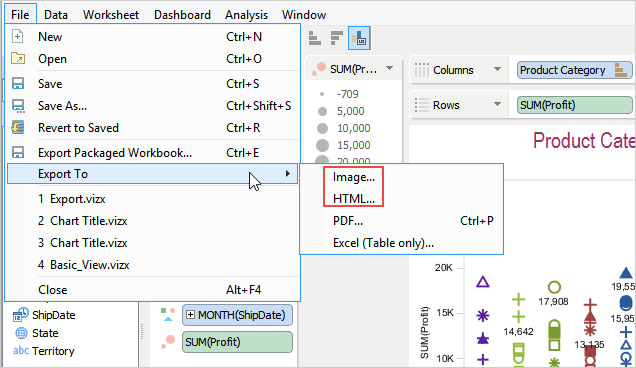
- Specify export settings for the exported format.
- Choose worksheets and/or dashboards for export.
- Choose legend appearance and layout (if the visualization contains a legend).
- Choose whether you want the highlighted chart segments to appear highlighted in the exported format.
- Choose to open the exported files immediately after the export process completes.
- Click Next, then browse and select a folder where you want to export your worksheets, type a name for the exported format, and then click Export.
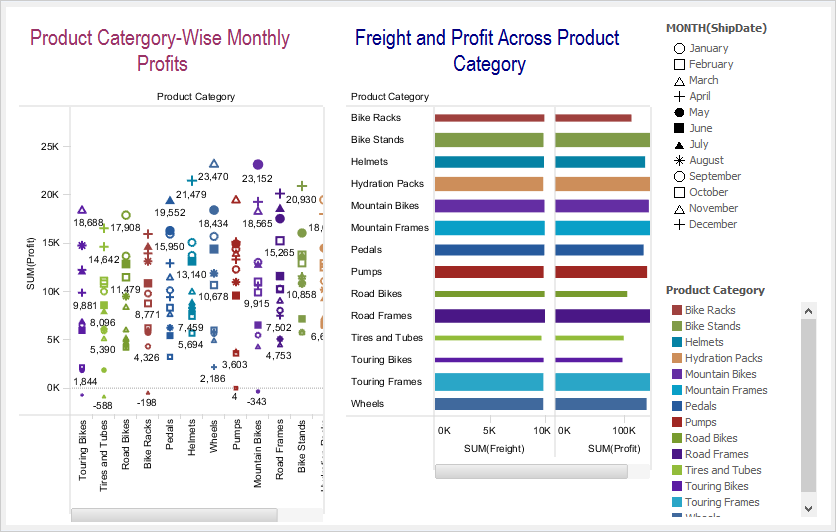
Export to PDF
PDF Export exports data using native PDF format, where it attempts to match the exported characters as closely to the on-screen characters as possible. However, due to the variation in supported characters and formatting in varying font families, the onscreen and the exported PDF fonts might not match. For more information, see PDF Fonts.
- On the Visual Analytics Menu Bar, click File > Export To > PDF.
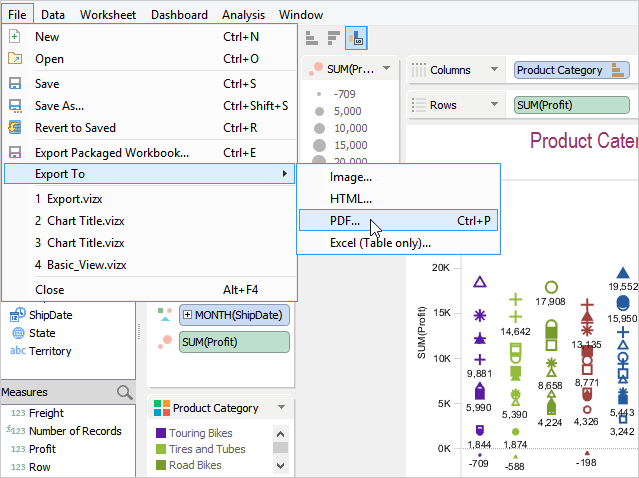
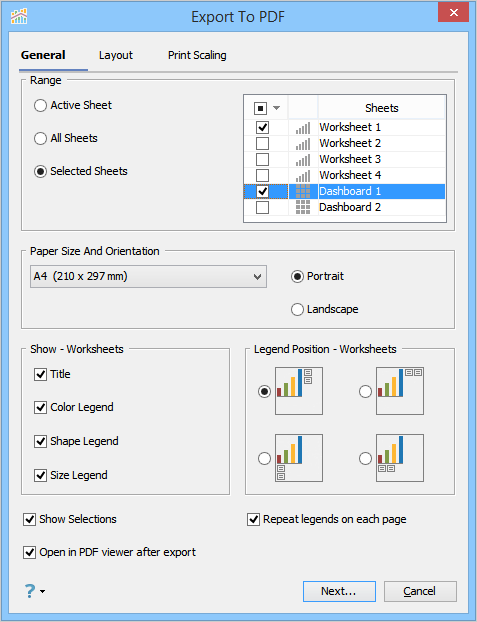
- Specify export settings in the General Tab.
- Choose worksheets and/or dashboards for export.
- Choose paper size and orientation.
- Choose legend appearance and layout (if the visualization contains a legend).
- Choose whether you want the highlighted chart segments to appear highlighted in the exported format.
- Choose whether you want to repeat legends on all pages of the exported PDF. If you do not select this check box, then Visual Analytics generates the legends only once in the exported PDF based on where the vertical or horizontal scroll ends.
- Choose to open the exported PDF immediately after the export process completes.
- Specify page order and margins in the Layout Tab. Page Order is useful when you are exporting a large chart that needs to be distributed across multiple pages.
- Choose Over, then down; Visual Analytics distributes charts across multiple pages using left to right and then from the top down approach.
- Choose Down, then over; Visual Analytics distributes charts across multiple pages using the top down and then left to right approach.
See Attachment. - Set margins for the PDF file.
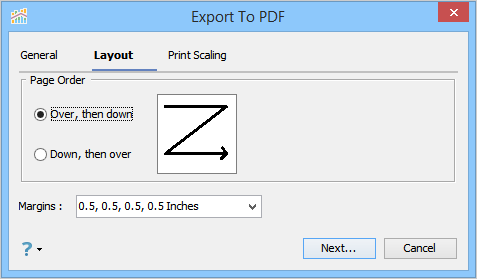
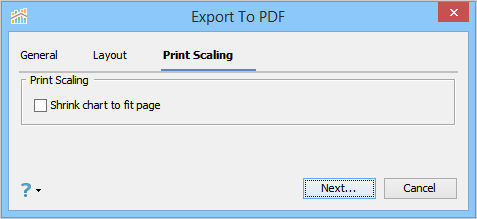
- Specify the print scaling setting in the Print Scaling Tab.
- Click Next, then browse and select a folder where you want to export the worksheets, type a name for the exported PDF file, and then click Export.
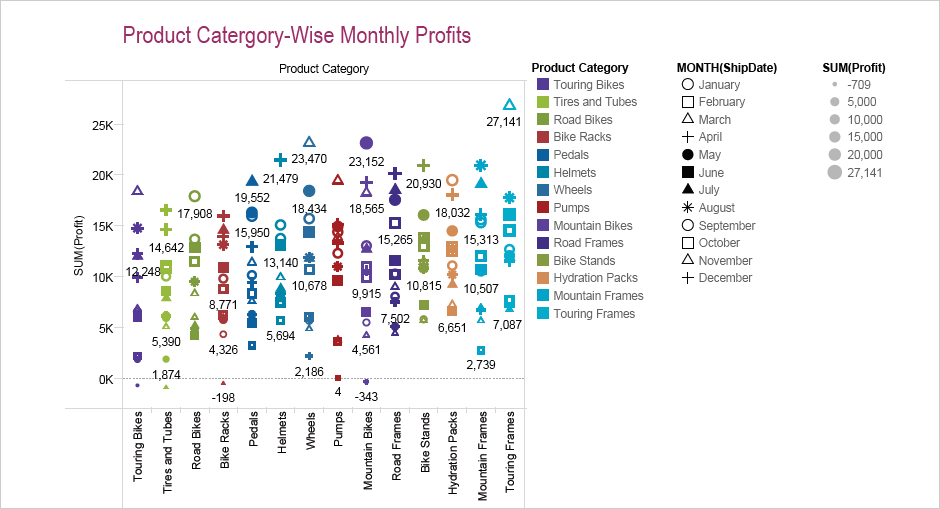
Export to Excel
- On the Visual Analytics menu bar, click File > Export To > Excel (Table only).
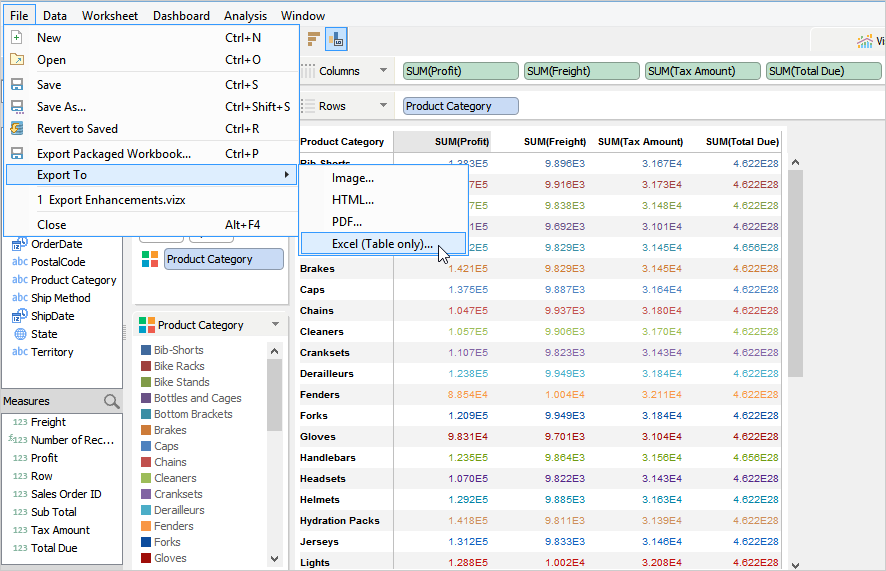
- Specify export settings.
- Choose worksheets for export.
- Choose to open the exported worksheets immediately after the export process completes.
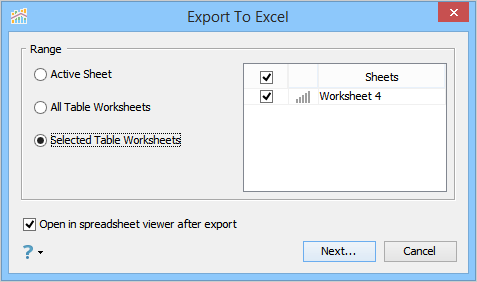
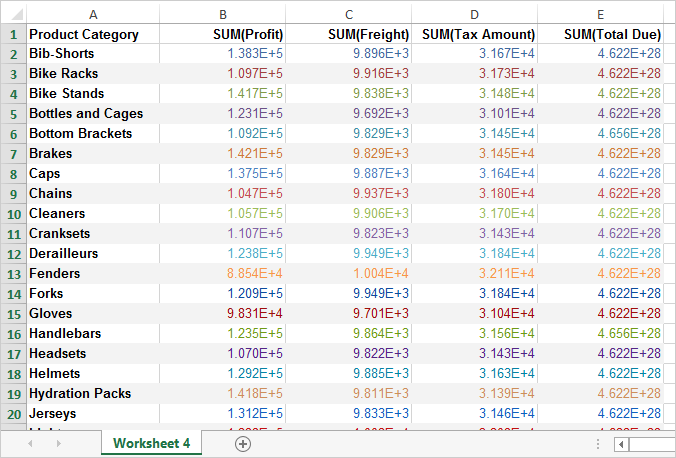
- Click Next, then browse and select a folder where you want to export the worksheets, type a name for the exported excel file, and then click Export.
Excel Limitations
- Visual Analytics exports string dimensions containing numeric values as a string, but Excel reads them as a number and displays a warning message in the exported worksheet.
- Excel limits the maximum number of unique cell styles and font types per workbook. If Visual Analytics workbook being exported contains more than the supported limit then MS Excel may not display all the styles as expected.
- (Only on Linux) The currency units that are denoted by K, M, B or G are not exported to Excel. For example, if the profit value is 400.41K, then in Excel this value will be exported as 400405.67.