Important Notes:
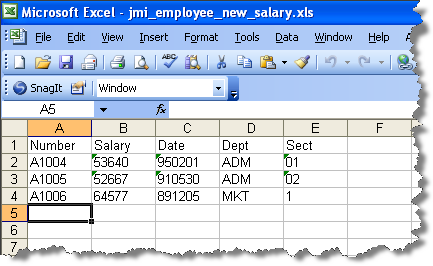
Format cells E1 to E3 as text prior to entering the values, otherwise, Excel will treat the entered values as numbers.
Column headings should be included in the Excel spreadsheet. Your function assumes headings exist and ignores them. Note: this also means that without a column headings row, your function would ignore the first row of data.
Ensure that the employee identifiers in the EMPNO column (A1004, A1005, and A1006) exist in file PSLMST in the partition where the server side RDML function will execute. (If the data does not exist in PSLMST file, substitute employee identifiers that do exist.) Enter the remaining data as shown.
In the File menu, select the Save As option using these options:
Save in | locate the project directory where you defined the send CSV file solution. For example: c:\program files\lansa\integrator\Studio\workspace\iii Training\solutions\SendCSVFile\ |
File Name | iii_employee_new_salary.xls |
Save as Type | Microsoft Excel workbook (*.xls) |
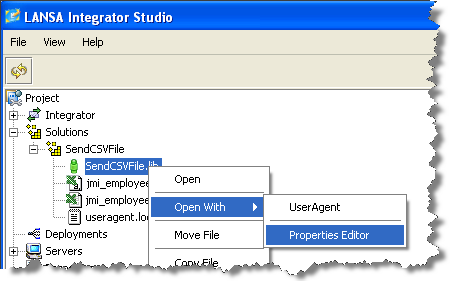
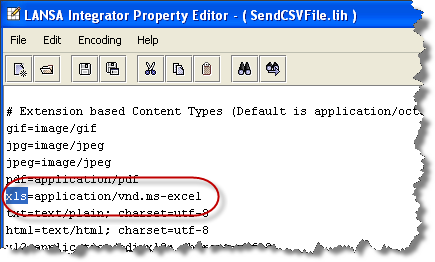
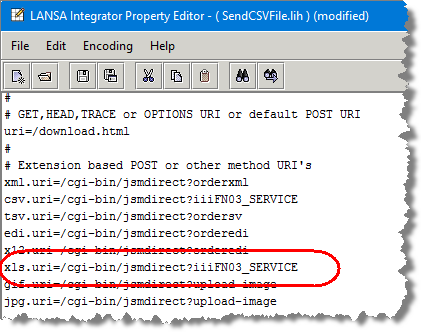
If you are using the JSM server on Windows the entry would change to:
xls.uri=/cgi-bin/jsmdirect.exe?iiiFN03_SERVICE
Add a new section to the end of the configuration file, to tell the LANSA User Agent which of the sheets in the Excel spreadsheet to read and what to convert the spreadsheet to, prior to display.
#
# Excel processing
#
excel.convert=text/comma-separated-values;charset=utf-8
excel.sheet=Sheet1
Save your changes and close the Properties Editor
As before, open the User Agent for your SendCSVFile solution, open the Excel file iii_employee_salary_amendments.xls and send it to the JSM server. The response should be the same as before.