As noted in Step 2, you may use any text editor to create XML. In this case you will use Notepad. This step illustrates how you can introduce an "external" XML to your Studio project. This XML for example could have been provided by one of your company's business partners.
In this step, since you will be writing the server function, you will now write the XML to be sent as the response, containing the department description. This file will define the server's response XML. The response simply sends back the department description. The structure of the response XML is similar to the request XML. The difference between the two is the exchanged information.
Note: You could pass the Department Code back with the Department Description. In this exercise, you will pass just one field.
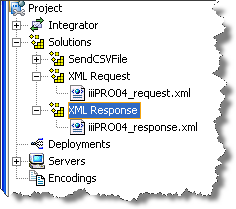
- Create an XML Response solution group. Select Solutions and using the right mouse menu select New Solution Group. Enter XML Response in the dialog and click OK.
- Start the Notepad editor in Windows. (Click on the Windows Start button, select Run, type in Notepad and click OK.)
- Type in the XML declaration as follows:
<?xml version="1.0" encoding="UTF-8"?>
- Call the root tag DepartmentResponse. The department description tag can be called DepartmentDescription. Remember to include a sample value of the information sent in the DepartmentDescription tag, for example Administration Dept. The XML should look like the following.
<?xml version="1.0" encoding="UTF-8"?>
<DepartmentResponse>
<DepartmentDescription>Administration Dept</DepartmentDescription>
</DepartmentResponse>
Save the XML response file in the new solution group XML Response. Using the File menu, select the Save As option and specify the following:
Save in | locate the XML Tutorials directory, by default c:\program files\lansa\integrator\studio\workspace\iii Training\solutions\XML Response |
File Name | iiiPRO04_response.xml |
Save as Type | All Files |
- Minimize Notepad.
- Return to your project in Studio and use the View / Refresh menu option (or F5). Your response XML is now shown in your XML Response folder.