In this step, you will use the XML Binding Wizard to create the inbound request binding iiiPRO05_request.jar which will bind the inbound XML that the server receives.
- From the Studio Project tab, select the XML List Request solution. Right click to create a New Solution, a dialog will appear.
- Select the XML Binding Wizard from the Tool dropdown.
- XML List Request should already be selected in the Group dropdown.
- Type iiiPRO05_request in the Solution File input field. Click OK.
- A new XML Binding Project panel appears. To select the source XML file, click on the Browse button. A File Open dialog will be displayed.
- Select the iiiPRO05_request.xml file and click Open to select it. Click OK and the XML Binding Wizard main window will now appear. Change the Package name to com.iiicompany.service.xml
- Check the Inbound checkbox. An Inbound tab will now appear at the bottom of the window.
- You need to map both the list of Department Codes and the ReverseString field. First, map the XML tag ReverseString to the LANSA field STD_TEXTS as follows:
- Select the Inbound tab.
- Right click on the DepartmentListRequest root tag. Select Fragment from the pop-up menu.
- Right click on ReverseString tag and select Edit from the pop-up menu (or double click on it).
- In the Field Attributes dialog, type in STD_TEXTS for the Name and click OK.
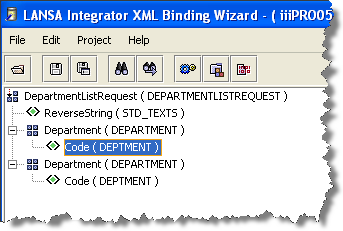
- Right click on either of the Department tags and select List. This will define both tags, as well as any sub-tags in the hierarchy, as members of a list.
- Expand the Department tags to see their sub-tags. Right click or double click on either of the Code tags to edit them.
- In the Field Attributes dialog, type in DEPTMENT for the Name and click OK. Notice how editing one of the sub-tags in the list automatically edits all occurrences of that tag in the list.
- Your XML mappings are complete. Your XML Binding should look like the following:
- Now, create the inbound request jar. Select the Project menu and choose the Build option or use the
 Build toolbar button.
 - Using the File menu, select the Save option or use the
 Save toolbar button. Click on Yes to save the project.
 - Exit the XML Binding Wizard.